
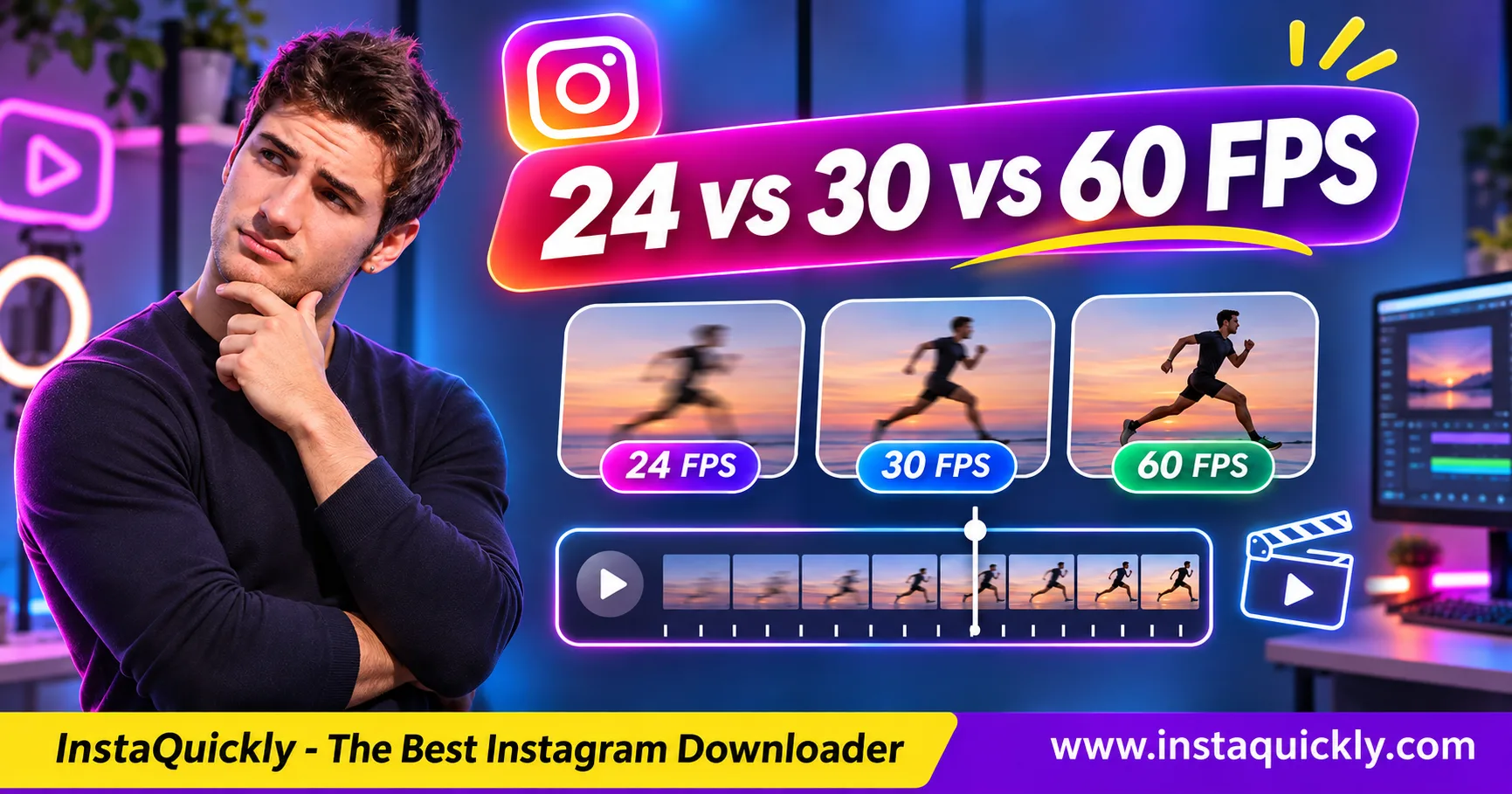
Instagram video frame rate describes how many video frames appear each second. A 24 FPS video has a cinematic look, 30 FPS offers a practical balance for most Reels, and 60 FPS can make fast movement look smoother.
However, Instagram does not guarantee that every uploaded 60 FPS video will play or download at 60 FPS. Its video processing system can create different versions for different devices and network conditions.
This guide compares 24, 30, and 60 FPS, explains why Reels sometimes look choppy, and shows how to check the actual frame rate of a downloaded Instagram MP4.
Key Takeaways
- [x] FPS means frames per second, not video resolution.
- [x] 24 FPS creates a traditional cinematic motion style.
- [x] 30 FPS is a practical default for many Instagram videos.
- [x] 60 FPS can improve fast-motion smoothness when preserved.
- [x] Instagram may process videos into different playback versions.
- [x] Downloaded FPS may differ from the original recording.
- [x] Higher FPS does not automatically mean better image quality.
- [x] Use MediaInfo or FFprobe to inspect a downloaded video's FPS.
What Is Instagram Video Frame Rate?
Instagram video FPS measures how many frames a video displays per second. More frames can make motion appear smoother, but frame rate works together with shutter speed, bitrate, resolution, and playback performance.
How Does FPS Affect Motion?
A video is made from a sequence of still images.
At 24 FPS, a video contains approximately 24 frames for each second. At 60 FPS, it contains about 60 frames.
Consider someone moving their hand across the screen.
A 60 FPS recording can show more intermediate hand positions than a 24 FPS recording.
This can make movement look smoother and easier to follow.
However, frame rate cannot fix poor lighting, incorrect focus, or motion blur already present in the recording.
Is FPS the Same as Resolution or Bitrate?
No. These three measurements describe different parts of video quality.
- Frame rate: How many frames appear each second.
- Resolution: How many pixels each frame contains.
- Bitrate: How much encoded data the video uses per second.
For example, a 1080p video at 30 FPS may look sharper than a heavily compressed 1080p video at 60 FPS.
Higher FPS increases the amount of motion information, but it does not guarantee better detail.
Instagram 24 vs 30 vs 60 FPS: Which Is Better?
For most Instagram content, 30 FPS is a practical starting point. Choose 24 FPS for a cinematic style and 60 FPS for fast action when your recording and editing workflow can preserve the extra frames.
Frame Rate Comparison Table
| Feature | 24 FPS | 30 FPS | 60 FPS |
|---|---|---|---|
| Frames per second | 24 | 30 | 60 |
| Motion appearance | Cinematic | Smooth for everyday use | Smoother fast motion |
| Fast action detail over time | Lower | Medium | Higher |
| Typical use | Film-style clips | Tutorials and talking videos | Sports and fast movement |
| Data needed at similar quality | Often lower | Moderate | Often higher |
| Guaranteed after Instagram processing | No | No | No |
| Can produce smooth slow motion at 30 FPS | Limited | Limited | Yes, at 0.5x |
These differences describe source video characteristics, not guaranteed Instagram playback settings.
When Should You Record at 24 FPS?
Use 24 FPS when you want a film-like appearance.
It can work well for:
- Cinematic travel scenes.
- Slow camera movements.
- Creative short films.
- Carefully planned visual storytelling.
Fast camera movement may look less smooth at 24 FPS.
Avoid rapid horizontal panning if you want a comfortable cinematic result.
Why Is 30 FPS a Good Default?
Instagram 30 FPS vs 60 FPS is mainly a question of motion, file size, and delivery quality.
At 30 FPS, you can create smooth-looking talking videos, product demonstrations, and many tutorials without recording twice as many frames as 60 FPS.
It is also a convenient editing target.
If the original footage already looks good at 30 FPS, converting it to 60 FPS will not create genuine new camera frames.
When Does 60 FPS Make a Difference?
Instagram Reels 60fps vs 30fps matters most when the video contains quick movement.
Examples include:
- Sports action.
- Dance routines.
- Rapid hand movements.
- Moving vehicles.
- Fast camera motion.
A 60 FPS recording can also produce smooth 0.5x slow motion on a 30 FPS timeline.
However, this benefit depends on the original footage containing real, distinct frames.
A 30 FPS recording exported at 60 FPS may simply repeat frames or generate synthetic ones.
Does Instagram Support 60 FPS or Limit Videos to 30 FPS?
Instagram can process video sources at different frame rates, but 60 FPS upload support does not guarantee 60 FPS delivery or downloads. The final playback version may depend on platform processing, available encodings, device compatibility, and network conditions.
Does Instagram Always Convert 60 FPS to 30 FPS?
No universal rule can be confirmed for every Instagram video.
Meta's encoding system generates multiple versions of uploaded videos for adaptive delivery.
These versions can differ in frame rate, codec, resolution, and image quality.
Meta explains this process in its official technical overview of FFmpeg video processing.
This means a source recorded at 60 FPS may not always reach every viewer in exactly the same format.
Likewise, finding a 30 FPS download does not prove the creator originally recorded at 30 FPS.
Why Would Instagram Change a Video's Frame Rate?
Video processing needs to balance image quality, smoothness, device support, and playback reliability.
Possible reasons for frame-rate changes include:
- Different playback-device capabilities.
- Encoding and delivery requirements.
- Source-video compatibility.
- Processing choices for particular versions.
- Performance or bandwidth constraints.
These are general technical factors, not proof that Instagram applies one fixed FPS policy to every Reel.
The specific version delivered to one viewer may differ from another version.
What FPS Should Creators Export?
For ordinary Instagram Reels, start with 30 FPS if your source footage uses 30 FPS.
For 24 FPS footage, keep 24 FPS when preserving the original visual style matters.
For genuine 60 FPS action footage, keep 60 FPS in your master if you want to retain that motion information.
Do not convert frame rates unnecessarily.
Before publishing, check that your exported MP4 plays smoothly and contains the expected duration.
How to Check Instagram Video FPS After Downloading
To check Instagram video FPS, save an authorized MP4 and inspect it with a media information tool. Look for the reported frame rate, codec, resolution, and frame-rate mode. These properties describe the downloaded file, not necessarily the original upload.
Download a Video for Technical Inspection
- Open the public Instagram Reel or video.
- Confirm you have permission to download it.
- Copy the post URL.
- Open the Instagram Reels downloader for public clips.
- Paste the link and save the available MP4.
- For a supported regular video post, use the Instagram video downloader for public posts.
- Open the downloaded file and verify playback.
InstaQuickly provides available media from supported public Instagram posts.
It does not guarantee original camera footage or preservation of the source frame rate.
Check FPS with MediaInfo
- Open MediaInfo on your computer.
- Select your downloaded Instagram MP4.
- Switch to a detailed information view.
- Find the video stream.
- Look for Frame rate and Frame rate mode.
- Record the resolution and video codec.
- Compare the results with your original source if available.
MediaInfo may display values such as 29.970 FPS or 59.940 FPS.
These are normal video frame rates, not necessarily errors.
Check FPS with FFprobe
FFprobe can inspect the video stream without converting the file.
Run:
ffprobe -v error -select_streams v:0 -show_entries stream=codec_name,width,height,r_frame_rate,avg_frame_rate -of default=noprint_wrappers=1 input.mp4
Example output:
codec_name=h264
width=1080
height=1920
r_frame_rate=30/1
avg_frame_rate=30/1
This example represents a file reporting 30 FPS.
For variable-frame-rate files, r_frame_rate and avg_frame_rate may differ.
The reported average does not describe every frame's exact timing.
To learn why downloaded file metadata may differ from original information, read how Instagram downloads preserve technical metadata.
Why Do Instagram Videos Look Choppy or Less Smooth?
Why Instagram videos look choppy is not always a frame-rate problem. A video can report 60 FPS but still show repeated frames, unstable timestamps, motion blur, or playback interruptions.
Common Causes of Choppy Playback
| Symptom | Possible Cause | What to Check |
|---|---|---|
| Jerky motion throughout | Low source FPS or repeated frames | Original recording |
| Uneven movement | Variable frame timing | Frame timestamps |
| Freezing during streaming | Network or buffering problems | Local MP4 playback |
| Choppy only on one phone | Decoder or device performance | Another player or device |
| Blurry motion | Long shutter exposure | Original camera footage |
| Audio and video drift apart | Timing or conversion problem | Audio/video timestamps |
| 60 FPS file looks like 30 FPS | Duplicated frames | Frame-by-frame inspection |
A stable 30 FPS video can look better than a poorly processed 60 FPS video.
Can You Fix Choppy Video by Exporting at 60 FPS?
Not automatically.
If the source has only 30 distinct frames per second, exporting it at 60 FPS does not recover missing camera frames.
A conversion may duplicate existing frames.
Motion interpolation can create estimated intermediate frames, but those are not original captured images and may contain visual errors.
For videos you own, check the source recording before changing the export frame rate.
Does Slowing Down a Reel Improve Smoothness?
Slowing down a video helps you inspect movement, but it does not add missing frame detail.
For example, playing a 30 FPS clip at 0.5x makes it easier to follow the action, but the player must display the available frames over a longer period.
A genuine 60 FPS recording can provide more distinct frames for a smooth 0.5x result at 30 FPS.
For playback-only controls, see how to slow down downloaded Instagram videos.
How to Preserve Frame Rate When Editing Instagram Videos
To avoid unwanted Instagram frame rate conversion, keep the original recording as your master and use a consistent editing timeline. Export at the source frame rate unless your project has a clear technical reason to change it.
A Practical Editing Workflow
- Check the source video's FPS.
- Create a timeline matching the main footage.
- Avoid mixing 24, 30, and 60 FPS without planning.
- Review fast movements frame by frame.
- Choose an appropriate export frame rate.
- Save a separate final MP4.
- Inspect its FPS with MediaInfo or FFprobe.
- Compare motion before and after export.
When mixing footage, your editor may drop, repeat, or interpolate frames to match the timeline.
These choices can affect motion smoothness.
Is Higher Bitrate Needed for 60 FPS?
Often, yes, when you want similar visual quality per frame.
A 60 FPS video contains more frames per second than a 30 FPS video.
However, bitrate requirements also depend on movement, codec efficiency, resolution, and compression settings.
Doubling FPS does not create a universal requirement to double bitrate.
For an authorized video that already looks smooth, unnecessary conversion can cause more harm than benefit.
Frequently Asked Questions About Instagram Video Frame Rate
What is the best Instagram video frame rate?
30 FPS is a practical default for many Reels. Choose 24 FPS for a cinematic style or genuine 60 FPS for fast action when you want to preserve smoother source motion.
Does Instagram support 60 FPS videos?
Instagram can process videos with different frame rates. However, a 60 FPS upload does not guarantee every playback or downloaded version will remain at 60 FPS.
Does Instagram convert every video to 30 FPS?
No universal 30 FPS rule is confirmed for all content. Meta's video system can generate different versions, including versions with different frame rates.
Why is my downloaded Instagram Reel only 30 FPS?
You may have downloaded a 30 FPS delivery version. The original recording could have a different frame rate, which the downloaded file alone cannot prove.
Is 60 FPS always better than 30 FPS?
No. 60 FPS can improve fast-motion smoothness, but 30 FPS may offer better results when bitrate is limited or the source contains little movement.
How can I check the frame rate of an Instagram MP4?
Open the downloaded file with MediaInfo or inspect it using FFprobe. Check the video stream's frame-rate fields and compare them with your original recording when available.
Why does a 60 FPS Instagram video still look choppy?
The file may contain repeated frames, unstable timing, motion blur, or decoder problems. A reported 60 FPS value does not guarantee 60 unique captured frames every second.
Can I convert a 30 FPS Instagram video to 60 FPS?
Yes, but conversion cannot recover original frames that were never captured. Standard conversion may duplicate frames, while interpolation creates estimated frames.
Conclusion: Choose FPS Based on Motion, Not Just a Bigger Number
Instagram video frame rate affects how smoothly movement appears, but it does not determine overall video quality by itself. Use 24 FPS for cinematic footage, 30 FPS for many everyday Reels, and genuine 60 FPS when fast motion needs more detail over time.
Remember that Instagram may create different playback versions, so a downloaded MP4 may not match the creator's original FPS. Inspect the file with MediaInfo or FFprobe before making technical assumptions.
For supported public Instagram videos, use InstaQuickly to save an available MP4, then check its actual frame rate locally.
Download, inspect, and reuse Instagram media only when you have permission or another valid legal basis. Respect copyright, creator rights, music licensing, and privacy restrictions.
InstaQuickly is independent and is not affiliated with or endorsed by Instagram or Meta.