
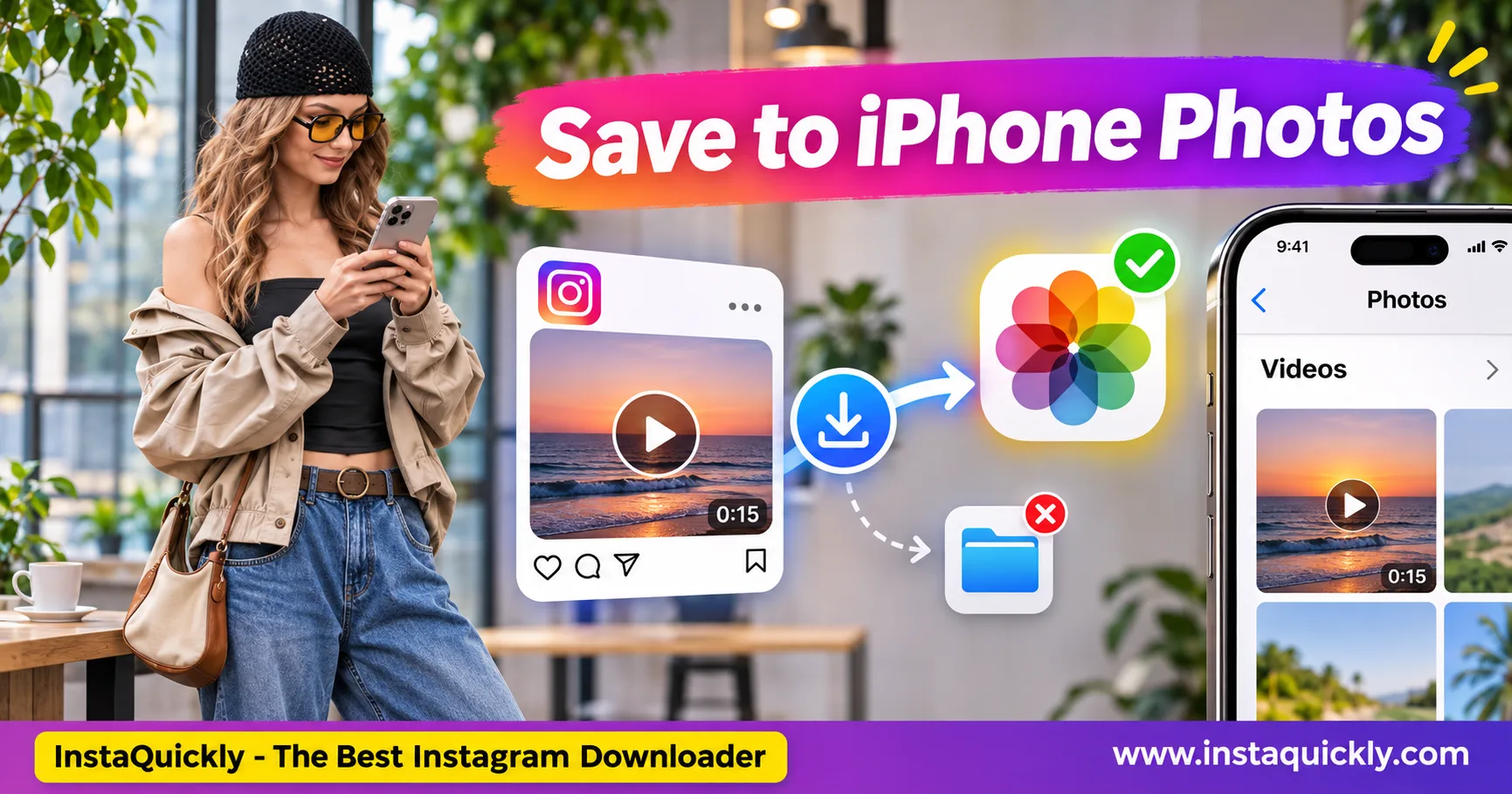
Want to save Instagram video to iPhone Photos instead of searching through the Files app? Download the video using Safari, open Files > Downloads, tap the MP4 file, and select Share > Save Video. Your video should then appear in the Photos app if iOS supports its format.
Safari usually stores internet downloads in Files, not directly in your camera roll. This can confuse users who expect their Instagram videos and Reels to appear automatically in Photos.
This guide explains how to move downloaded videos into your iPhone photo library, change Safari download settings, and fix missing Save Video options using InstaQuickly.
Quick Answer: How Do You Save Instagram Videos to iPhone Photos?
To save Instagram video to iPhone Photos, download an accessible public video as an MP4, open the Files app, locate the download, and tap Share > Save Video. Check the Photos app to confirm the video appears in your library.
Follow these steps:
- Open Safari and download an Instagram video.
- Launch the Files app on your iPhone.
- Tap Browse > Downloads.
- Find and open the downloaded MP4.
- Tap the Share icon.
- Select Save Video.
- Open Photos and check your recently saved items.
If Save Video does not appear, check the file format and try opening the video before sharing it.
The process works on compatible iPhone models and iOS versions, although menu locations may vary.
Why Do Instagram Videos Save to Files Instead of Photos?
An instagram video saved to files not photos issue usually happens because Safari treats downloaded MP4 videos as regular files.
The Files app manages documents, downloaded media, and folders. The Photos app manages your photo and video library.
These apps use different storage workflows, so downloading a video does not always add it to Photos.
What Is the Difference Between Files and Photos on iPhone?
| Feature | Files App | Photos App |
|---|---|---|
| Main purpose | Manage documents and downloads | Manage photos and videos |
| Safari downloads | Supported | Not automatic |
| MP4 storage | Supported | Supported when compatible |
| Video editing | Limited file operations | Built-in video editing |
| Camera roll access | No | Yes |
| Album organization | Folders | Albums and collections |
| Direct access in photo editors | Varies by app | Commonly supported |
Files is useful for managing downloaded videos before importing them into your photo library.
Photos is more convenient when you want to watch, organize, edit, or share videos alongside your camera recordings.
Where Are Instagram Downloads on iPhone?
Most Safari downloads appear in the Downloads folder inside iCloud Drive or On My iPhone, depending on your settings.
To find them:
- Open Files.
- Tap Browse.
- Select iCloud Drive or On My iPhone.
- Open Downloads.
- Search for the downloaded video.
You can also return to Safari and open its Downloads list to locate a recently downloaded file.
Apple provides an official guide to finding downloaded files on iPhone.
How to Download Instagram Videos on iPhone Using Safari
Use a browser-based downloader to save accessible public Instagram videos without installing an additional application.
InstaQuickly offers a free online workflow that supports compatible iPhone browsers and available MP4 formats.
How Do You Download an Instagram Video with InstaQuickly?
Follow these steps to complete an instagram video download iphone photos workflow.
- Open the Instagram app on your iPhone.
- Find the public video you want to download.
- Tap Share and select Copy Link.
- Open Safari.
- Visit the Instagram video downloader for iPhone Safari.
- Paste the Instagram URL into the input field.
- Tap Download.
- Choose an available MP4 video option.
- Save the file to your iPhone.
InstaQuickly does not require your Instagram password or a separate downloader app.
Available resolutions depend on the original media. HD or 1080p files may be available when the source supports them.
Where Does Safari Save the Downloaded MP4?
Safari usually places downloaded files in the Downloads folder defined in its settings.
After downloading:
- Open Safari's Downloads list.
- Locate the completed MP4.
- Tap the file to preview it.
- Use the Share option if available.
- Select Save Video to add it to Photos.
If the file opens in Files instead, use the next method to import it into your photo library.
How to Move Instagram Videos from Files to Photos
The easiest way to move instagram video from files to photos is to use the iPhone Share menu.
This method does not require another downloader, cloud storage service, or computer.
How Do You Transfer a Downloaded MP4 into Photos?
- Open the Files app.
- Tap Browse.
- Navigate to Downloads.
- Find your Instagram MP4 file.
- Tap the file to open its preview.
- Tap the Share icon.
- Scroll through the available actions.
- Select Save Video.
- Open Photos to confirm the import.
If Save Video appears directly when you long-press the file and open Share, you can use that shortcut instead.
The original file may remain in Files after you save a copy to Photos.
Avoid deleting the original until you confirm that the imported video plays correctly.
Can You Save Multiple Instagram Videos to Photos at Once?
You can try importing several compatible videos using the Files app's selection and sharing controls.
- Open Files > Downloads.
- Tap the More menu and choose Select.
- Select the MP4 videos you want to import.
- Tap Share.
- Look for Save Video or another compatible save action.
- Open Photos to check the results.
The available actions depend on the selected files and your iOS version.
If a batch contains unsupported media, import each file separately to identify the problem.
For content creators, organizing approved reference videos in folders before importing them can make editing projects easier to manage.
How to Save Instagram Reels to Your iPhone Camera Roll
To save instagram reels to camera roll, first download a supported public Reel, then import its MP4 file from Files into Photos.
The same basic process works for standard Instagram video posts.
How Do You Save Downloaded Reels to the iPhone Gallery?
If you want to know how to save downloaded reels to gallery iphone, follow these steps:
- Copy the URL of a public Instagram Reel.
- Download an available MP4 using a compatible downloader.
- Open Files > Downloads.
- Find the Reel video.
- Tap Share > Save Video.
- Open Photos and locate the imported Reel.
Some public Reels offer an Instagram-native download option. Its availability depends on creator settings and Instagram's current features.
A native Instagram download may already appear in Photos, so check your library before repeating the process.
Audio availability, quality, and branding depend on the original video and download method.
How to Change Safari Download Settings on iPhone
Safari lets you choose where downloaded files go. However, changing the Downloads location does not automatically import every downloaded MP4 into Photos.
Use these settings when you want easier access to your files.
Can You Make Safari Save Videos Directly to Photos?
Not through the standard Safari Downloads location setting.
Safari offers file destinations such as iCloud Drive, On My iPhone, and other supported folders. Photos is not a standard Safari Downloads folder.
To change the location:
- Open Settings.
- Tap Apps > Safari.
- Select Downloads.
- Choose On My iPhone or iCloud Drive.
- Return to Safari and download your video.
On some older iOS versions, Safari appears directly in the main Settings list.
Selecting On My iPhone keeps future downloads in local file storage. It does not make Safari save every video directly to Photos.
See Apple's guide to customizing Safari download storage settings.
Can You Save a Safari Video to Photos Without Files?
Sometimes, yes.
If Safari opens a compatible video directly in a player or preview, the Share menu may offer Save Video.
Try these steps:
- Open the video in Safari.
- Tap the Share icon.
- Look for Save Video.
- Select it if available.
- Check Photos for the imported video.
Some websites force a file download instead of opening a video preview.
When that happens, download the MP4 first and import it through Files.
Why Is an Instagram Video Not Appearing in iPhone Photos?
An iphone instagram video not appearing in photos problem usually means the file remains in Downloads, the import did not finish, or iOS cannot import the file.
Check the original MP4 before downloading it again.
How Do You Fix a Missing Save Video Option?
The Save Video action may disappear when iOS does not recognize the file as a compatible video.
Try these fixes:
- Confirm that the download completed.
- Check whether the file has an MP4 extension.
- Open the video and test playback.
- Tap Share from the video preview.
- Scroll through the available share actions.
- Try another compatible source file if the option remains missing.
Do not assume every file ending in .mp4 is compatible.
MP4 is a container format. The video and audio codecs inside it also affect whether iOS can play and import the file.
What If the Downloaded MP4 Cannot Play?
If your safari downloaded video to photos process fails, inspect the downloaded file first.
| Problem | Possible Cause | Recommended Fix |
|---|---|---|
| Save Video missing | Unsupported video format or codec | Try a compatible MP4 |
| File will not open | Incomplete or damaged download | Download the source again |
| Video appears only in Files | Not imported into Photos | Use Share > Save Video |
| Video missing after import | Different library view or date sorting | Check Recently Saved or search |
| Download stops early | Network or storage problem | Check connection and storage |
| No video found by downloader | Unavailable or restricted source | Verify the public Instagram link |
For broad downloader errors, follow these practical Instagram video download troubleshooting tips.
You can also test playback using a trusted media player, but successful playback in another app does not guarantee Photos can import the file.
How Do You Find a Video After Saving It to Photos?
Open Photos and check your recently saved items or search for the video.
Depending on your Photos layout, you may find a Recently Saved collection under Utilities.
You can also check your video collection, search by date, or browse your library.
Imported media does not always appear where you expect when the file contains an older creation date.
If you cannot find the video, return to Files and repeat Share > Save Video. Check for an error message during import.
How to Save MP4 Videos to iPhone Photos Without Losing Quality
To save mp4 to iphone camera roll with minimal quality changes, download a suitable source file and use the native Save Video action.
Importing a compatible MP4 into Photos does not automatically improve its resolution or restore details removed during compression.
For better results:
- Choose an available HD source when possible.
- Confirm the video plays before importing.
- Avoid unnecessary export and re-encoding steps.
- Keep the original MP4 for backup.
- Check video quality in Photos after importing.
An MP4 file may contain H.264 or HEVC video, among other formats. Compatibility depends on the codec profile, audio format, and iPhone software.
A file marked 1080p is not automatically higher quality than another 1080p file. Bitrate and source compression also matter.
Should Creators Keep Videos in Files or Photos?
Use Files when you need to organize original assets in folders or transfer them to other devices.
Use Photos when you want quick access to videos through your iPhone gallery, supported editors, and sharing tools.
For marketing or creative work, keep an authorized original copy in Files before making edits.
If you also work with image-based Instagram content, try the Instagram photo downloader for image posts.
For accessible saved Story collections, use the tool for downloading Instagram Story Highlights.
Both tools offer browser-based downloads for supported public media.
Frequently Asked Questions About Saving Instagram Videos to iPhone Photos
Why do Instagram downloads go to Files instead of Photos?
Safari usually treats MP4 downloads as regular files and saves them to its configured Downloads folder.
Open Files, find the video, and select Share > Save Video to import a compatible file into Photos.
How do I save an Instagram video directly to my iPhone camera roll?
If a supported video preview offers Save Video in its Share menu, tap that option.
Otherwise, download the MP4 into Files and use Share > Save Video. Safari's standard Downloads setting does not offer Photos as a destination.
Why is the Save Video option missing from my iPhone?
The file may use an unsupported codec, contain incomplete data, or lack a compatible video stream.
Check playback, confirm the download completed, and try sharing from the video preview. Use another compatible file if necessary.
Can I move Instagram videos from iCloud Drive to Photos?
Yes. Open Files > iCloud Drive, find the downloaded video, and tap Share > Save Video.
The video must be accessible on your device and compatible with Photos. Check that it has finished downloading from iCloud before importing it.
Will saving an MP4 to Photos reduce video quality?
A standard import does not automatically mean your video loses quality.
However, later editing, exporting, or sharing may change compression or resolution. Keep the original MP4 if you need a source-quality backup.
Can I save Instagram Reels to Photos without an extra app?
Yes. Use Instagram's native download option when available, or download a supported public Reel in Safari and import it from Files.
You do not need a separate file-management application for the normal Files-to-Photos workflow.
Is it safe to download Instagram videos using InstaQuickly on iPhone?
InstaQuickly supports browser-based downloads of accessible public Instagram media without requiring your Instagram password.
Use its official website, avoid unknown download prompts, and verify the source before saving files.
Save public videos for offline personal research and educational purposes only, unless you have permission or another legal right for additional uses.
Conclusion: Save Instagram Videos to Photos in a Few Steps
To save Instagram video to iPhone Photos, start by downloading an accessible public MP4 through Safari. Open Files > Downloads, select the video, and tap Share > Save Video.
This simple process moves a compatible video into your iPhone photo library without installing a separate file-management app.
If the video does not appear, check the download location, file compatibility, and Photos library before trying again.
With InstaQuickly, you can find available public Instagram video files through your browser, then organize permitted downloads in Files or Photos.
Download public Instagram videos with InstaQuickly and save compatible clips to your iPhone photo library.
InstaQuickly is an independent service and is not affiliated with or endorsed by Instagram or Meta.