
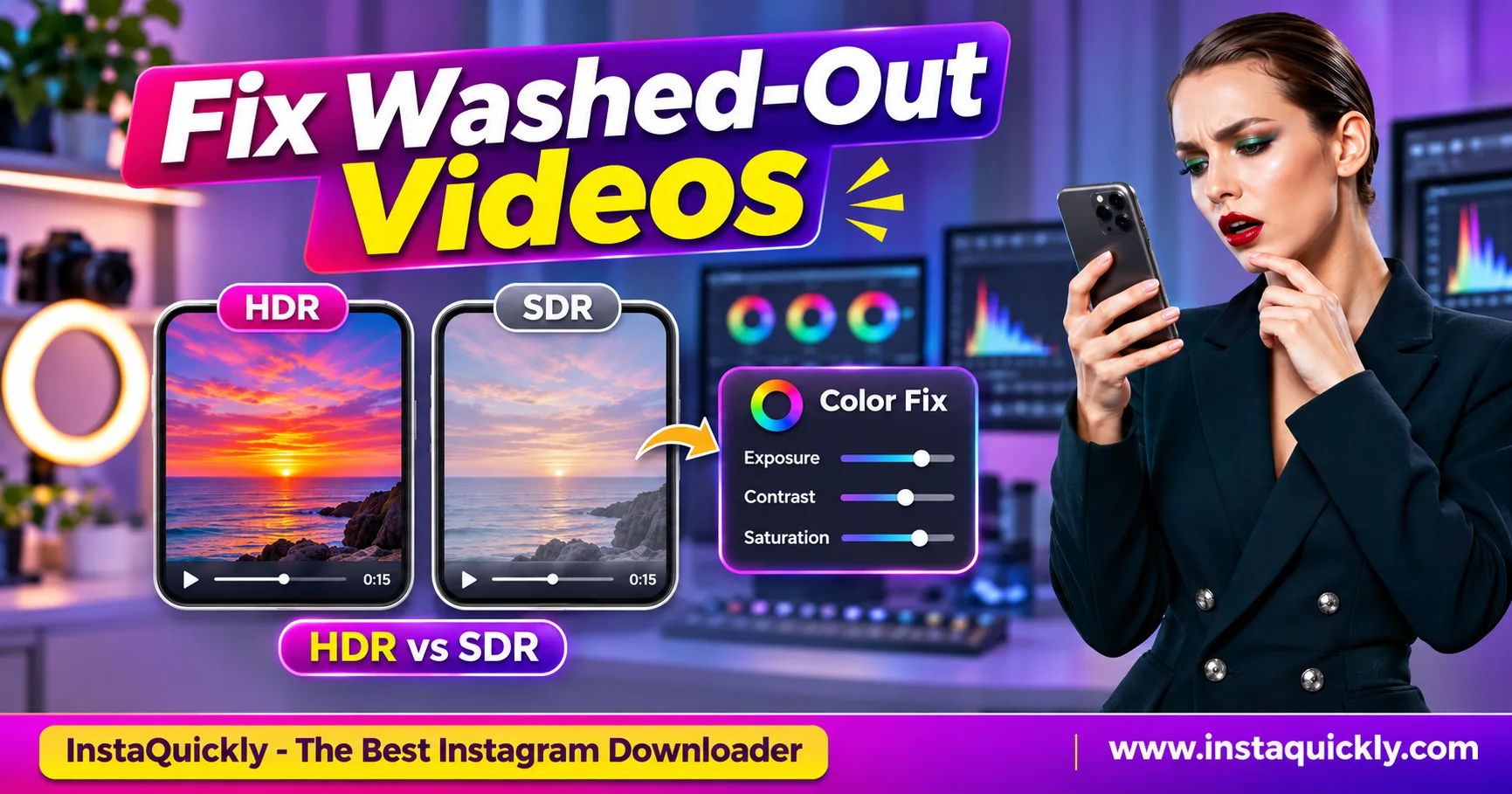
If your Instagram video washed out after download looks faded, too bright, or less colorful than the original Reel, the problem may involve HDR playback, incorrect tone mapping, or color space metadata. A downloaded HDR video can look different when a player or display does not handle its colors correctly.
Start by opening the MP4 in another video player and comparing it with Instagram playback. If the colors look normal elsewhere, the file may be fine.
This guide explains HDR vs SDR, Rec.709, Rec.2020, HLG, and PQ in simple terms. You will also learn how to identify color problems and fix them on iPhone, Android, and Windows.
Why Do Downloaded Instagram Videos Look Washed Out?
Instagram video colors washed out usually means the saved video appears pale, gray, too bright, or low in contrast. One possible cause is an HDR video playing in an SDR environment without proper color conversion. However, the source video, encoding, and display settings can also affect its appearance.
Why Does the Video Look Normal on Instagram but Faded After Downloading?
Instagram uses its own video processing and playback systems.
A local MP4 depends on the media player, operating system, and display.
For example:
- Instagram may play an HDR version on a compatible phone.
- Your computer may use a player without proper HDR support.
- The player may interpret the video's color metadata incorrectly.
- The saved file may be an SDR version of the original HDR upload.
These situations can produce different-looking images from the same Reel.
An Instagram video color difference after download does not automatically mean the downloader damaged the file.
Why Is My Downloaded Instagram Video Too Bright?
A downloaded Instagram video too bright problem can occur when the player handles HDR brightness incorrectly.
HDR video can contain highlight information beyond the normal SDR range.
Without suitable tone mapping, bright areas may look overexposed.
For example, a sunny sky may turn almost white, while skin tones appear unusually bright.
The opposite can also happen.
Incorrect conversion may make the entire image darker or reduce contrast.
Does Instagram Compress Video Colors?
Instagram processes uploaded video into versions suitable for different devices and network conditions.
This can involve changes to:
- Resolution.
- Bitrate.
- Codec.
- Dynamic range.
- Color representation.
Compression may introduce visible artifacts, especially in gradients and detailed areas.
However, strong color shifts are not always caused by low bitrate.
A 1080p video with a high bitrate can still display incorrect colors when its HDR information is interpreted badly.
Instagram HDR vs SDR Video: What Is the Difference?
The main difference between Instagram HDR vs SDR video is the range of brightness and color the video can represent. HDR can preserve brighter highlights and more detailed dark areas, while SDR targets a more widely supported brightness range.
Both can look excellent when recorded and displayed correctly.
What Is HDR Video?
HDR stands for High Dynamic Range.
It can represent a wider range of brightness than standard SDR video.
Depending on the format, HDR may also use a wider color gamut.
This can help preserve:
- Bright clouds.
- Sunset highlights.
- Dark shadows.
- Detailed reflections.
- Bright lights against dark backgrounds.
However, HDR requires compatible processing and playback.
An HDR file does not automatically look better on every screen.
What Is SDR Video?
SDR stands for Standard Dynamic Range.
Most conventional video workflows use SDR with Rec.709 color characteristics.
SDR is widely supported by phones, computers, browsers, and editing applications.
A properly converted SDR video can look natural on a normal display.
An incorrectly converted HDR video may look worse than a well-produced SDR version.
For everyday sharing, SDR is often the simpler compatibility choice.
HDR vs SDR Technical Comparison
| Feature | HDR Video | SDR Video |
|---|---|---|
| Full name | High Dynamic Range | Standard Dynamic Range |
| Brightness range | Wider | More limited |
| Typical color standard | Often Rec.2020 signaling | Commonly Rec.709 |
| Common transfer functions | PQ or HLG | BT.709-related SDR transfer |
| Common bit depth | Often 10-bit | Commonly 8-bit |
| Compatible display required for full benefit | Yes | No special HDR display |
| Tone mapping needed for SDR playback | Usually Yes | No |
| Risk of incorrect color conversion | Yes | Lower |
| Works with MP4 | Yes | Yes |
| Best use | Compatible HDR workflows | Broad device compatibility |
These are common technical characteristics, not mandatory settings for every Instagram video.
An MP4 file can contain either HDR or SDR video.
The filename alone cannot identify its dynamic range.
What Are Rec.709, Rec.2020, HLG and PQ?
These terms describe different parts of video color reproduction.
- Rec.709: A widely used SDR video color standard.
- Rec.2020: A wider color gamut commonly associated with HDR video.
- HLG: Hybrid Log-Gamma, an HDR transfer function.
- PQ: Perceptual Quantizer, another HDR transfer function.
- Tone mapping: A process that adapts HDR brightness and colors for a smaller display range.
For example, converting Rec.2020 HDR content to Rec.709 SDR requires more than changing the video's filename.
The conversion must handle brightness, transfer functions, and color gamut correctly.
What Does Meta Say About HDR Video?
Meta has documented the technical challenges of displaying HDR Reels on devices with different capabilities.
Its engineering team explains that incorrect HDR processing can produce washed-out colors, excessive brightness, and unnatural-looking images.
The company also describes server-side HDR-to-SDR tone mapping to support devices that cannot display HDR correctly.
Read Meta's official engineering explanation of HDR Reels for the underlying technical details.
This supports an important distinction: the problem may come from color conversion or playback, not simply from downloading an MP4.
How to Identify Why Your Instagram Video Colors Look Wrong
To diagnose a downloaded Instagram video color problem, compare the same MP4 across different players and screens. Then inspect its codec, color metadata, and brightness behavior. This helps you distinguish an HDR compatibility issue from a damaged or incorrectly exported video.
Step 1: Compare the Download with Instagram Playback
- Open the original Reel in Instagram.
- Find a frame with clear colors.
- Note its brightness and contrast.
- Open your downloaded MP4.
- Pause at the same scene.
- Compare skin tones, shadows, and highlights.
- Check whether the difference affects the entire video.
Look for specific symptoms:
- Pale or gray colors.
- Very bright skin tones.
- Missing highlight detail.
- Dark shadows with little detail.
- Unnatural green or purple tones.
Do not judge only by the brightness of two different screens.
Step 2: Try Another Video Player
- Open the MP4 in your default video player.
- Check a familiar scene.
- Open the same file in another trusted player.
- Compare the results.
- Test the file on another device if possible.
- Record which player shows the correct colors.
If one player looks normal and another looks faded, the file may contain valid color information that one player handles incorrectly.
In that case, changing the player is often better than re-encoding the video.
Step 3: Inspect the Video's Color Metadata
Use a trusted media-inspection tool that can display color properties.
Look for:
- Video codec.
- Bit depth.
- Color primaries.
- Transfer characteristics.
- Color matrix.
- HDR metadata.
- Resolution.
For example, an HDR video might report:
Color primaries: BT.2020
Transfer: SMPTE ST 2084
Bit depth: 10-bit
The ST 2084 transfer characteristic indicates PQ-based HDR signaling.
Another HDR file may use HLG.
These values are clues, but proper interpretation depends on the complete media metadata and encoding.
Step 4: Check Whether the File Is Already SDR
Not every downloaded Reel contains HDR.
Instagram may provide an SDR rendition even when the original upload used HDR.
For example, the downloaded MP4 might report Rec.709 color characteristics.
If the file is already SDR, another HDR-to-SDR conversion is unnecessary.
Look instead at:
- Player settings.
- Monitor color profiles.
- Incorrect export settings.
- Existing compression damage.
- Source footage quality.
Converting SDR video as though it were HDR can create new color problems.
How to Fix Washed-Out Instagram Videos on iPhone and Android
An Instagram video washed out iPhone problem may involve HDR playback differences between Instagram, Photos, and other applications. On Android, the issue may depend on the device's HDR support, video decoder, or player.
Start with playback checks before converting the file.
How to Fix Faded Instagram Videos on iPhone
- Open the downloaded MP4 in Photos.
- Compare it with playback inside Instagram.
- Check whether your iPhone supports the video's HDR format.
- Test the same file in another trusted video player.
- Temporarily check display-related settings that may affect brightness.
- Update iOS and the playback application.
- Restart the player.
- Test the video again.
If the file looks correct in Photos but faded in another app, the second application may be handling HDR differently.
Avoid changing the original video until you confirm the problem is inside the file.
Does iPhone HDR Recording Affect Instagram Reels?
Yes.
Compatible iPhones can record HDR video, including formats that use Dolby Vision information.
This can preserve a wider brightness range during recording.
However, software that does not fully support the video's HDR information may display different colors.
For your own recordings, keep the original iPhone video.
If you need broad compatibility, create a separate SDR export through a color-managed editor.
Do not overwrite your HDR master.
How to Fix Washed-Out Instagram Videos on Android
- Open the video in your default Gallery application.
- Check whether the device supports HDR video playback.
- Open the MP4 in another trusted player.
- Compare brightness and colors.
- Check whether the display has an unusual color mode enabled.
- Update Android and your video player.
- Test the same file on another device.
- Consider an SDR export only if compatibility remains a problem.
Different Android devices may support different HDR formats and decoding capabilities.
A file that looks correct on one phone may look faded on another.
That does not automatically prove the video is corrupted.
Why Does an Instagram Video Look Faded on Windows or Mac?
An Instagram video looks faded on PC when the player, operating system, monitor, or color-management settings interpret the video's colors differently from Instagram playback. HDR files can be especially sensitive to these differences.
A proper diagnosis starts with the entire display chain.
How to Fix Washed-Out Instagram Videos on Windows
- Open the downloaded MP4.
- Test it in another trusted video player.
- Check whether your monitor supports HDR.
- Review Windows HDR display settings.
- Confirm that the correct monitor is selected.
- Test with and without HDR display mode when appropriate.
- Check the video's color metadata.
- Compare it on a compatible phone or monitor.
Windows HDR settings can affect how SDR and HDR content appear.
However, enabling HDR does not guarantee correct results if the display or media player lacks proper support.
Do not repeatedly change monitor color settings just to fix one video.
How to Fix Faded Videos on Mac
- Open the MP4 in QuickTime Player.
- Compare it with another trusted player.
- Check the connected display's HDR capabilities.
- Review display color settings.
- Inspect the video's color metadata.
- Compare the result on another compatible screen.
- Export an SDR copy if necessary.
A Mac with an HDR-capable display may render video differently from a standard external monitor.
The player also matters.
Keep the original file and create a separate compatibility version when needed.
Why Does the Browser Show Different Colors?
Browsers can use different video-decoding and color-management paths.
For example, the same MP4 may look different in a browser and a desktop player.
A browser may also display an SDR rendition while Instagram's mobile app plays HDR.
The two applications are not necessarily displaying identical video encodings.
Compare the actual file's color metadata before assuming that one screenshot proves a download error.
How to Convert Instagram HDR to SDR Without Losing Natural Colors
A proper Instagram HDR to SDR conversion adapts HDR brightness and color information for SDR playback. It should use tone mapping and color-space conversion rather than simply reducing brightness or changing metadata labels.
For the best result, work from footage you own or have permission to edit.
Step-by-Step: Convert Your Own HDR Video to SDR
- Locate the original HDR video or the highest-quality authorized source.
- Create a backup copy.
- Import it into an HDR-aware video editor.
- Inspect the source color space and transfer function.
- Configure the editor's color-management settings.
- Select an SDR output color space, commonly Rec.709.
- Apply an appropriate HDR-to-SDR tone-mapping method.
- Review bright highlights and dark shadows.
- Check skin tones and saturated colors.
- Export a new SDR MP4.
- Play it on an ordinary SDR display.
- Compare it with the original HDR version.
A color-managed editor can help preserve a natural appearance.
However, conversion may still lose some HDR highlight detail because SDR supports a smaller display range.
Can CapCut, Premiere Pro or Canva Fix HDR Colors?
These tools have different color-management capabilities.
Premiere Pro provides more detailed controls for HDR workflows and color-space conversion.
CapCut and Canva can support basic video editing, but the available HDR handling may differ by version, platform, and export workflow.
Check whether your editor recognizes the source color space.
Do not assume every brightness slider performs proper tone mapping.
For a complete import and export workflow, read how to edit your own Instagram Reels.
Does Changing H.265 to H.264 Fix Washed-Out Colors?
Not automatically.
H.265/HEVC and H.264/AVC are video codecs.
They control how video is compressed and decoded.
HDR also depends on color metadata, transfer functions, bit depth, and display capabilities.
A careless H.265-to-H.264 conversion may produce incorrect colors even when the file plays normally.
A correct workflow must manage the color conversion as well as the codec.
Does Increasing Bitrate Restore HDR Color Detail?
No.
Bitrate controls how much encoded data a video uses per second.
Increasing bitrate can reduce new compression damage during export, but it cannot recreate color or highlight information already lost.
For example, an overexposed SDR video cannot recover missing sky detail simply by using 20 Mbps instead of 5 Mbps.
Use the best available original source and correct tone mapping before adjusting bitrate.
HDR Color Troubleshooting: Causes, Fixes and Limitations
An Instagram Reel washed out colors problem can have several causes that look similar. Use the symptom, file metadata, and player comparison to choose the right fix.
Do not apply HDR conversion to every video automatically.
Common Color Problems and Recommended Fixes
| Symptom | Possible Cause | First Fix |
|---|---|---|
| Colors look pale | Incorrect HDR interpretation | Test an HDR-aware player |
| Video is too bright | Poor tone mapping | Check HDR-to-SDR handling |
| Highlights are white | Clipping during conversion | Re-export from HDR source |
| Skin tones look unnatural | Color-space conversion error | Inspect gamut and transfer metadata |
| Video looks faded on PC | Player or display mismatch | Compare another player |
| Video looks wrong only on iPhone | App-specific HDR behavior | Compare Photos and another app |
| Video looks correct everywhere except one editor | Incorrect project color settings | Configure color management |
| Colors were wrong in the original Reel | Source or upload processing | Review original footage |
| Video is blurry but colors are normal | Resolution or compression | Check the source quality |
| File will not play | Codec or file damage | Inspect media compatibility |
A correct fix depends on where the problem begins.
Can You Recover Colors from a Badly Converted Video?
Sometimes, but not always.
If the video still contains useful HDR information, proper tone mapping may improve its appearance.
If a previous conversion clipped bright highlights or discarded color detail, that information may no longer exist.
For example, a white sky with no remaining cloud detail cannot always be repaired.
Return to the original camera recording when possible.
Is a Washed-Out Video the Same as a Blurry Video?
No.
Blur often comes from low resolution, compression, motion, or scaling.
Washed-out color relates more directly to contrast, brightness, color interpretation, or grading.
A video can be sharp but faded.
It can also be blurry while retaining accurate colors.
Read why downloaded Instagram videos become blurry to separate compression problems from HDR color issues.
What If the Downloaded MP4 Has Other Playback Problems?
Color problems can occur alongside codec errors or incomplete media.
For example, one player may decode the video but display incorrect colors, while another cannot open it.
Check the actual codec and container before converting anything.
For related troubleshooting, read how to fix Instagram MP4 playback problems.
Do not rename a video extension or apply random filters as a general repair method.
How Can You Download a Reel for Color Testing?
For supported public Reels that you own or have permission to save, use the Instagram Reels downloader for public videos.
For supported standard public video posts, use the Instagram video downloader for public posts.
Save the available MP4 and inspect it in a trusted media player.
InstaQuickly does not guarantee that the available video is the creator's original HDR master or that it preserves every HDR metadata field.
It also does not automatically repair color-conversion errors.
Frequently Asked Questions About Washed-Out Instagram Videos
Why is my Instagram video washed out after download?
The downloaded video may use HDR information that your player or display handles incorrectly. Poor HDR-to-SDR tone mapping can make colors pale or too bright.
Compare the MP4 in another player before editing.
Why does my Instagram Reel look brighter than the downloaded video?
Instagram may display an HDR rendition while your local player shows an SDR version or handles HDR differently.
The resulting brightness difference does not necessarily mean the downloaded file is damaged.
Can I fix washed-out Instagram colors on iPhone?
Yes, depending on the cause.
Try playing the MP4 in Photos and another compatible player. If only one app looks wrong, the problem may involve its HDR playback behavior.
Why does my Instagram video look faded on Windows?
The player, Windows HDR settings, monitor capabilities, or video color metadata may not match.
Test another trusted player and inspect whether the file uses HDR before converting it.
Does converting HDR to SDR fix washed-out videos?
It can, when the problem involves incorrect HDR playback or tone mapping.
Use a color-managed conversion to Rec.709 SDR. Simply changing brightness or relabeling the file may produce worse colors.
Is H.265 the reason my Instagram video looks washed out?
Not by itself.
H.265 is a codec, while HDR appearance also depends on color information and playback support.
Check the transfer function, color primaries, and player compatibility.
Can I restore overexposed highlights after downloading?
Only if the needed image information still exists in the file.
If the conversion permanently clipped the highlights, increasing bitrate or lowering brightness cannot fully restore the lost detail.
Does InstaQuickly preserve the original HDR colors?
InstaQuickly retrieves available media from supported public Instagram posts.
The accessible MP4 may be an HDR or SDR rendition, and exact color metadata or original upload quality is not guaranteed.
Conclusion: Check HDR Playback Before Changing Video Colors
If your Instagram video washed out after download, first compare the saved MP4 with Instagram playback and test another video player. Many faded or overly bright videos result from HDR handling, tone mapping, or color-space differences rather than a failed download.
Check whether the file actually contains HDR before converting it. For videos you own, create a properly tone-mapped Rec.709 SDR copy when you need wider compatibility.
Keep your original recording, avoid unnecessary re-encoding, and verify colors on the devices your audience uses.
Use InstaQuickly for supported public video downloads, then diagnose color accuracy separately.
Save Instagram videos only for permitted personal research, education, or authorized editing. Obtain the necessary rights before modifying, republishing, or commercially using another creator's footage or audio.
InstaQuickly is an independent service and is not affiliated with or endorsed by Instagram or Meta.