
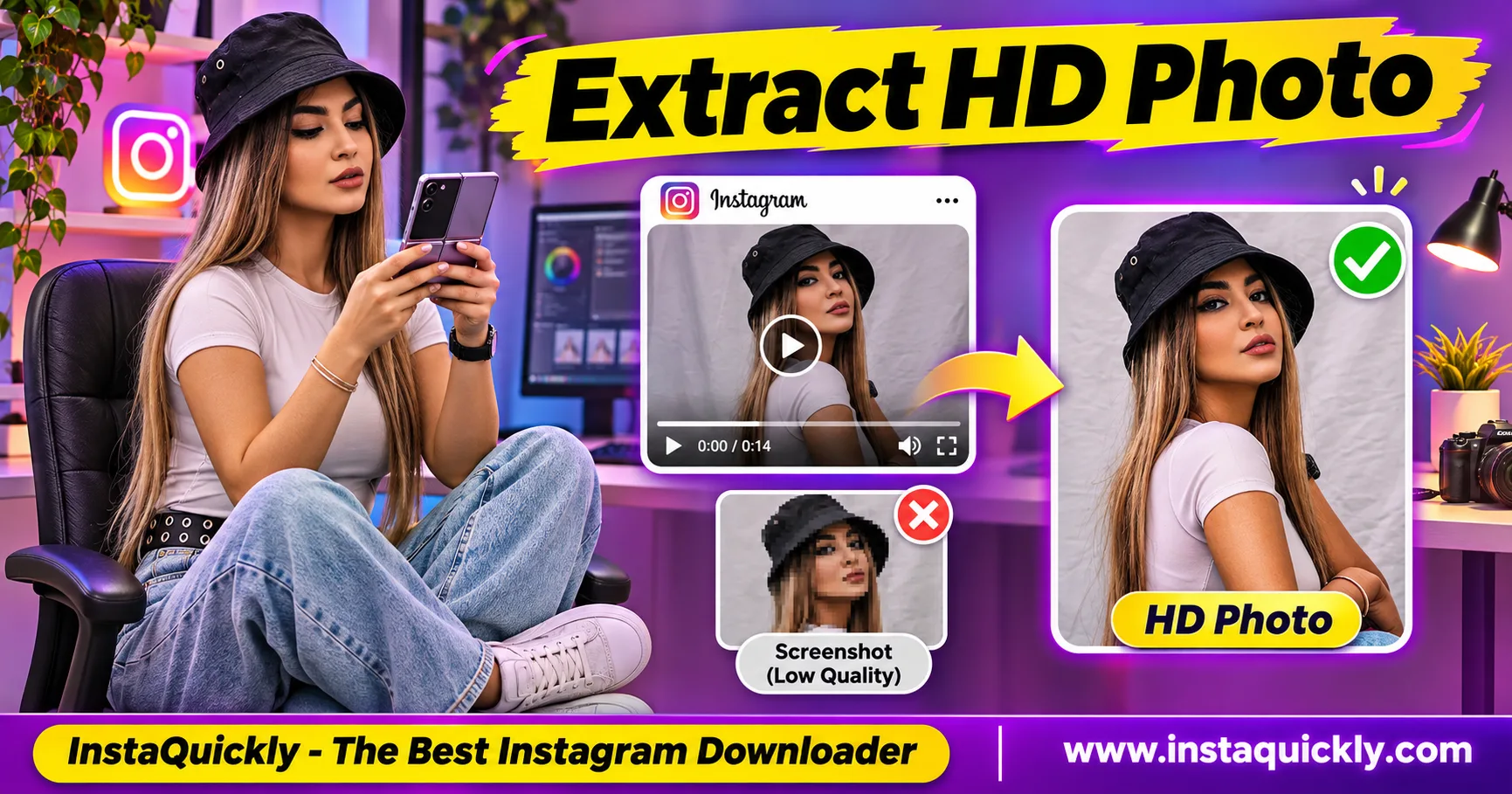
To extract photo from Instagram video files without taking a screenshot, first save an authorized MP4. Open it in a video editor or frame extraction tool, move to the exact moment you want, and export that frame as PNG or JPG.
Direct frame extraction avoids screen controls, unwanted borders, and the resolution limits of a screen capture. However, it cannot recover detail lost during Instagram compression.
This guide explains how to save a still image from an Instagram Reel on iPhone, Android, Windows, or Mac. You will also learn how to choose the sharpest frame, compare PNG and JPG, and avoid common quality problems.
Key Takeaways
- [x] Save an accessible MP4 before extracting a frame.
- [x] Use a frame export feature instead of a screen capture.
- [x] Choose a sharp moment with little motion blur.
- [x] Select PNG for lossless image saving or JPG for smaller files.
- [x] Keep the video's original dimensions when possible.
- [x] Check HDR colors and orientation before exporting.
- [x] Remember that frame extraction cannot restore missing pixels.
- [x] Respect the original creator's rights and permissions.
What Does Extracting a Photo from an Instagram Video Mean?
An Instagram video to photo conversion takes one decoded video frame and saves it as a still image. The output may be PNG or JPG. Unlike a screenshot, it can use the frame's actual dimensions without depending on your display size.
What Is an Instagram Video Frame?
A video is a sequence of images shown over time.
For example, a 30 FPS video normally displays about 30 frames each second.
Each frame represents one moment.
A frame extractor decodes the video and saves your selected moment as an image.
This is useful for:
- Reel cover designs.
- Video thumbnails.
- Personal photo collections.
- Educational reference images.
- Editing previews.
- Social graphics using your own footage.
The exported picture contains visual information from the video, not a separate camera photograph.
Is Frame Extraction Better Than a Screenshot?
Often, yes.
A screenshot captures what your screen currently displays. It may include black bars, player controls, or a scaled-down image.
Direct extraction saves the decoded frame without those interface elements.
For example, a vertical 1080 × 1920 source can produce a 1080 × 1920 image if you export at its original dimensions.
A screenshot might capture fewer usable pixels because the video occupies only part of your screen.
However, both methods depend on the quality of the available source.
Can You Extract a Photo Without Quality Loss?
You can avoid additional image compression by exporting the decoded frame as PNG.
This is useful when you want to preserve its available pixels.
However, capture Instagram video frame without quality loss does not mean recovering the original camera photograph.
Instagram may already have compressed the video.
The frame can contain:
- Compression artifacts.
- Motion blur.
- Lower resolution.
- Color changes.
- Sharpening effects.
A PNG preserves the decoded image without another lossy JPEG encoding step. It cannot reverse previous video compression.
How to Save an Instagram MP4 Before Extracting a Frame
To extract image from Instagram MP4, start with a complete, playable video. Use your original camera recording when available because it may contain more detail than a downloaded Reel. Otherwise, obtain an accessible, authorized video file.
Step-by-Step: Get the Video File
- Open the public Instagram Reel or video.
- Confirm that you own it or have permission to save it.
- Tap Share.
- Select Copy Link.
- For a Reel, open the Instagram Reels downloader for public videos.
- Paste the post URL.
- Review the available media.
- Save the supported MP4.
- Open your Downloads folder.
- Play the file and confirm it is complete.
For supported standard video posts, use the Instagram video downloader for public posts.
InstaQuickly does not guarantee access to private posts, original camera masters, or every available media version.
How Do You Choose the Best Source?
Use the highest-quality authorized source you have.
A practical order is:
- Original camera recording.
- High-quality editing master.
- Export from your own video project.
- Available Instagram MP4 download.
Check the file's actual width and height.
A larger file is not automatically sharper, but higher-quality source footage usually gives you more options.
Do not repeatedly convert a video before extracting its frame.
How to Extract a Video Frame on iPhone or Android
For video frame extraction iPhone and video frame extraction Android workflows, use a trusted editor or frame extractor that can save a selected frame as an image. The exact controls depend on the application.
How to Save a Video Frame on iPhone
- Open Photos or Files.
- Locate your MP4.
- Confirm the video plays correctly.
- Open a trusted app with frame export support.
- Import the video.
- Move the timeline to the desired moment.
- Advance frame by frame when supported.
- Select Export Frame, Save Image, or a similar option.
- Choose PNG or JPG if available.
- Save the image to Photos or Files.
- Check its dimensions and sharpness.
Not every iPhone video editor offers a direct frame export button.
If your app only offers screenshots, choose another tool that supports actual frame extraction.
Avoid installing an unknown app that requests unnecessary account access.
How to Extract a Frame on Android
- Open Gallery, Google Photos, or Files.
- Find the authorized MP4.
- Check the video's playback.
- Open a trusted editor or frame extraction app.
- Import the video.
- Seek to the moment you want.
- Use frame-by-frame controls when available.
- Select the frame export option.
- Save the image as PNG or JPG.
- Open the saved image.
- Compare its dimensions with the video.
Some Android gallery apps offer a built-in frame capture feature.
Others require a separate editor.
Prefer local processing when you do not want to upload personal videos to an online service.
How to Extract a Specific Frame on Windows or Mac
To save specific frame from Instagram video files on a computer, use a video editor with frame export or FFmpeg. Desktop tools offer precise timing, especially when you need several images from one clip.
How to Export a Frame in a Video Editor
- Open a compatible video editing application.
- Import your MP4.
- Create a project that matches the video dimensions.
- Move to the desired moment.
- Advance to the exact frame.
- Choose Export Frame or an equivalent command.
- Select PNG or JPG.
- Keep the original frame dimensions.
- Save the image.
- Review the result at 100% zoom.
If you own the source footage, keep the editable project and original recordings.
For a full workflow, read how to prepare Instagram Reels for editing.
How to Use FFmpeg as a Video Frame Extractor
FFmpeg can decode a video and save one selected frame.
For example, this command extracts an image near five seconds:
ffmpeg -i input.mp4 -ss 00:00:05 -frames:v 1 frame.png
The command:
- Opens
input.mp4. - Seeks to approximately five seconds.
- Outputs one decoded video frame.
- Saves the result as PNG.
To export JPG instead:
ffmpeg -i input.mp4 -ss 00:00:05 -frames:v 1 frame.jpg
For accurate frame selection, inspect the output because timestamps and variable frame rates can affect which frame corresponds to a requested time.
On longer files, seeking before the input can be faster.
How to Extract Several Frames
If you need multiple choices for a thumbnail, export a small set of frames rather than guessing.
For example:
ffmpeg -i input.mp4 -vf "fps=1" frame-%03d.png
This extracts approximately one frame per second.
Use it only on media you own or have permission to process.
If the video is long, the resulting collection can use significant storage.
Delete unwanted frames after comparing them.
PNG vs JPG: Which Format Gives Better Frame Quality?
An extract PNG from Instagram video workflow preserves the decoded frame without additional lossy image compression. JPG produces smaller files, but its encoding can introduce new artifacts. Both formats can have the same pixel dimensions.
PNG vs JPG vs Screenshot Comparison
| Feature | PNG Frame | JPG Frame | Screenshot |
|---|---|---|---|
| Can save source frame dimensions | Yes | Yes | Depends on screen |
| Lossless image encoding | Yes | No | Depends on screenshot format |
| Usually smaller file | No | Yes | Varies |
| Supports transparency | Yes | No | Varies |
| Preserves original camera detail | No | No | No |
| Avoids player controls | Yes | Yes | Not always |
| Good for editing graphics | Yes | Yes | Less reliable |
| Good for quick sharing | Yes | Yes | Yes |
PNG is often the better choice for editing and archiving.
JPG can be more practical for everyday sharing when file size matters.
How Many Megapixels Can You Extract?
The number of pixels depends on the decoded video frame.
For example:
- 720 × 1280 = 0.92 megapixels.
- 1080 × 1920 = 2.07 megapixels.
- 2160 × 3840 = 8.29 megapixels.
A 1080 × 1920 image cannot contain the same native detail as a larger original photograph simply because you save it as PNG.
Avoid confusing image dimensions with true image sharpness.
Does Higher Video Bitrate Create Better Photos?
A higher-quality video source can preserve more useful image detail.
However, bitrate alone does not guarantee a sharp frame.
Fast movement, focus errors, noise, and compression settings also matter.
For example, a high-bitrate video can still contain motion blur.
Choose a well-focused frame before worrying about PNG or JPG.
How to Choose the Sharpest Frame Without Color Problems
The sharpest save still image from Instagram video result usually comes from a frame with accurate focus, limited motion blur, and clean lighting. Direct extraction prevents display-related screenshot loss, but cannot remove blur already encoded in the source.
What Makes a Good Frame?
Look for:
- A clear subject.
- Sharp eyes or important objects.
- Minimal motion blur.
- Natural skin tones.
- Balanced highlights.
- No unwanted transition effects.
- Text that is fully visible.
Avoid frames taken during fast camera movements.
A nearby frame may look noticeably better even when it appears only milliseconds later.
What If the Extracted Photo Looks Washed Out?
HDR video can cause color differences during still-image export.
For example, a video may use HDR transfer characteristics while the exported JPG is interpreted as ordinary SDR.
Without proper tone mapping, the photo may look too bright, pale, or low in contrast.
Use a color-managed editor and convert HDR to SDR when needed.
For further guidance, read how to correct washed-out Instagram video colors.
Do not simply increase saturation without checking the source color space.
Does Meta Provide Frame-Accurate Video Editing?
Meta describes frame-accurate timeline editing in its Edits app, along with project management and video export tools.
See the official introduction to Meta's Edits app.
Frame-accurate editing helps creators choose exact moments.
However, that announcement does not guarantee a dedicated still-image export feature. Use a tool with confirmed Export Frame support when you need PNG or JPG output.
Troubleshooting Frame Extraction and Image Quality
An Instagram video screenshot high quality search often comes from users who cannot save the frame they want. The problem may involve the wrong file, low-resolution video, unsupported codecs, missing frames, or an export tool that scales the image.
Why Is the Extracted Image Blurry?
Possible causes include:
- The source video is low resolution.
- The subject moves quickly.
- The camera focus is soft.
- Instagram compression removed detail.
- The exporter enlarged a small frame.
- The image editor applied strong compression.
Try a nearby frame first.
If the source is already blurry, saving PNG will not restore the missing detail.
Why Is the Output Image Smaller Than Expected?
Some frame extraction tools scale images to the preview window.
For example, an application may show a 1080 × 1920 video inside a smaller canvas.
If it exports the preview instead of the actual decoded frame, the result can have fewer pixels.
Check the saved image's dimensions.
Choose original-size export where available.
Why Does the Frame Come from the Wrong Moment?
Video timestamps do not always map to simple frame numbers.
Variable frame rate, seeking behavior, and keyframes can affect frame selection.
Move through the timeline one frame at a time when precision matters.
With FFmpeg, inspect the saved result and adjust the timestamp if necessary.
Do not assume a displayed timestamp always identifies a unique frame.
Can You Extract a Frame from an Incomplete MP4?
Sometimes, if the needed frame still exists in the playable section.
However, a damaged video may fail before the requested time.
A frame extractor cannot recover frames that were never downloaded.
For an incomplete Reel, obtain a fresh authorized file before attempting extraction.
How Do You Share the Extracted Image?
Save the selected image to Photos, Gallery, or Files.
If you want to share a short video instead of a still frame, keep the MP4.
For example, read how to prepare Instagram video for WhatsApp Status to understand video-specific formatting and quality considerations.
A still photo and a playable video serve different purposes.
Frequently Asked Questions About Extracting Instagram Video Frames
Can I extract a photo from an Instagram Reel without a screenshot?
Yes. Save an authorized MP4, open it in a frame extraction tool, choose the desired moment, and export the decoded frame as PNG or JPG.
How do I save a frame from an Instagram video on iPhone?
Import the MP4 into a trusted iPhone application that supports frame export.
Move to the desired frame and save the image to Photos or Files.
How do I extract a video frame on Android?
Use an Android gallery or editing application with a frame capture feature.
Select the exact moment and export the image rather than taking a screen screenshot.
Is PNG better than JPG for Instagram video frames?
PNG avoids additional lossy image compression, making it useful for editing or archiving.
JPG usually creates smaller files but can introduce new compression artifacts.
Can I extract a 4K photo from a 1080p Instagram video?
You can enlarge the output to 4K dimensions, but this does not create true native 4K detail.
The available image information still comes from the 1080p source.
Does frame extraction remove Instagram compression?
No. A frame extractor decodes the available video image.
It cannot automatically restore original camera pixels lost during Instagram processing.
Why does my extracted frame look too bright?
The source may use HDR color information that the export tool handles incorrectly.
Check its color management and use proper HDR-to-SDR tone mapping if needed.
Can InstaQuickly directly export a JPG from any Reel?
InstaQuickly provides available media downloads from supported public Instagram sources.
A dedicated video-frame-to-JPG feature is not guaranteed. Use a separate frame extraction tool when you need a specific image.
Conclusion: Export the Frame, Not the Screen
To extract photo from Instagram video files, save an authorized MP4, open it in a frame extraction tool, and export the exact moment as PNG or JPG. This usually gives you a cleaner result than capturing a video player on your screen.
Choose a sharp frame, preserve the original dimensions, and check for HDR color problems. Use PNG when avoiding additional image compression matters, or JPG when smaller files are more useful.
Start with your original footage when possible. Otherwise, use InstaQuickly for supported public video downloads before extracting the frame locally.
Use extracted images only for permitted personal research, education, or other authorized purposes. Obtain permission before modifying, publishing, selling, or commercially using another creator's footage or images.
InstaQuickly is an independent service and is not affiliated with or endorsed by Instagram or Meta.