
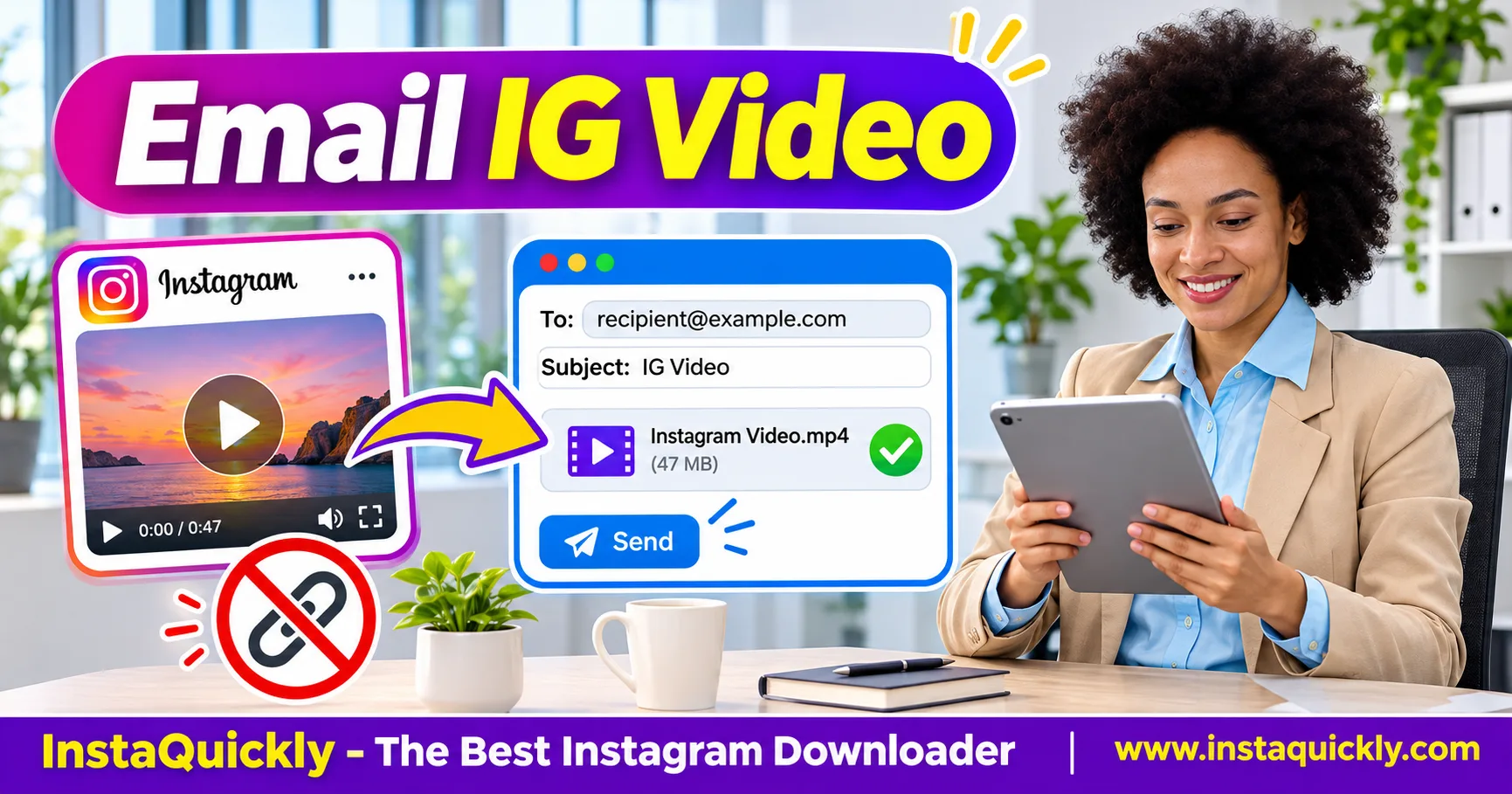
To send Instagram video by email, download an authorized video as an MP4, open Gmail or Outlook, compose a new message, and attach the file. The recipient can then download the video without opening the original Instagram post.
For personal Gmail accounts, attachments can total up to 25 MB. Larger videos usually need a cloud-sharing link instead. Outlook limits vary by product and account.
This guide explains how to email downloaded Instagram Reels on iPhone, Android, and computers. You will also learn how to check attachment sizes, reduce video file size without unnecessary quality loss, and fix MP4 playback problems.
Key Takeaways
- [x] Save an authorized Instagram video as an MP4 before emailing it.
- [x] Attach the MP4 when you want to send the actual video file.
- [x] Check the total attachment size before sending.
- [x] Personal Gmail accounts allow up to 25 MB in attachments.
- [x] Outlook limits depend on the email product and account.
- [x] Use a permission-controlled cloud link for larger videos.
- [x] Avoid repeated compression and verify the recipient can play the MP4.
Can You Email an Instagram Video as an Attachment?
Yes. You can email Instagram video as attachment if you have the video file, permission to share it, and enough space under your email provider's attachment limit. The recipient receives an MP4 rather than only an Instagram URL.
Attachment vs Instagram Link vs Cloud Link
These three sharing methods work differently.
| Feature | MP4 Attachment | Instagram Link | Cloud File Link |
|---|---|---|---|
| Sends actual MP4 inside email | Yes | No | No |
| Requires Instagram access | No | May require it | No |
| Works without internet after download | Yes | No | Yes |
| Subject to email attachment limit | Yes | No | No, for the linked file |
| Recipient can save a local copy | Yes | Not directly | Usually, if permitted |
| Sender controls cloud access | Not applicable | No | Yes |
| Best for | Small videos | Original post attribution | Larger files |
An MP4 attachment is the simplest choice for a small, authorized video.
A cloud file link is more practical when the video exceeds the email limit. It is not an Instagram link.
How to Download an Instagram Video for Email
To download Instagram video for email, find the correct public post, copy its URL, and save an available MP4. Check the video before attaching it, because a damaged or incomplete download will remain damaged after sending.
Step-by-Step: Save an Instagram Reel as MP4
- Open Instagram.
- Find the Reel you want to email.
- Confirm that you own it or have permission to share it.
- Tap Share.
- Choose Copy Link.
- Open the Instagram Reels downloader for public videos.
- Paste the URL.
- Review the available media.
- Save the supported MP4.
- Open the file in a trusted video player.
- Check its audio, duration, and final seconds.
For supported regular video posts, use the Instagram video downloader for public posts.
InstaQuickly provides browser-based downloads for supported public media without requiring Instagram login. It does not guarantee access to private posts or original camera files.
What Should You Check Before Emailing?
Check the file's properties rather than its filename alone.
Look for:
.mp4file extension.- Correct video content.
- Complete playback.
- Working audio.
- File size below the provider's limit.
- Permission to share the footage.
If your video is too large, choose a smaller authorized export or a cloud link.
Avoid sending a file that has not finished downloading.
How to Send an Instagram MP4 Through Gmail or Outlook
To attach Instagram video to email, create a new message, choose the paperclip attachment control, and select the saved MP4. Wait until the attachment finishes uploading before sending the message.
How to Send an Instagram MP4 by Gmail
- Open Gmail on your computer.
- Click Compose.
- Enter the recipient's email address.
- Add a clear subject.
- Click the paperclip icon.
- Select the downloaded MP4.
- Wait for the upload to finish.
- Confirm that the attachment appears.
- Write a short explanation.
- Click Send.
For a personal Gmail account, the total attachment limit is 25 MB.
If the total exceeds that limit, Gmail normally uses a Google Drive link instead.
This means the recipient gets access to a cloud file rather than receiving the video bytes as a normal email attachment.
How to Send an Instagram Video Through Outlook
- Open Outlook or Outlook.com.
- Create a new email.
- Enter the recipient and subject.
- Select Attach or the paperclip icon.
- Choose Browse this computer or the local-file option.
- Find the downloaded Instagram MP4.
- Select the file.
- Wait for the attachment to upload.
- Confirm that Outlook shows a file attachment rather than a cloud link.
- Send the message.
Outlook.com currently lists a 25 MB file attachment limit.
However, Microsoft 365, business Exchange accounts, and different Outlook applications may enforce different limits.
If Outlook rejects the MP4, check the limit for your specific account.
How to Email an Instagram Video on iPhone or Android
You can send downloaded Instagram Reel by email directly from your phone. The main difference is where the MP4 is stored: iPhone downloads often appear in Files, while Android downloads usually appear in Files or Downloads.
How to Email an Instagram Video on iPhone
- Open the Files app.
- Find the downloaded MP4.
- Check that the video plays.
- Open Gmail, Outlook, or Mail.
- Create a new email.
- Enter the recipient and subject.
- Tap the attachment control.
- Choose Attach File or Browse.
- Select the MP4 from Files.
- Wait for the attachment to finish uploading.
- Review the message.
- Tap Send.
You can also use the Files app's Share menu when your email application supports it.
If the video is in Photos instead of Files, use the available photo or video picker.
The attachment-size limit still applies.
How to Email an Instagram Video on Android
- Open Files or your device's file manager.
- Navigate to Downloads.
- Find your MP4.
- Open it to verify playback.
- Open Gmail or Outlook.
- Create a new message.
- Enter the recipient.
- Tap the paperclip icon.
- Choose Attach file.
- Select the downloaded video.
- Wait for the upload to finish.
- Send the email.
If the MP4 does not appear in the attachment picker, check the Downloads folder directly.
Some gallery applications do not immediately display recently downloaded videos.
Instagram Video Email Attachment Size, Format and Bitrate
An Instagram video email attachment size depends mainly on duration and bitrate. MP4 with H.264 video and AAC audio is a practical compatibility choice. A shorter or lower-bitrate video can be smaller, but too much compression reduces picture quality.
What Is the Maximum Video Attachment Size?
| Email Service | Typical Attachment Limit | Alternative for Large Videos |
|---|---|---|
| Personal Gmail | 25 MB total | Google Drive |
| Google Workspace Gmail | Administrator-defined | Google Drive, subject to policy |
| Outlook.com | 25 MB file limit | OneDrive |
| Microsoft 365 / Exchange | Account and administrator-dependent | OneDrive or SharePoint |
| Other email providers | Varies | Supported cloud-sharing service |
Email message encoding and provider rules can increase the transmitted message size.
For reliable delivery, keep ordinary attachments comfortably below the stated limit.
Also check the recipient's incoming attachment limit.
How Much Space Does an Instagram MP4 Need?
Use this approximate formula:
File size (MB) = Total bitrate (Mbps) × Duration (seconds) ÷ 8
For example, a 30-second video using 4 Mbps video plus 128 kbps audio requires about 15.5 MB.
A 60-second video with the same bitrate requires about 31 MB.
The longer file may exceed a personal Gmail attachment limit.
Actual sizes vary because of variable bitrate, codec efficiency, and container overhead.
How Can You Make a Video Smaller?
For footage you own or have permission to edit:
- Keep a backup of the original MP4.
- Remove unnecessary opening or ending footage.
- Check whether the resolution is higher than needed.
- Choose a compatible H.264/AAC export.
- Select a reasonable bitrate.
- Export one new sharing copy.
- Compare its quality with the original.
- Check the file size.
- Attach the smaller version if it meets the limit.
Avoid repeated encoding.
For the best source quality, follow how to prepare Instagram Reels for editing.
What If an Instagram Video Is Too Large to Email?
When an Instagram video too large to email error appears, do not keep retrying the same oversized attachment. Upload the authorized MP4 to Google Drive or OneDrive, then send a file-sharing link with suitable access permissions.
Send a Google Drive Link Through Gmail
- Open Google Drive.
- Upload the MP4.
- Wait for the transfer to finish.
- Open the file and check playback.
- Review the sharing permissions.
- Grant access to the intended recipient.
- Copy the file-sharing link.
- Open Gmail.
- Paste the Drive link into the message.
- Send the email.
Your recipient does not need the Instagram post link.
They access the uploaded video through Google Drive instead.
Be careful with public-link sharing when a video contains private or sensitive information.
Send a OneDrive Link Through Outlook
- Open OneDrive.
- Upload the video.
- Confirm that the file appears.
- Review its sharing settings.
- Choose access for the intended recipient.
- Copy the sharing link.
- Open Outlook.
- Create a message.
- Paste the OneDrive link.
- Send the email.
Cloud links can preserve a larger original file without forcing another video compression.
However, the recipient needs internet access to retrieve the file.
Is a Cloud Link Better Than an Attachment?
For a small video, an attachment is convenient.
For a large video, a cloud link usually avoids email-size restrictions.
Use an attachment when the recipient needs a self-contained file in the message.
Use a cloud link when you want to:
- Share a larger MP4.
- Control file access.
- Avoid sending duplicate large attachments.
- Let recipients download the original uploaded file.
Remember that recipients may lose access if you change sharing permissions or delete the cloud file.
Why Won't an Instagram Video Email Attachment Play?
An Instagram MP4 attachment not playing problem may result from an incomplete file, unsupported video codec, corrupted download, or a preview limitation in the recipient's email application. Download the attachment and test it in a trusted local player.
Why Does the Email Show a Video but Not Play It?
Some email applications cannot preview every MP4 format.
A file may still work after the recipient downloads it.
Ask the recipient to save the attachment and open it in a trusted video player.
If it fails everywhere, check the original downloaded file.
Do not assume that an email preview failure means the video was damaged during sending.
Why Is Gmail Replacing My Video with a Drive Link?
Gmail uses Drive links when attachments exceed the allowed total size.
For personal Gmail, this threshold is 25 MB.
If you need a true attachment, use a smaller authorized MP4 that fits within the limit.
Otherwise, explain in your email that the recipient should open the Google Drive file link.
Why Is the Video Blurry or Missing Audio?
The source file may already be compressed or lack licensed Instagram music.
Emailing an MP4 as an attachment does not normally re-encode its video frames.
However, a separate video conversion can change quality.
Check the original MP4 before sending.
For other ways of sharing a playable video instead of a social link, see how to upload Instagram videos to Facebook Story.
Can You Send the Same Video to Many People?
Yes, within your email provider's sending rules and the rights attached to the video.
However, sharing a copyrighted video with many recipients may be different from keeping a personal backup.
For a classroom or meeting, you may instead use a local presentation file.
Read how to add Instagram videos to offline slides when you need reliable playback during a presentation.
Frequently Asked Questions About Sending Instagram Videos by Email
Can I send an Instagram video by email instead of sharing its link?
Yes. Save an authorized MP4, attach it to a new email, and send it.
The recipient receives a video file rather than only an Instagram URL.
How do I attach an Instagram Reel to Gmail?
Download the permitted Reel as MP4, open Gmail, select Compose, and use the paperclip attachment control.
Check that the total attachments fit within your account's limit.
Can I send an Instagram video through Outlook?
Yes. Attach the local MP4 from your computer or phone.
If the video exceeds your account's limit, use a OneDrive sharing link instead.
What is the maximum Instagram video size for Gmail?
Personal Gmail accounts allow up to 25 MB in total attachments.
Larger files are normally shared through Google Drive rather than attached directly.
Can I email an Instagram video from iPhone?
Yes. Save the MP4 in Files or Photos, open your email app, and attach the file.
Wait for the upload to complete before sending.
Can I email an Instagram video from Android?
Yes. Find the MP4 in Downloads, open Gmail or Outlook, and choose Attach file.
Verify the attachment before sending.
Does emailing an MP4 reduce its video quality?
A normal file attachment does not intentionally re-encode the video.
However, compressing the file before sending may lower its quality. Cloud links can help avoid unnecessary conversion.
Why can't the recipient play my Instagram MP4?
The recipient's email preview may not support the codec, or the file may be incomplete.
Ask them to download it and test a trusted local player.
Conclusion: Attach the MP4 or Share a Cloud File
To send Instagram video by email, download an authorized MP4, verify that it plays, and attach it through Gmail or Outlook. For smaller videos, this gives the recipient the actual file without requiring an Instagram link.
Check attachment-size limits before sending. Personal Gmail supports up to 25 MB, while Outlook limits vary by product and account. For larger videos, use Google Drive or OneDrive with suitable sharing permissions.
Keep the best available source, avoid unnecessary compression, and confirm that the recipient can open the file.
Download and email Instagram videos only when you have permission or another valid legal basis. Respect copyright, music licensing, creator rights, privacy, and applicable sharing rules.
InstaQuickly is an independent service and is not affiliated with or endorsed by Instagram or Meta.