
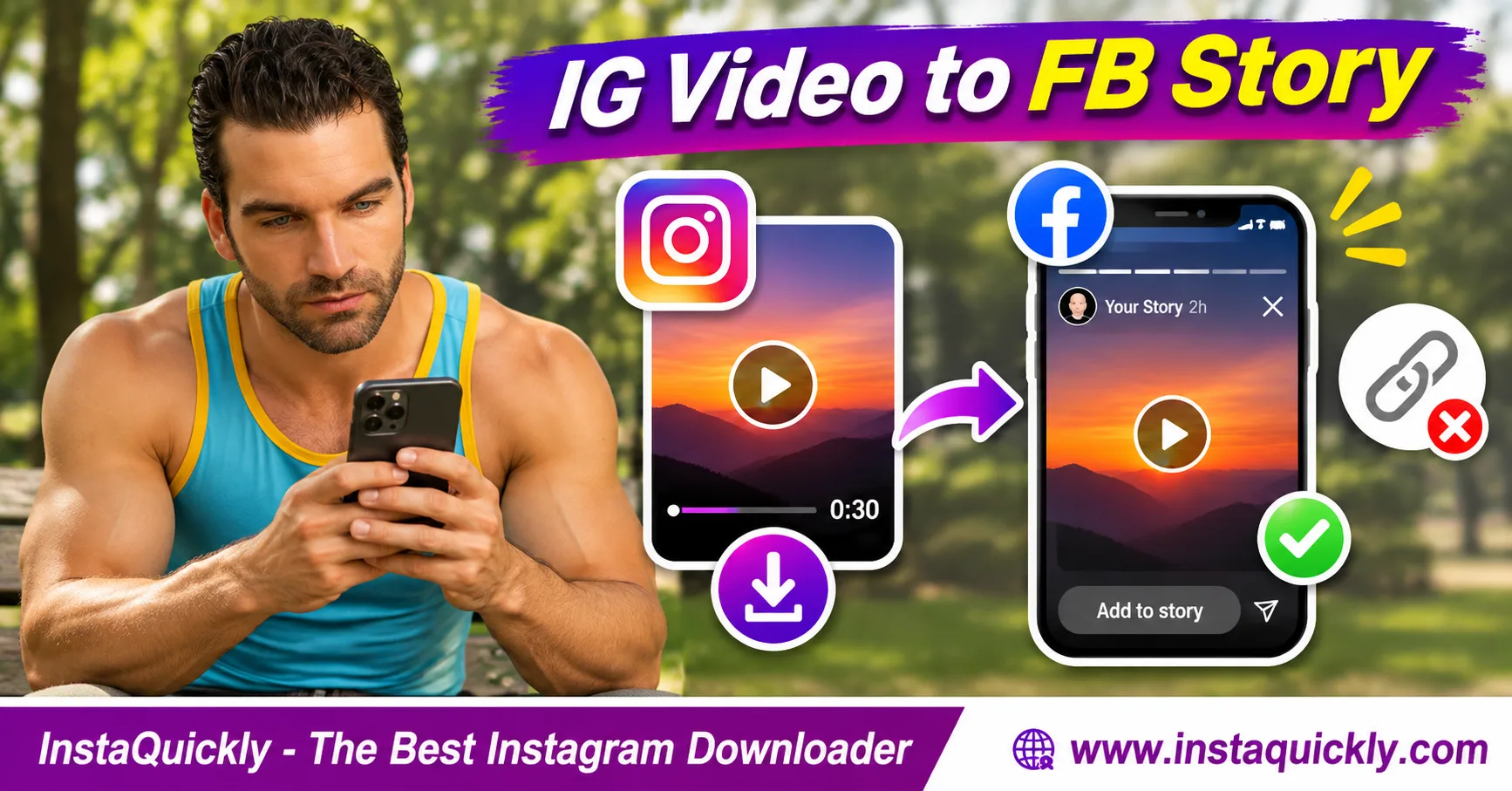
To share an Instagram video to Facebook Story without posting only a link, save an authorized video as an MP4, open Facebook, tap Create Story, and select the video from your phone. Facebook can then display the clip directly in your Story instead of sending viewers to Instagram.
You can also cross-post your own Instagram Story through Meta's connected-account settings. However, sharing an Instagram Reel as a Story may create a preview that opens the original post rather than uploading its full video.
This guide explains both methods, iPhone and Android steps, video quality, cropping, and common upload problems.
Key Takeaways
- [x] Download the actual video file when you want a playable Facebook Story.
- [x] Use MP4 with H.264 video and AAC audio for broad compatibility.
- [x] Keep a vertical 9:16 frame when possible.
- [x] Do not confuse a shared Reel preview with a full video upload.
- [x] Use Accounts Center cross-posting for your own eligible Stories.
- [x] Check sound, framing, and duration before publishing.
- [x] Expect Facebook to process or compress uploaded videos.
- [x] Share only content you own or have permission to reuse.
Facebook Story Video Upload vs Instagram Link: What's Different?
An Instagram video to Facebook without link workflow requires uploading a video file or using a supported native cross-posting feature. Pasting an Instagram URL or sharing a Reel preview does not necessarily place the full video inside Facebook Story.
What Happens When You Share an Instagram Reel Link?
When you share a Reel URL, Facebook may display a clickable link, preview, or other sharing card.
A viewer might need to open the Instagram post to watch the full content.
This differs from uploading the actual MP4.
A linked post may also become unavailable if its creator deletes it or changes its visibility.
Use the link method when directing viewers to the original Instagram creator is your goal.
What Happens When You Upload the MP4?
A direct upload creates Facebook Story video media from the file you select.
For example, if you save your own 20-second Reel and upload it through Create Story, Facebook processes that video as part of your Story.
Viewers can watch the available clip within Facebook.
However, the uploaded video does not automatically keep Instagram's caption, comments, or original source link.
Keep attribution information separately when necessary.
Facebook Story Upload vs Shared Link vs Cross-Posting
| Feature | Direct MP4 Upload | Instagram Link or Reel Preview | Native Story Cross-Posting |
|---|---|---|---|
| Shows video as Story media | Yes | Not guaranteed | Yes, when supported |
| Requires a local MP4 | Yes | No | No |
| May send viewers to Instagram | Not automatically | Yes | Not necessarily |
| Supports your own content | Yes | Yes | Yes |
| Uses connected Meta accounts | No | Not required | Yes |
| Independent Facebook Story creation | Yes | Varies | Shared publishing workflow |
| Original video quality guaranteed | No | No | No |
| Reuse permission required | Yes | Follow applicable rules | Yes |
For a full video upload without an Instagram link, the direct MP4 method is the clearest option.
How to Save an Instagram Video for Facebook Story
To save Instagram video for Facebook Story, first locate the correct public post and save a supported MP4. Check that the complete clip plays before uploading it to Facebook. For your own content, use the original camera recording or editing master when available.
Step-by-Step: Download a Public Instagram Video
- Open Instagram.
- Find the Reel or video you want to share.
- Confirm that you own it or have permission to repost it.
- Tap Share.
- Select Copy Link.
- For a Reel, open the Instagram Reels downloader for public videos.
- Paste the copied URL.
- Review the available media.
- Save the supported MP4.
- Open the video in Photos, Gallery, or Files.
- Check its beginning, ending, and audio.
For a supported regular video post, use the Instagram video downloader for public posts.
InstaQuickly offers browser-based downloads for supported public media without requiring Instagram login. It cannot guarantee access to private posts or the creator's original camera file.
What If You Want to Share Your Own Reel?
Use your original recording when possible.
A published Instagram download may already contain compression or may exclude certain licensed music.
Your original master can offer:
- Better picture quality.
- More room for cropping.
- Original audio.
- More reliable editing.
- A clean source for Facebook processing.
If you no longer have the master, download the available version of your own public Reel and inspect it before publishing.
Should You Edit the Video Before Uploading?
Edit only when necessary.
For example, you might trim a long video, adjust the vertical frame, or move captions away from the edges.
Avoid converting the same compressed MP4 repeatedly.
Each lossy export can remove detail.
Keep an untouched copy so you can compare the new version with the available source.
How to Post an Instagram Video on Facebook Story on iPhone or Android
To post Instagram video on Facebook Story, select the saved video in Facebook's Story creator rather than pasting its Instagram URL. The general workflow is similar on iPhone and Android, although menu names and media pickers may vary.
How to Share an Instagram Video to Facebook Story on iPhone
- Open the Files app.
- Locate your downloaded MP4.
- Play the video to verify it.
- Tap Share.
- Choose Save Video when that option is available.
- Open Photos and confirm the video appears.
- Open Facebook.
- Tap Create Story or Add to Story.
- Select the video from your photo library.
- Review the preview and trim controls.
- Add optional text or stickers.
- Check your Story audience.
- Tap Share to Story.
- Open your published Story to verify playback.
If Save Video is unavailable, check whether the MP4 uses a compatible codec and whether the file is complete.
Do not rename an unknown file to .mp4 without identifying it.
How to Share an Instagram Video to Facebook Story on Android
- Open Files or your phone's file manager.
- Find the downloaded Instagram MP4.
- Play it through a trusted video player.
- Open Facebook.
- Tap Create Story.
- Select the saved video.
- If needed, locate it in Downloads or Gallery.
- Review the framing and available duration.
- Add optional captions or graphics.
- Choose the correct Story audience.
- Publish the Story.
- Play it to check the final result.
If Facebook cannot find the file, review its photo and video permissions.
Also check whether the video is stored in Downloads rather than the main Gallery folder.
Can You Post the Same Video to Both Platforms?
Yes, when you have the appropriate rights.
You can publish separate copies from the same original video or use eligible connected-account sharing features.
For the best picture quality, start from the same high-quality master instead of downloading from one social platform and re-uploading it repeatedly.
Both platforms may process the media differently.
Can You Share Instagram Stories Directly to Facebook?
Meta supports optional cross-posting between connected Instagram and Facebook accounts. This can help you publish your own eligible Story to both services without downloading a separate MP4, but it should not be confused with sharing any Instagram Reel as a full Facebook Story video.
How to Enable Instagram-to-Facebook Story Sharing
- Open Instagram.
- Go to your profile.
- Open Settings and activity.
- Find Accounts Center.
- Review the connected Facebook account.
- Open the available sharing-across-profiles settings.
- Select the Instagram profile and Facebook destination.
- Enable Story sharing if that option is available.
- Create your own Instagram Story.
- Review the sharing destination before posting.
- Publish and check the Facebook Story.
Settings may differ by account type, region, and application version.
Meta explains optional cross-posting through Accounts Center in its official guide to connected sharing controls.
Is Cross-Posting the Same as Downloading an Instagram Reel?
No.
Cross-posting shares eligible content through Meta's connected publishing system.
Downloading retrieves an available media file.
If you share a Reel to an Instagram Story, you may create a Reel preview that points to the post.
Cross-posting that Story does not necessarily turn the full Reel into an independent Facebook video.
For a full video-based Facebook Story, use an authorized local MP4.
Best Facebook Story Video Format, Bitrate and Aspect Ratio
A practical Facebook Story video aspect ratio is 9:16 for vertical viewing. MP4 with H.264 video and AAC audio is a common compatibility choice. Use suitable source quality, but do not expect Facebook to preserve every original pixel or bitrate after upload.
Practical Export Settings
| Property | Suggested Starting Point | Why It Matters |
|---|---|---|
| Container | MP4 | Broad compatibility |
| Video codec | H.264/AVC | Common device support |
| Audio codec | AAC | Common audio support |
| Aspect ratio | 9:16 | Fits vertical Story viewing |
| Resolution | 1080 × 1920 when available | Good source detail |
| Frame rate | Match source; often 30 FPS | Avoid unnecessary frame conversion |
| Video bitrate | About 4–8 Mbps for a test export | Balance quality and file size |
| Audio bitrate | Around 128 kbps AAC | Suitable for many short clips |
| Video duration | Check Facebook's current editor | Avoid unexpected trimming |
These are practical preparation settings, not guaranteed Facebook output specifications.
The app may apply its own compression, duration limits, and media processing.
Why Does a Facebook Story Crop the Video?
A Facebook Story video cropped after upload problem often comes from an aspect-ratio mismatch.
For example, a horizontal 16:9 Instagram video cannot fill a vertical 9:16 Story without changing its framing.
You can choose:
- Fit: Keep the full image with empty space around it.
- Fill: Crop part of the video to fill the Story.
- Blurred background: Preserve the whole video with a background behind it.
Do not stretch the video because it changes people's proportions.
Keep important faces and text away from the screen edges.
Will Facebook Reduce Instagram Video Quality?
Possibly.
An Instagram video Facebook Story quality problem can occur because Instagram already compressed the video and Facebook may process it again.
Repeated encoding can soften fine details, especially:
- Small text.
- Fast-moving scenes.
- Hair and grass.
- Dark backgrounds.
- Detailed patterns.
Use your original camera recording when possible.
Avoid unnecessary filters, resizing, and repeated exports before uploading.
How Long Can the Facebook Story Video Be?
The available Story video duration can depend on the current Facebook app and publishing workflow.
Do not assume that a limit shown in an older tutorial applies to every account.
Instead, check the editing or trim controls when you select the video.
If your video exceeds the supported range, create shorter clips using footage you have permission to edit.
Test the published Story to confirm its ending remains visible.
Troubleshooting Instagram Videos That Won't Upload to Facebook Story
An Instagram video not showing in Facebook Story problem may result from file location, permissions, unsupported encoding, an incomplete download, or the wrong sharing method. First confirm that your phone can play the local MP4, then check Facebook's media picker and upload preview.
Why Does Facebook Show Only an Instagram Link?
You may have used Share to Facebook from Instagram instead of selecting a local video in Facebook's Story creator.
A Reel share action can create a preview or linked post.
To upload the actual clip:
- Save an authorized MP4.
- Open Facebook's Create Story screen.
- Choose the video from your device.
- Review the video preview before publishing.
Do not confuse a preview card with video media.
Why Can't Facebook Find the Downloaded Video?
The video may be in Files or Downloads instead of Photos or Gallery.
On iPhone, move or save a compatible video into Photos when necessary.
On Android, check Downloads and confirm Facebook has media access.
If the MP4 cannot play in your phone's normal video player, inspect its codec and file integrity.
Avoid installing unknown software that promises unrestricted access to Instagram accounts.
Why Is the Uploaded Story Blurry or Silent?
Blur may come from an already compressed source, resizing, or Facebook's video processing.
Missing sound may come from the original downloaded MP4.
Instagram's licensed music may not always be included in the saved file.
Check the video before uploading.
If the audio is absent, use an original recording or music you have permission to publish on Facebook.
For a related platform comparison, read how to share Instagram videos through WhatsApp Status.
Both services can process uploaded files, but their publishing controls differ.
What If the Video Does Not Fit the Story?
Use a video editor to create a 9:16 composition.
Avoid automatic zooming that removes important footage.
If you need a clear cover image or background, extract a still frame from your own source video.
Read how to save a clear video frame for a workflow that avoids screenshot controls.
A still image is useful for a Story cover, but it does not replace the playable video.
Can You Use an Instagram Video for a School or Business Story?
Yes, when you own the footage or have the required rights.
However, a public Instagram post does not automatically grant permission for commercial reuse.
For a classroom or professional context, you may prefer to preserve the source and present it without depending on an Instagram link.
See how to use Instagram videos in presentations for an offline presentation workflow.
Publicly sharing a Story and showing a video in a classroom involve different audiences and potential rights considerations.
Frequently Asked Questions About Instagram Video to Facebook Story
How do I share an Instagram video to Facebook Story without a link?
Save an authorized Instagram video as an MP4, open Facebook, select Create Story, and choose the video from your phone.
Publish the file instead of pasting the Instagram post URL.
Can I post an Instagram Reel directly to Facebook Story?
You may be able to share a Reel preview through Meta's sharing features.
However, if you want the full video to play as independent Story media, upload a permitted MP4 from your device.
How do I upload Instagram videos to Facebook Story on iPhone?
Save the compatible MP4 to Photos, open Facebook, tap Create Story, and select the video.
Check the preview, audience, and final playback before sharing.
How do I upload Instagram videos to Facebook Story on Android?
Download the supported MP4, confirm it plays, and choose it from Facebook's Story media picker.
Check Downloads or Gallery if the file is not immediately visible.
What format is best for Facebook Story video?
MP4 with H.264 video and AAC audio is a practical choice.
Use a vertical 9:16 frame when appropriate, and avoid unnecessary re-encoding.
Why is my Instagram video cropped after uploading to Facebook Story?
The source aspect ratio may not match the vertical Story frame.
Use Fit to preserve the whole video or crop carefully to fill the screen.
Why does my Facebook Story video look blurry?
Facebook may compress uploaded video, especially if the source has already been compressed by Instagram.
Start with the best available recording and avoid repeated conversions.
Does InstaQuickly share Instagram videos directly to Facebook Story?
InstaQuickly provides available downloads from supported public Instagram sources.
It does not guarantee automatic publishing to Facebook Story. Save the MP4, then use Facebook's own Story publishing controls.
Conclusion: Upload the Video File, Not Just the Instagram Link
To share an Instagram video to Facebook Story without posting only a link, save an authorized MP4 and upload it through Facebook's Create Story screen. This produces video-based Story media instead of relying on an Instagram post preview.
Use a vertical 9:16 composition, check the audio, and avoid unnecessary compression. For your own Stories, Meta's optional cross-posting controls offer another sharing method, but they are not the same as downloading a Reel.
Use InstaQuickly for supported public media downloads, and verify the final Facebook Story after publishing.
Share only videos you own or have permission to reuse. Respect copyright, music licensing, creator attribution, account privacy, and the publishing rules of both platforms.
InstaQuickly is an independent service and is not affiliated with or endorsed by Instagram, Facebook, or Meta.