
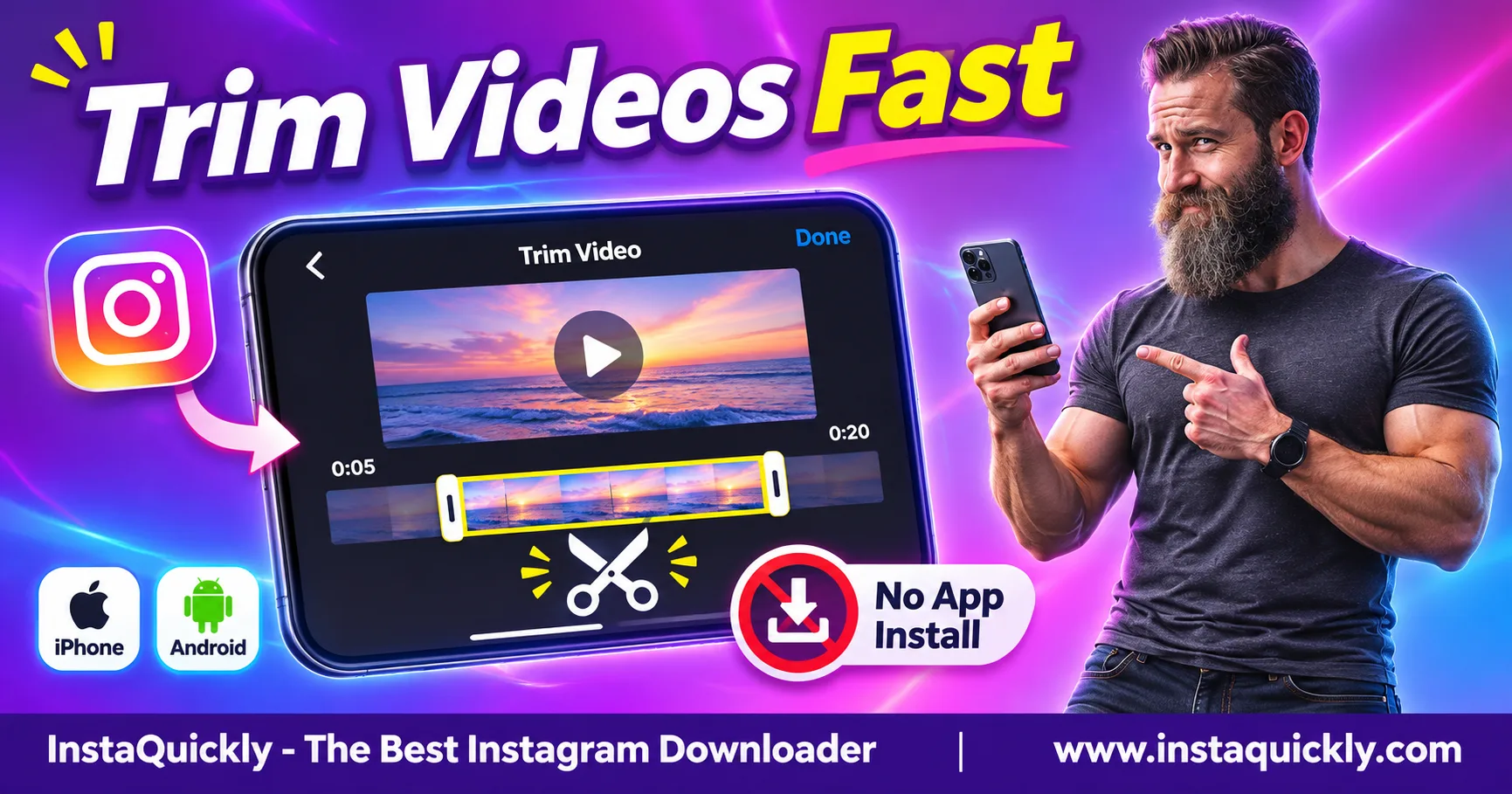
To trim downloaded Instagram video files without installing a new editing app, open the MP4 in iPhone Photos or your Android phone's built-in video editor. Drag the timeline handles to choose the part you want, then save a shorter copy.
On iPhone, Photos offers a "Save Video as New Clip" option. On Android, Google Photos provides trimming controls if it is already installed. No special Instagram editor is required.
You can remove an unwanted beginning, cut off the ending, or save one continuous section. This guide covers both phones, basic quality settings, and common problems.
Key Takeaways
- [x] Use your phone's existing Photos or Gallery editor.
- [x] Move the left handle to remove the beginning.
- [x] Move the right handle to remove the ending.
- [x] Save a new copy to protect your original.
- [x] Check the exported duration and audio.
- [x] Trimming does not guarantee lossless video quality.
How to Download an Instagram Video Before Trimming
To cut downloaded Instagram video files, start with a complete, playable MP4. Save media you own or have permission to use, then locate the file in Photos, Gallery, or Downloads before opening the editor.
- Open the public Instagram Reel or video.
- Tap Share and select Copy Link.
- Open the Instagram Reels downloader for public clips for Reels.
- Paste the URL and save the available MP4.
- For regular posts, use the Instagram video downloader for public posts.
- Open the downloaded file and verify playback.
InstaQuickly supports available public media; it does not guarantee access to private posts or original camera masters.
How to Trim Instagram Video on iPhone
To trim Instagram video on iPhone, use the built-in Photos editor. Select the start and end of the clip, preview the result, and save a new video if you want to keep the downloaded original.
- Open Photos and select the downloaded video.
- If it is in Files, open the MP4, tap Share, and choose Save Video when available.
- Tap Edit in Photos.
- Drag the left timeline handle to remove unwanted opening footage.
- Drag the right handle to remove unwanted ending footage.
- Tap Play to preview the selected section.
- Tap Done.
- Choose Save Video as New Clip when available.
- Open the new clip and verify its duration and sound.
Choose Save Video if you intend to modify the current item. Prefer a new clip when keeping the original matters.
How to Trim Instagram Video on Android
To trim Instagram video on Android, open the MP4 in Google Photos or your phone's built-in Gallery editor. Select a shorter range on the video timeline and save the result as a copy.
- Open Google Photos or Gallery.
- Select the downloaded MP4.
- Open Edit if the trimming controls are not already visible.
- Drag the left handle to the desired start.
- Drag the right handle to the desired end.
- Preview the selected section.
- Tap Save or Save copy, depending on your editor.
- Open the new video and confirm the result.
Google Photos must already be installed for this method to meet the no-install requirement. If it is unavailable, check your phone's existing Gallery editor.
Menu names can differ between Samsung, Pixel, Xiaomi, and other Android devices.
Can You Trim an Instagram MP4 Without Losing Quality?
You can shorten Instagram MP4 video files without changing their aspect ratio or adding effects, but built-in editors may re-encode the output. A shorter video is not necessarily a lossless copy of the original frames.
Trimming Methods and Quality Comparison
| Method | Extra App Required | Keeps Original Available | Lossless Guaranteed |
|---|---|---|---|
| iPhone Photos, new clip | No | Yes | No |
| Google Photos, save copy | No, if installed | Yes | No |
| Built-in Android Gallery | No | Usually, with copy option | No |
| Stream-copy MP4 trimming | Separate tool typically needed | Yes, with separate output | Keyframe limits apply |
Stream-copy trimming can avoid re-encoding video streams, but exact cut points may depend on keyframes. It is not the same as trimming in your phone's Photos editor.
For better results:
- Use the highest-quality available source.
- Avoid adding unnecessary filters.
- Keep the original dimensions.
- Save only the section you need.
- Avoid repeatedly exporting the same file.
If you need advanced clip editing, read how to edit your own Instagram footage.
How to Save Only Part of an Instagram Video
To save part of Instagram video content, choose one continuous range between the start and end handles. Basic Photos editors are useful for removing the beginning or ending, but removing a section from the middle usually needs a split-and-join feature.
For example, from a 60-second video:
| Desired Result | Start | End | Output Length |
|---|---|---|---|
| Remove first 10 seconds | 00:10 | 01:00 | 50 seconds |
| Keep a short highlight | 00:15 | 00:25 | 10 seconds |
| Remove final 20 seconds | 00:00 | 00:40 | 40 seconds |
A trim does not automatically remove logos or watermarks embedded in the picture. Built-in trimming normally does not add a new watermark, but it cannot erase an existing one.
If you plan to play the clip on a television, see how to watch saved Reels on TV.
Why Won't My Downloaded Instagram Video Trim Correctly?
When a trim MP4 without installing app workflow fails, check the source file, storage space, and editor compatibility. A damaged MP4 or unsupported codec can prevent trimming even when the video appears in your gallery.
Common problems include:
- Edit option missing: Move the compatible video into Photos or Gallery.
- Cannot save: Check available storage and app permissions.
- Wrong duration: Confirm the original MP4 is complete.
- Missing audio: Play the source file before editing.
- Blurry output: Avoid repeated exports and unnecessary scaling.
- No middle-cut option: Use a compatible editor with splitting support.
For a shorter sharing version, follow how to prepare Reels for WhatsApp Status.
Frequently Asked Questions About Trimming Instagram Videos
Can I trim downloaded Instagram video without an app?
Yes. Use iPhone Photos or an editor already available on your Android phone. You do not need to install a separate video editing app.
How do I remove the beginning of a downloaded Instagram video?
Open the video editor and drag the left trim handle forward. Preview the selected section, then save a copy.
Can I cut an Instagram video without a watermark?
Built-in Photos and Gallery trimming generally does not add an editor watermark. However, any watermark already inside the video remains.
Does trimming an Instagram MP4 reduce quality?
It can. Some built-in editors re-encode videos during saving. Avoid repeated exports and compare the trimmed result with your original.
Can I remove a section from the middle?
Not with simple start-and-end trimming alone. You need an editor that can split clips and join the remaining sections.
Why can't I edit an Instagram MP4 in Photos?
The file may be incomplete or use an unsupported format. Check whether it plays normally and whether Photos or Gallery has access to it.
Conclusion: Trim in Your Phone's Existing Editor
To trim downloaded Instagram video files, open the MP4 in iPhone Photos or your Android Gallery editor, adjust the start and end handles, and save a shorter copy. You can remove unwanted footage without installing a separate editing app.
Keep your original video until you confirm the new clip plays correctly. Remember that basic trimming does not guarantee lossless quality or remove existing watermarks.
Use InstaQuickly to obtain supported public Instagram media when appropriate, then edit the downloaded file locally.
Download, edit, and share only content you own or have permission to use. Respect copyright, creator rights, music licenses, and privacy restrictions.
InstaQuickly is independent and is not affiliated with or endorsed by Instagram or Meta.