
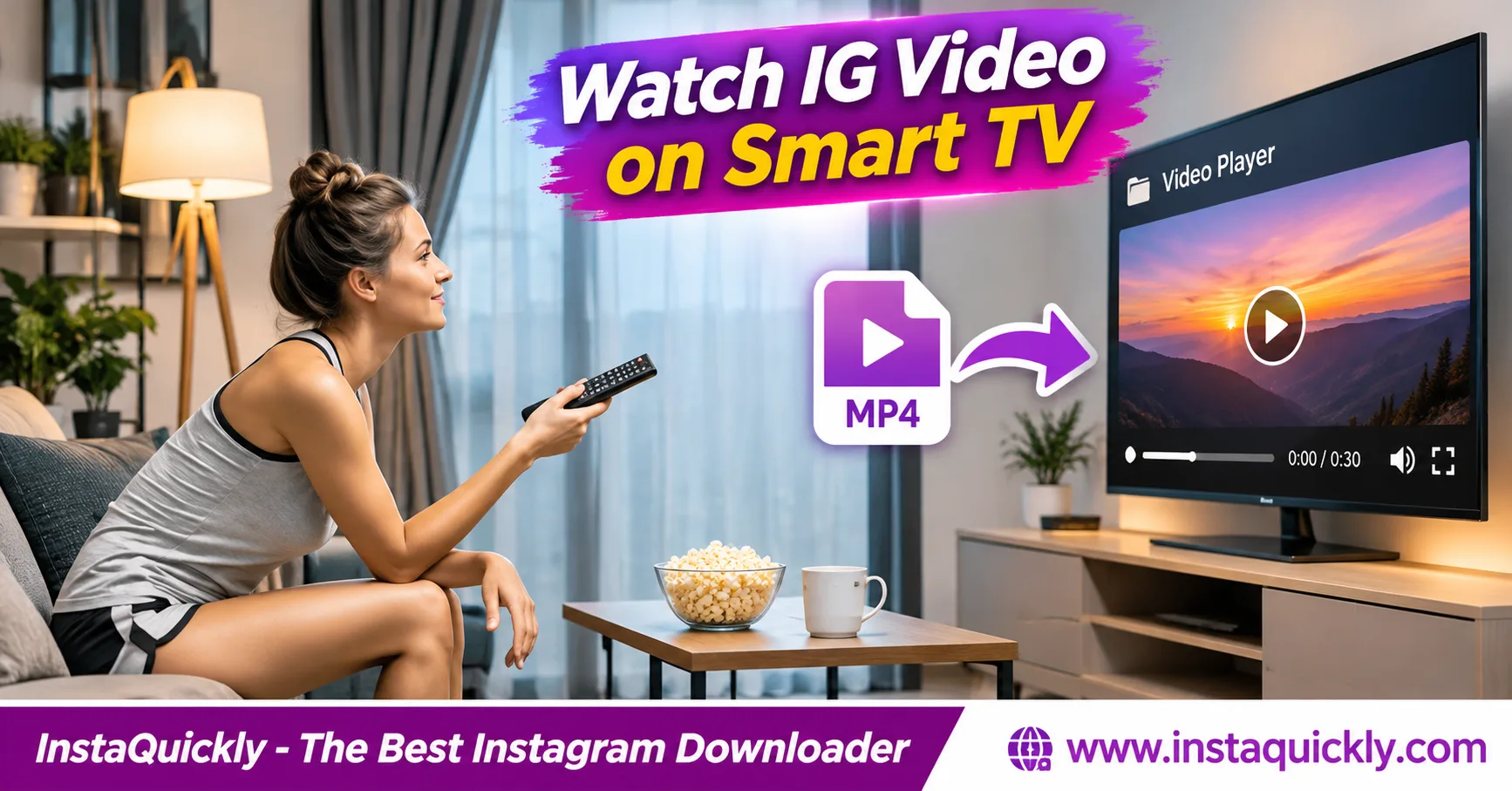
To watch downloaded Instagram videos on TV, save an authorized Instagram Reel or video as an MP4, then play it using a USB drive, Chromecast, AirPlay, or a connected computer. For reliable offline playback, a USB drive or HDMI connection is usually the simplest option.
Many Samsung, LG, and other smart TVs support MP4 files with H.264 video and AAC audio. However, compatibility depends on the TV model and the file's actual encoding.
This guide explains how to transfer Instagram videos to a TV, watch them without internet access, fix unsupported formats, and display vertical Reels without stretching the picture.
Key Takeaways
- [x] Save the complete Instagram MP4 before transferring it.
- [x] Use USB or HDMI for the most predictable offline playback.
- [x] Choose H.264 video and AAC audio when compatibility matters.
- [x] Check your TV's supported USB formats and file systems.
- [x] Use Chromecast or AirPlay only with compatible devices and apps.
- [x] Keep your phone and TV on the same Wi-Fi network for wireless playback.
- [x] Expect black bars when playing vertical Reels on widescreen TVs.
- [x] Test the entire video, including sound and the final seconds.
What Is the Best Way to Play Instagram Videos on a Smart TV?
The best method depends on your TV, phone, and internet connection. Use USB for a simple offline experience, HDMI for direct playback from a computer, or AirPlay and Chromecast when you prefer wireless viewing.
Compare TV Playback Methods
| Method | Internet Needed | Local MP4 Supported | Best For |
|---|---|---|---|
| USB drive | No | Yes, if compatible | Reliable offline playback |
| Computer with HDMI | No | Yes | Older TVs and unsupported codecs |
| Chromecast / Google Cast | Depends on device and app | With a compatible app | Wireless Android playback |
| AirPlay | Depends on device and app | With a compatible app | Wireless iPhone playback |
| TV cloud-storage app | Usually Yes | Depends on app | Files stored online |
| Instagram website or shared link | Yes | No local file required | Online viewing |
USB playback does not depend on an Instagram account or a live network connection.
Wireless casting is convenient, but a downloaded file alone does not guarantee that every casting app works offline.
Can You Watch Instagram Reels on TV Offline?
Yes. You can watch Instagram Reels on TV offline when the video is stored locally and your playback method does not require online access.
For example, you can play an MP4 from a USB drive using your smart TV's media player.
You can also connect a laptop to the TV with HDMI.
Both methods avoid Instagram streaming during playback.
How to Download Instagram Videos for Smart TV Playback
To prepare an Instagram downloaded MP4 to TV, save a supported public video that you own or have permission to use. Check the downloaded file on your phone or computer before copying it to another device.
Step-by-Step: Save an Instagram Reel
- Open Instagram.
- Find the public Reel you want to watch.
- Confirm you have permission to save it.
- Tap Share.
- Choose Copy Link.
- Open the Instagram Reels downloader for public videos.
- Paste the Reel URL.
- Review the available media.
- Save the supported MP4.
- Play the file to check its picture and sound.
For supported regular video posts, use the Instagram video downloader for public posts.
InstaQuickly supports browser-based downloads of available public media without requiring Instagram login.
It does not guarantee access to private videos, original camera files, or every video encoding.
What Should You Check Before Moving the File?
Check these properties:
- MP4 file extension.
- Video duration.
- Working audio.
- Complete beginning and ending.
- Resolution and orientation.
- Actual video codec.
A file that plays on your computer may still use a codec your TV cannot decode.
Keep the original download while testing other formats.
How to Play Instagram Videos from USB on Samsung or LG TV
To play Instagram video from USB on TV, copy the MP4 to a compatible USB storage device, connect it to the TV, and open the TV's media player. This method can work without Wi-Fi or internet access.
Transfer an Instagram MP4 to USB
- Connect a USB drive to your computer.
- Check that the drive uses a file system supported by your TV.
- Create a folder named
Instagram-Videos. - Locate your downloaded MP4.
- Copy the file into the folder.
- Wait for the transfer to finish.
- Safely eject the USB drive.
- Connect it to your TV.
Common USB file systems include FAT32, exFAT, and NTFS, but support varies by TV model.
FAT32 cannot store a single file larger than 4 GiB. Check your TV manual before formatting a drive.
Formatting erases existing data. Back up the USB drive first if you need to change its file system.
Watch Instagram Videos on Samsung TV
- Insert the USB drive into your Samsung TV.
- Press Home on the remote.
- Open Connected Devices, Source, or the available USB option.
- Select the USB storage device.
- Open your video folder.
- Choose the MP4 file.
- Press Play.
- Check the picture, sound, and ending.
Menu names vary across Samsung TV models.
If the file appears but cannot play, check its video and audio codecs against your TV's specifications.
Play Instagram MP4 on LG Smart TV
- Connect the USB drive to your LG TV.
- Open Home.
- Find Media Player or the available USB media app.
- Select the USB device.
- Open the folder containing your MP4.
- Select the video.
- Start playback.
- Check the picture and sound.
LG webOS supports several MP4 video formats, but exact decoding capabilities vary by model.
If your Instagram video LG Smart TV playback fails, compare the video's actual codec with the supported formats in your TV manual.
How to Cast Instagram Videos from Your Phone to TV
You can play a downloaded video wirelessly when your phone, TV, and media app support casting. Chromecast commonly works with compatible Android and iPhone apps, while AirPlay works with supported Apple devices and TVs.
Cast an Instagram Video Using Chromecast
- Save the authorized MP4 to your phone.
- Connect your phone and Google Cast device to the same Wi-Fi network.
- Open a trusted local-video player with Cast support.
- Find your downloaded file.
- Tap the Cast icon.
- Choose your TV or streaming device.
- Start playback.
- Check that audio plays through the TV.
An Instagram video Chromecast from phone workflow requires a compatible sender app.
Not every phone gallery or file manager can cast local videos.
Some casting methods need internet access even when the MP4 is stored locally.
Test your exact device and app before relying on offline wireless playback.
Use AirPlay to Play an Instagram Video on TV
- Save the MP4 to your iPhone.
- Open Photos or a compatible video player.
- Connect your iPhone and AirPlay TV to the same Wi-Fi network.
- Open the video.
- Tap Share or the playback controls.
- Select AirPlay when available.
- Choose the TV.
- Start playback.
- Check the displayed picture and audio.
An AirPlay Instagram video to TV workflow works only with compatible receivers and applications.
If AirPlay is unavailable, check whether your TV supports it and whether both devices use the same network.
Can You Cast Without Internet?
Sometimes, local casting can work without an active internet connection after compatible devices are configured.
However, the local Wi-Fi network must still function, and some receivers or apps require internet services.
For dependable travel or classroom playback, USB or HDMI is safer.
If you need another offline presentation workflow, read how to embed videos in offline presentations.
Best MP4 Codec, Resolution and Bitrate for Smart TVs
A practical Instagram MP4 H264 Smart TV file uses the MP4 container, H.264/AVC video, and AAC audio. This combination is widely supported, although each TV has specific codec-profile, resolution, frame-rate, and bitrate limits.
Recommended Compatibility Settings
| Property | Practical Starting Point | Notes |
|---|---|---|
| Container | MP4 | Common TV support |
| Video codec | H.264/AVC | Broad compatibility |
| Audio codec | AAC-LC | Common TV support |
| Resolution | 1080p or source resolution | Check TV capabilities |
| Frame rate | Match source, often 30 FPS | Avoid unnecessary changes |
| Video bitrate | About 4–8 Mbps for 1080p tests | Not a universal limit |
| Audio bitrate | Around 128–192 kbps | Suitable for stereo audio |
| Dynamic range | SDR for broad compatibility | HDR support varies |
| Aspect ratio | Preserve original | Avoid distortion |
These are example export settings, not fixed requirements for all Samsung or LG televisions.
A file using H.265/HEVC or AV1 may also work on supported TVs.
Why Can an MP4 Fail on a Smart TV?
MP4 is a container, not a video codec.
It can contain different encoded video and audio streams.
For example, a file may use AV1 video that your older TV cannot decode.
Another MP4 may contain an unsupported audio stream.
Meta explains that Instagram uses different encodings for video delivery in its official engineering article about Reels video formats.
That is why checking the actual codec matters more than checking only the .mp4 extension.
Should You Convert the Video?
Convert only when your TV cannot play the existing file.
For footage you own or have permission to edit, create a separate H.264/AAC MP4 copy with compatible settings.
Keep the original download.
Converting a compressed video again can reduce quality.
Do not increase bitrate expecting to recover details already lost during Instagram processing.
Why Do Instagram Reels Look Small or Cropped on TV?
An Instagram video TV aspect ratio problem usually occurs because Reels use vertical framing while most televisions use a horizontal 16:9 screen. The correct display may therefore include black bars on both sides.
Why Are There Black Bars?
A typical vertical Reel uses a 9:16 aspect ratio.
A standard widescreen TV uses 16:9.
When the TV displays the whole Reel without cropping, empty space appears on the left and right.
This is normal.
You can choose:
- Fit: Keep the entire vertical video.
- Fill: Crop the top or bottom to fill more of the screen.
- Stretch: Distort the image to occupy the screen.
Fit is usually the safest choice because it preserves the full composition.
Can You Make Instagram Reels Full Screen on TV?
You can enlarge a vertical video, but filling a widescreen display usually requires cropping or changing the layout.
For your own footage, a video editor can place the Reel over a blurred horizontal background.
This keeps the full image visible while using more screen space.
Avoid stretching faces or objects.
If you want to share a smaller mobile-friendly version instead, see how to share Instagram videos through WhatsApp Status.
Why Does the Video Look Blurry on a 4K TV?
A 1080p or lower-resolution video may look softer when displayed on a large 4K screen.
TV scaling cannot restore detail missing from the source.
The downloadable Instagram version may also contain compression artifacts.
Use the highest-quality authorized source available.
Keep the original aspect ratio and avoid repeated re-encoding.
Why Won't My Downloaded Instagram Video Play on TV?
A downloaded Instagram video not playing on TV problem may come from an unsupported codec, incompatible USB file system, damaged download, or connection problem. Start by testing the MP4 on another device.
Why Does the TV Say Unsupported File?
Possible causes include:
- Unsupported video codec.
- Unsupported audio codec.
- Unsupported codec profile or level.
- Excessive resolution or frame rate.
- Damaged media data.
- Incorrect container information.
Check the file's codec with a trusted media inspector.
If needed, make a compatible H.264/AAC copy from an authorized source.
Renaming .mkv or another extension to .mp4 does not convert the file.
Why Doesn't the TV Recognize My USB Drive?
The file system or USB device may not be supported.
Try another USB port and check whether the TV detects the drive.
Review the supported formats in the TV manual.
Avoid formatting the drive before backing up its contents.
Why Is There Video but No Sound?
The file may contain an unsupported audio codec or no audio track.
Check it on a computer.
If the audio is missing from the source, the TV cannot restore it.
If audio works on the computer but not on the TV, inspect the audio codec and output settings.
Why Does Wireless Casting Keep Disconnecting?
Check that both devices are on the same Wi-Fi network.
Other possible causes include:
- Weak wireless signal.
- Unsupported casting application.
- Local-network permission restrictions.
- Router isolation settings.
- Receiver compatibility problems.
Try restarting the app and devices.
For a video you must play without interruption, use USB or HDMI.
What If You Want to Email the MP4 to Another Device?
Email can help transfer a small downloaded video to a computer, but attachment-size limits apply.
For a larger file, use a trusted cloud-storage service or a direct file transfer.
Read how to email a saved Instagram MP4 before choosing the transfer method.
Frequently Asked Questions About Instagram Videos on Smart TVs
Can I watch downloaded Instagram videos on TV without internet?
Yes. Copy a compatible MP4 to USB or play it from a computer connected through HDMI.
Both methods can work without an internet connection.
How do I play Instagram videos from USB on Samsung TV?
Copy the MP4 to a supported USB drive, connect it to the TV, and open the media player through Home or Source.
Select the video and start playback.
Can I watch downloaded Instagram Reels on LG TV?
Yes, when the video format and USB storage device are compatible with your LG TV.
Check the model's codec specifications if playback fails.
Can I Chromecast an Instagram video saved on my phone?
Yes, with a compatible local-media app and Google Cast receiver.
Both devices normally need the same Wi-Fi network. Offline operation is not guaranteed for every setup.
Can I use AirPlay to watch an Instagram MP4 on TV?
Yes, if your iPhone, application, and TV support AirPlay.
Connect them to the same Wi-Fi network and select the TV from the AirPlay controls.
What video format is best for smart TV playback?
MP4 with H.264 video and AAC audio is a practical compatibility choice.
However, the exact supported codec profiles and playback limits depend on your TV model.
Why does my Instagram Reel have black bars on TV?
Reels are commonly vertical 9:16 videos, while TVs are usually horizontal 16:9 screens.
Black bars preserve the original video without cropping or stretching.
Does InstaQuickly guarantee that downloads work on every TV?
No. InstaQuickly provides available media from supported public Instagram sources.
TV compatibility depends on the downloaded file's encoding and the television's supported formats.
Conclusion: Use USB for Reliable Offline TV Playback
To watch downloaded Instagram videos on TV, save a supported MP4, check that it plays correctly, and transfer it using USB, HDMI, Chromecast, or AirPlay. For dependable offline viewing, USB or HDMI is usually the best choice.
Use H.264/AAC when your TV needs a compatible format, and keep the original video's aspect ratio. Vertical Reels may show black bars on widescreen TVs, which is normal.
If playback fails, check the codec, USB format, and file integrity before converting anything.
Use InstaQuickly for supported public downloads and respect the original creator's rights.
Download and display Instagram media only for permitted personal viewing, education, or other authorized uses. Obtain appropriate permission for public screenings, redistribution, or commercial use. Respect copyright, music licensing, and account privacy.
InstaQuickly is an independent service and is not affiliated with or endorsed by Instagram or Meta.