
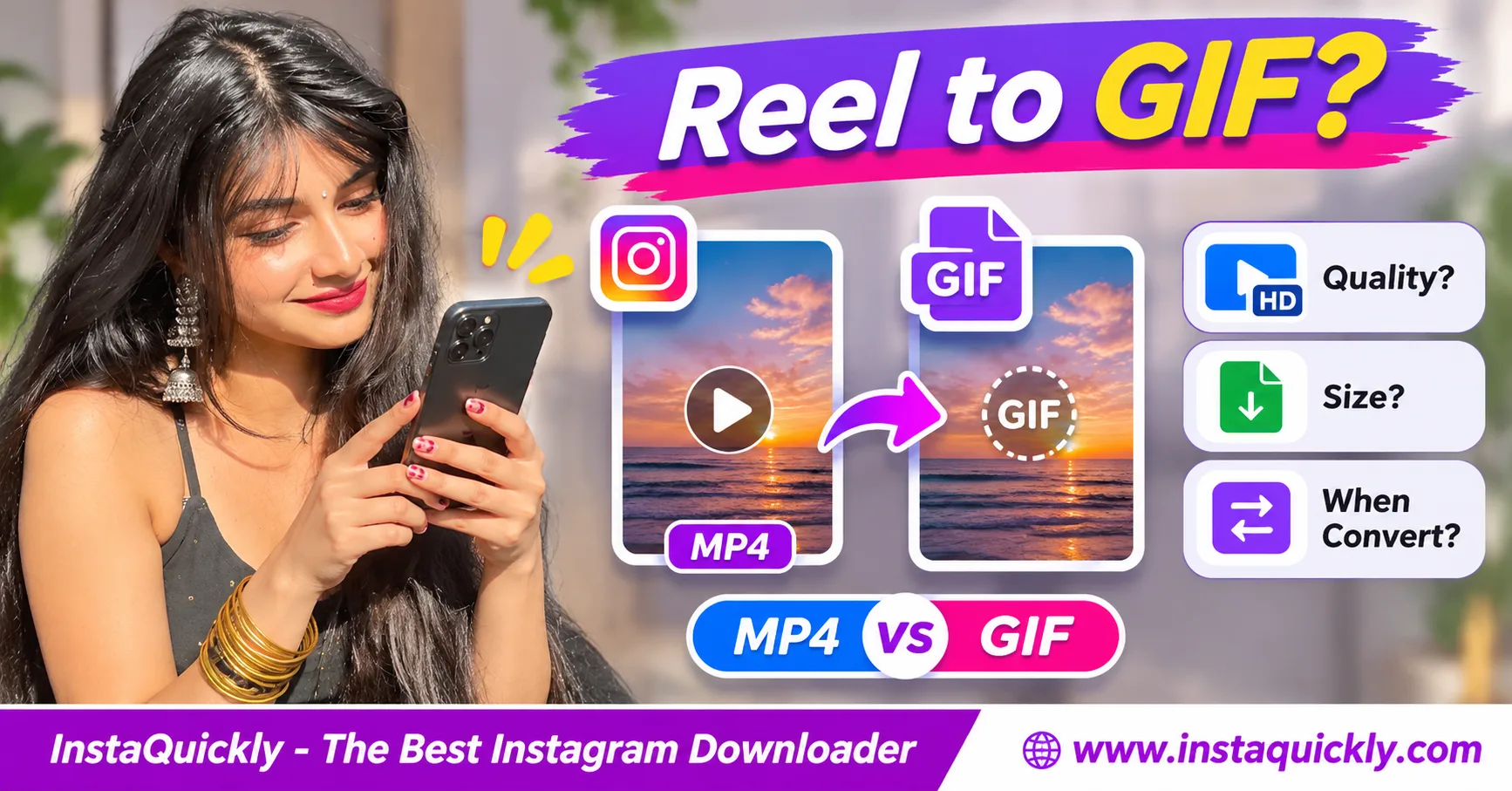
Want to convert an Instagram Reel to GIF? Save an MP4 of a Reel you own or have permission to use, then open it in a trusted GIF converter. Select a short clip, reduce its dimensions and frame rate if needed, and export an animated GIF.
GIF works well for short, silent loops. However, it cannot preserve the Reel's audio, and its limited color palette may reduce image quality. A GIF can also be larger than the original MP4 despite looking less detailed.
This guide explains MP4 vs GIF quality, file size, frame rate, conversion steps, and when keeping the video format is the better choice.
What Happens When You Convert an Instagram Reel to GIF?
An Instagram Reel to GIF conversion turns selected video frames into an animated image. It removes audio and replaces the video's encoding with GIF animation. The result can loop automatically, but its color quality, frame rate, and file size may differ significantly from the original MP4.
Is an Instagram GIF the Same as a Reel?
No. An Instagram Reel is a video post, while GIF is an image format that can display a sequence of frames.
A Reel may contain:
- Video footage.
- Spoken audio.
- Music and sound effects.
- Subtitles or on-screen text.
- Visual transitions.
A standard animated GIF contains image frames and timing information, but no audio track.
Converting a Reel to GIF therefore creates a different media asset.
It does not create another Instagram Reel or preserve every part of the original post.
Why Do People Make GIFs from Instagram Videos?
An Instagram video to animated GIF is useful when you need a short visual loop rather than a complete video.
Common examples include:
- Reaction images.
- Short product demonstrations.
- Tutorial steps.
- UI animations.
- Repeating visual jokes.
- Small animations in documents.
For example, a creator may extract a two-second gesture from a longer Reel.
That movement can work as a GIF without needing the original speech or music.
However, converting an entire Reel into GIF is usually inefficient.
Can You Save an Instagram Reel Directly as GIF?
Not every downloader supports direct GIF export.
Instagram Reels commonly use video delivery formats, and a downloadable MP4 does not automatically include a GIF version.
A tool may provide the video file without offering any image conversion.
For that reason, the reliable workflow is to obtain an authorized video source and convert it using a separate GIF editor.
Do not assume that a button labeled Download will automatically create an animated GIF.
MP4 vs GIF Quality: Which Format Is Better?
For most full-length Reels, MP4 vs GIF quality favors MP4. Modern video codecs can preserve smooth motion and rich colors more efficiently. GIF works best for short animations where simplicity and looping matter more than audio or photographic detail.
Neither format is universally better for every purpose.
MP4 vs GIF Format Comparison
| Feature | MP4 Video | Animated GIF |
|---|---|---|
| Media type | Video container | Animated image |
| Common extension | .mp4 |
.gif |
| Supports audio | Yes, with audio stream | No |
| Common color support | Millions of colors | Up to 256 colors per frame |
| Can loop | Yes, through player | Yes, when configured |
| Smooth motion | Usually better | Depends on frame rate |
| Compression | Video codecs such as H.264 | LZW image compression |
| Long clips | Well suited | Usually inefficient |
| Short silent loops | Supported | Well suited |
| Transparent pixels | Not typical for ordinary MP4 | Limited transparency |
| Original Reel quality guaranteed | No | No |
| Best use | Full video and sound | Short repeating animation |
MP4 is a container, not a single video codec.
For example, an MP4 may contain H.264 video and AAC audio. A GIF uses a different structure built around image frames.
Why Does GIF Look Worse Than MP4?
Standard GIF uses a limited color palette.
This can make complex footage look less natural, especially when the original Reel contains:
- Smooth color gradients.
- Skin tones.
- Detailed backgrounds.
- Shadows and highlights.
- Fast movement.
A GIF encoder may use dithering to imitate colors outside its selected palette.
Dithering can make gradients look grainy.
GIF uses lossless compression for the indexed image data it stores, but converting full-color video into that limited palette can still lose visual detail.
Why Does GIF Have No Sound?
An Instagram GIF no sound result is normal because standard GIF files do not support audio tracks.
For example, converting a talking-head Reel to GIF removes the recorded voice.
The same applies to music and sound effects.
If sound matters, keep the MP4 instead.
Some websites display short looping MP4 or WebM videos that look like GIFs.
Those animated previews are not necessarily actual .gif files, and their audio behavior depends on the player.
Does GIF Keep Instagram Subtitles?
It depends on how the subtitles appear in the source video.
If the subtitles are burned into the video frames, they can remain visible in the exported GIF.
If Instagram displays separate automatic captions through its player, those captions may not exist in the downloaded MP4.
The GIF converter cannot recreate caption data that is missing from its input.
Check the source first, and read why downloaded Instagram Reel captions disappear for the technical differences.
When Should You Convert an Instagram Reel to GIF?
Convert a Reel into GIF when the important content is a short visual movement that makes sense without sound. Keep MP4 for longer clips, detailed footage, high frame rates, or anything that needs speech, music, and strong compression efficiency.
Choose the format based on the final use.
When Is GIF the Better Choice?
GIF can be useful for:
- A two-second reaction.
- A repeating animation in a presentation.
- A small feature demonstration.
- A short visual instruction.
- An animation supported by a document editor.
GIF is also familiar to many websites and messaging applications.
However, some platforms convert uploaded GIFs into video formats during delivery.
The receiving platform's behavior may differ from the file stored on your computer.
When Should You Keep the Original MP4?
Keep MP4 when you need:
- Original audio or music.
- Spoken instructions.
- Longer playback.
- Smooth movement.
- Detailed colors.
- High-resolution video.
- Efficient storage.
For example, a 30-second cooking tutorial usually works better as MP4.
A short silent loop showing one stirring motion may work as GIF.
For a source with cropping or black borders, read how Instagram Reels aspect ratios affect framing.
Changing format alone does not fix the video layout.
Is GIF Better Than MP4 for Sharing?
GIF vs MP4 for sharing depends on the destination.
A GIF may display directly in some documents, chat tools, and web pages.
MP4 is often better for sharing complete videos because it usually needs less storage for comparable motion and image quality.
Some services also have upload size limits.
Before sending a GIF, check whether the receiving application supports animation or converts it into another format.
Do not assume every platform treats .gif files identically.
How to Convert an Instagram Reel to GIF Step by Step
To make GIF from Instagram video files, start with an authorized MP4, select only the useful seconds, and export an animated GIF through a trusted editor. Review the result for readable text, correct framing, smooth movement, and manageable file size.
Avoid converting the entire Reel unless you genuinely need it.
How Do You Save the Reel Video First?
- Open the public Reel you have permission to save.
- Tap Share and select Copy Link.
- Open the Instagram Reels downloader for public videos.
- Paste the Reel URL.
- Review the available media options.
- Save a supported MP4 file.
- Open the video in a trusted player.
- Confirm that it plays correctly.
- Keep an untouched copy before editing.
InstaQuickly provides a browser-based workflow for supported public Reels without requiring Instagram login.
However, a separate GIF export option is not guaranteed.
If you created the Reel, your own original video project may provide a higher-quality source.
How Do You Convert the MP4 into an Animated GIF?
- Open a trusted video-to-GIF converter.
- Import the authorized MP4.
- Select the beginning of the desired animation.
- Set the end point.
- Trim away unnecessary footage.
- Choose suitable output dimensions.
- Select an appropriate frame rate.
- Enable looping if the tool provides that option.
- Preview the animation.
- Export the file as GIF.
- Check its size and visual quality.
- Keep the original MP4.
The exact controls depend on your editor.
Some applications allow GIF export directly. Others require a separate image animation tool.
How Do You Make a Smooth Loop?
Choose a clip where the ending naturally connects to the beginning.
For example, a repeating hand gesture is easier to loop than a scene with a sudden camera cut.
A simple workflow is:
- Identify one complete movement.
- Trim the clip closely.
- Remove unnecessary opening frames.
- Check the final and first frames.
- Preview the loop several times.
- Adjust the trimming points.
- Export the animation again.
A seamless loop feels smoother even with fewer frames.
A poorly chosen cut can look abrupt despite a high frame rate.
Can You Convert Instagram Videos on iPhone or Android?
Yes. Many compatible mobile video editors and GIF-making applications support video-to-GIF conversion.
The basic process is similar on both platforms.
Use a local editor when you want to avoid uploading personal video files to an unknown online service.
On iPhone, find the MP4 in Files or Photos.
On Android, check Files, Gallery, or Downloads.
Import the video into your chosen converter, trim the clip, and export GIF when supported.
If the file will not open, fix the video playback problem before converting it.
For regular public video posts rather than Reels, check the Instagram video downloader for public posts.
Instagram Reel to GIF File Size, FPS and Resolution Explained
Instagram Reel to GIF file size depends mainly on animation duration, frame dimensions, frame rate, image complexity, and palette settings. More frames and larger images generally increase storage requirements, although the final size also depends on compression and repeated visual details.
Start with a short clip before changing advanced settings.
Why Can a GIF Be Larger Than an MP4?
MP4 video codecs can compress changes between frames.
GIF typically stores a sequence of indexed-color image frames with LZW compression.
For a complex video, MP4 may represent moving pictures more efficiently.
A 10-second GIF can therefore be much larger than a 10-second MP4, even when the GIF contains fewer colors and no audio.
This is not a universal rule, but it is common with photographic or high-motion content.
The specific file size depends on the source and encoding settings.
What Frame Rate Should an Instagram GIF Use?
Instagram video GIF frame rate describes how many frames the animation displays each second.
A higher frame rate can look smoother but creates more frames to encode.
Use these values as starting points rather than fixed requirements.
GIF Settings and File Size Tradeoffs
| GIF Setting | Lower-Size Option | Higher-Quality Option | Main Tradeoff |
|---|---|---|---|
| Duration | 2–3 seconds | 5–8 seconds | Longer clips often increase size |
| Width | 320 px | 640 px | Larger frames require more data |
| Frame rate | 10 FPS | 20–24 FPS | More frames can improve motion |
| Colors | 64 | 256 | Larger palette can improve color |
| Dithering | Low or off | Moderate | Improves some gradients but may add texture |
| Looping | Enabled | Enabled | Loop setting alone adds little size |
| Source | Short clean crop | Detailed full frame | Complex scenes compress less efficiently |
These settings are examples, not guaranteed file sizes.
For a simple reaction, 10–15 FPS may be enough.
For fast movement, 20–24 FPS may look smoother, but the GIF can become larger.
How Do You Estimate the Number of GIF Frames?
Multiply duration in seconds by frames per second.
For example:
3 seconds × 15 FPS = 45 frames
A five-second animation at 20 FPS contains:
5 seconds × 20 FPS = 100 frames
More frames can improve movement but generally increase the amount of image data.
Frame count alone does not determine final storage size because GIF compression also depends on image content.
What Resolution Is Best for an Instagram GIF?
Use the smallest dimensions that remain clear for your intended display.
For example:
- 320 pixels wide for a small reaction.
- 480 pixels wide for a simple tutorial loop.
- 640 pixels wide for a larger visual demonstration.
Keep the original proportions to avoid stretching.
If the Reel is 9:16, a 360 × 640 GIF preserves that ratio.
A square conversion may require cropping or background padding.
A full 1080 × 1920 GIF can become unnecessarily large for everyday sharing.
Why Is My Converted Instagram GIF Blurry, Slow or Not Playing?
A converted GIF can look blurry because of color reduction, low output resolution, or source compression. It can also animate slowly when the editor changes frame timing or the viewing application handles GIF playback differently.
Check the original MP4 before assuming the converter caused every problem.
Why Is the GIF Blurry After Conversion?
Common causes include:
- A low-resolution source MP4.
- Strong compression in the source.
- Excessive resizing.
- A limited color palette.
- Poor dithering settings.
- Cropping followed by enlargement.
For example, a GIF enlarged from 240 pixels wide to 800 pixels wide will not recover the original image detail.
Try a cleaner source and a suitable output width.
Keep the original aspect ratio.
Why Is My GIF Too Large to Share?
Long duration, large dimensions, high FPS, and complex movement can increase file size.
Try this troubleshooting sequence:
- Open the GIF project.
- Trim the animation to fewer seconds.
- Reduce the output width.
- Lower the frame rate slightly.
- Reduce the palette size when acceptable.
- Preview the quality.
- Export a new GIF.
- Compare its file size with the previous version.
If the result remains too large, use MP4 instead when the destination supports video.
Do not sacrifice readability just to keep the GIF format.
Why Does My Instagram GIF Have No Sound?
This is expected.
Standard GIF animation has no audio stream.
A converter cannot include speech or music inside an ordinary .gif file.
If you need a looping clip with sound, export a compatible video instead.
Do not rename the GIF extension to .mp4; that does not create video or audio data.
Why Won't the GIF Animate?
Possible causes include:
- The editor exported a still image.
- The file contains only one frame.
- The animation loop is disabled.
- The viewer displays only the first frame.
- The file is incomplete or damaged.
- The destination application does not support animated GIF playback.
Open the GIF in a modern browser to test it.
If it animates in the browser but not in another application, the problem may involve the receiving software rather than the file itself.
How Should Creators Use Instagram GIFs Responsibly?
GIF conversion changes the file format, not the ownership or licensing of the original content. Before converting someone else's Reel for public sharing, confirm that you have the necessary permission for its images, people, and creative elements.
A short animation is still derived from the original video.
Does Converting a Reel to GIF Avoid Copyright Rules?
No.
Turning a video into a GIF does not automatically make the content free to reuse.
For example, a short GIF may still reproduce copyrighted footage or another creator's work.
The legal situation depends on the content, purpose, permissions, and applicable law.
Do not assume that removing audio or reducing resolution removes copyright obligations.
For commercial campaigns, obtain the appropriate rights.
Should You Convert Your Own Reel or Download It Again?
For your own content, start with the original editing project whenever possible.
You can then choose the exact clip and export suitable dimensions without relying on a compressed Instagram copy.
Meta describes video creation, timeline editing, and export options in its official introduction to the Edits app.
Those features support creator video workflows, but they do not mean Edits or Instagram automatically provides GIF export for every Reel.
Keep your master MP4 and editable project for future use.
How Should You Store Your GIF and MP4 Files?
Keep the original video and converted GIF as separate assets.
A simple folder structure might be:
Reels/Originals/
Reels/Exports/MP4/
Reels/Exports/GIF/
Use clear filenames such as:
product-demo-master.mp4
product-demo-loop.gif
This helps you avoid editing a low-quality GIF when the original video is still available.
Preserve the master video before creating smaller sharing versions.
Frequently Asked Questions About Instagram Reel to GIF Conversion
Can I convert an Instagram Reel to GIF?
Yes. Save an authorized Reel video and import the MP4 into a compatible GIF converter.
Trim the desired scene, select output settings, and export an animated GIF. A separate converter is usually needed unless your editing tool supports GIF export.
Can I save an Instagram Reel directly as GIF?
Not every downloader provides direct GIF export.
If the available source offers only an MP4, use a trusted video-to-GIF converter. Do not assume InstaQuickly has a built-in GIF export feature.
Why does my Instagram GIF have no sound?
GIF does not support audio tracks.
Converting a Reel to GIF removes the voice, music, and sound effects. Keep MP4 when sound is important.
Is MP4 better quality than GIF?
MP4 is generally better for full-color video, smooth motion, and longer clips.
GIF has a limited color palette and works best for short silent loops. The actual result depends on the source and export settings.
Why is my Instagram Reel GIF larger than the MP4?
MP4 codecs can compress video efficiently across frames.
A GIF with many large frames may use much more storage, especially when the scene contains complex movement or texture.
What is the best FPS for an Instagram GIF?
Start around 10–15 FPS for simple loops or 20–24 FPS for smoother motion.
Choose the lowest frame rate that still looks acceptable. There is no universal best setting.
Can I upload a GIF back to Instagram as a Reel?
Instagram Reels are video content, so a GIF may need conversion to a supported video format before it can be published as a Reel.
Use a compatible editor to create an MP4 when necessary. Do not assume Instagram will accept every animated image as a Reel.
Does converting a Reel to GIF remove black bars?
No. If the black bars are part of the video frames, they can remain in the GIF.
You may crop or reframe an authorized video, but this does not restore image content that was already removed.
Conclusion: Use GIF for Short Loops and MP4 for Full Reels
Instagram Reel to GIF conversion is useful when you need a short, silent animation. Start with an authorized MP4, trim the best moment, and reduce the frame rate or dimensions when the GIF becomes too large.
Choose MP4 when you need music, speech, full-color quality, or efficient storage for longer clips. GIF cannot keep audio, and a large animated image may still look worse than the original video.
For supported public content, start with InstaQuickly's browser-based Reels Downloader, then use a trusted GIF converter if needed.
Save public Instagram media for permitted personal research or educational use. Obtain the necessary rights before converting, publishing, or commercially using another creator's video, music, or visual content.
InstaQuickly is an independent service and is not affiliated with or endorsed by Instagram or Meta.