
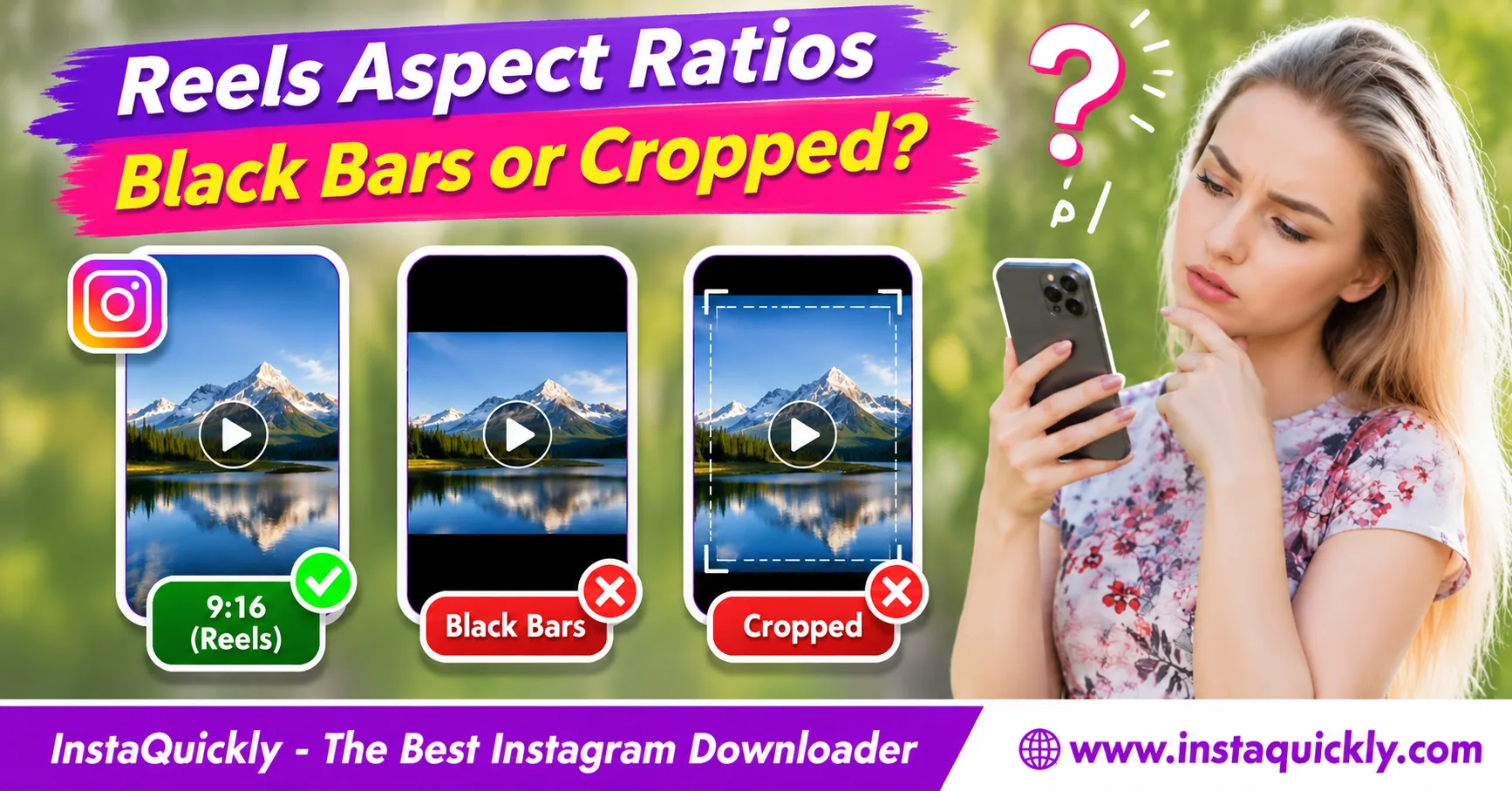
The standard Instagram Reels aspect ratio is 9:16, a tall vertical format commonly designed at 1080 × 1920 pixels. If a downloaded Reel has black bars or cropped edges, the cause may be the original video layout, Instagram's editing choices, or your media player's display settings.
Black bars can appear when a video does not fit the screen. Cropping happens when an image fills a different shape and loses content around its edges.
This guide explains Reel dimensions, video orientation, and why downloaded MP4 files sometimes look different from Instagram playback. You will also learn how to check and fix framing problems without damaging the original video.
What Is the Correct Instagram Reels Aspect Ratio?
The recommended Instagram Reels full screen ratio is 9:16, with 1080 × 1920 pixels as a common design resolution. This vertical shape suits smartphone viewing, but Instagram may accept or process other source dimensions.
The published or downloaded result may therefore differ from your original file.
What Does a 9:16 Aspect Ratio Mean?
An aspect ratio describes the relationship between a video's width and height.
For a 9:16 video:
- Width has 9 relative units.
- Height has 16 relative units.
- The video is taller than it is wide.
- The picture suits vertical phone viewing.
For example, 1080 × 1920 and 720 × 1280 both use 9:16.
Their shapes match, but their pixel counts differ.
A 1080 × 1920 video contains more pixels than a 720 × 1280 video.
However, higher resolution does not automatically guarantee better quality.
Is 1080 × 1920 the Only Instagram Reel Resolution?
No. Instagram Reel dimensions 1080x1920 are a practical export target, not the only resolution that a Reel can use.
A downloaded MP4 may have smaller dimensions because of the available source, compression, or processing.
Examples include:
- 1080 × 1920 pixels.
- 720 × 1280 pixels.
- 540 × 960 pixels.
- Other source-dependent dimensions.
These examples all use the same 9:16 shape.
Do not assume that a lower-resolution download has the wrong aspect ratio.
Resolution and aspect ratio are related but different measurements.
Can Instagram Reels Use Landscape or Square Videos?
Instagram can display videos that originate from square, landscape, or other formats, but those videos may not naturally fill the vertical Reel viewing area.
For example, a 16:9 landscape clip placed inside a 9:16 Reel canvas can show empty space above and below the picture.
A creator can also crop or enlarge the landscape clip to fill the vertical frame.
That may remove content from the sides.
The result depends on how the creator prepared and published the video.
Instagram Reels Dimensions vs Feed and Landscape Formats
The Instagram Reels aspect ratio vs feed distinction matters because Instagram can display the same content in different viewing areas. A vertical Reel may fill its playback screen while appearing cropped in a profile or feed preview.
The actual MP4 does not necessarily change.
Video Aspect Ratio and Resolution Comparison
| Video Format | Aspect Ratio | Example Resolution | Typical Layout |
|---|---|---|---|
| Standard Reel | 9:16 | 1080 × 1920 | Vertical full-screen |
| Lower-resolution Reel | 9:16 | 720 × 1280 | Vertical full-screen |
| Portrait video | 4:5 | 1080 × 1350 | Tall feed-style image |
| Square video | 1:1 | 1080 × 1080 | Square composition |
| Landscape HD | 16:9 | 1920 × 1080 | Horizontal video |
| Landscape camera video | 4:3 | 1440 × 1080 | Horizontal composition |
| Ultra-wide video | 21:9 | 2520 × 1080 | Cinematic wide frame |
These are example dimensions, not guaranteed Instagram download specifications.
A video can use any compatible resolution that follows its intended shape.
Why Does a Reel Look Different in the Instagram Feed?
A Reel can appear in several places, including the Reels viewer, Feed, and profile grid.
Each interface may use a different preview area.
For example, a 9:16 Reel may appear full-height when opened but use a shorter crop in a feed preview.
This is a display crop.
It does not necessarily mean Instagram permanently removed the hidden pixels from the underlying video.
Open the Reel itself before judging its actual framing.
Does the Profile Grid Crop the Reel Video?
A profile grid usually shows a preview rather than the complete playback experience.
The grid tile may use a different aspect ratio from the Reel's full-screen video.
As a result, the preview can hide parts of the upper, lower, or side areas.
This is especially important for videos containing text close to the edges.
Keep titles and important subjects within a central safe area when designing your own Reels.
The exact visible area can vary with Instagram's interface.
Why Do Downloaded Instagram Reels Have Black Bars?
An Instagram Reel black bars after download problem can come from two sources: bars already included in the video frames or empty space added by the player to fit the video onto a different-shaped screen.
Identifying the source helps you choose the correct fix.
What Causes Black Bars Above and Below a Video?
Horizontal black bars above and below the picture are often called letterboxing.
They appear when a wide video must fit inside a taller or differently shaped display without cropping.
For example, a 16:9 landscape clip may sit in the center of a 9:16 vertical canvas.
The creator or editor may fill the remaining space with black, blurred, or colored backgrounds.
If those bars were included in the exported video frames, they remain visible in the downloaded MP4.
Changing your player's size will not automatically remove them from the actual image.
Why Do Vertical Videos Have Black Borders on the Sides?
Vertical video black borders on the left and right are often called pillarboxing.
This can happen when a tall video appears on a wide monitor or television.
For example, a 9:16 video cannot fill a 16:9 computer monitor without cropping or stretching.
A player may preserve the original video shape and display unused space on both sides.
That is normal.
The black areas may belong only to the playback interface, not the underlying MP4 file.
How Can You Tell Whether Black Bars Are Part of the Video?
Open the MP4 in a trusted editor or player that displays its actual frame dimensions.
Then inspect the video at its native aspect ratio.
Look for these signs:
- Bars remain inside the picture when exported to another player.
- Black pixels appear along the edges of the actual video frames.
- The picture content occupies only part of a 9:16 canvas.
- The bars disappear when the player changes its viewing layout.
- Another device shows the same embedded borders.
If black pixels are encoded into the frames, changing players will not recover image content behind them.
For your own video, return to the original editing project for a cleaner export.
Why Are Downloaded Instagram Reels Cropped or Stretched?
An Instagram Reels video cropped problem occurs when part of the source image no longer fits the selected frame. Stretching happens when the display changes the image's shape without keeping its original proportions.
These problems need different fixes.
What Is the Difference Between Fit, Fill and Stretch?
Video players and editors can display content in several ways.
| Display Mode | Keeps Original Proportions | Black Bars Possible | Cropping Possible | Distortion Possible |
|---|---|---|---|---|
| Fit / Contain | Yes | Yes | No | No |
| Fill / Cover | Yes | No, if frame is filled | Yes | No |
| Stretch | No | Usually No | Not required | Yes |
| Crop to 9:16 | Yes | No, if frame is filled | Yes | No |
| Add background padding | Yes | Yes, or colored background | No | No |
The best setting depends on whether preserving the full picture or filling the screen matters more.
For most instructional videos, preserving important content is better than removing every black border.
Why Are the Edges Missing from My Downloaded Reel?
A Reel may have lost its edges during editing or publishing.
For example, a creator might enlarge a horizontal video to fill a vertical canvas.
This can remove content from its left and right sides.
If the cropped frame is already part of the downloaded file, a downloader cannot restore the missing pixels.
The same applies when a creator exports the video after cropping it.
For your own content, use the original recording rather than enlarging a downloaded version.
Why Does My Reel Look Stretched After Downloading?
A stretched video usually results from incorrect display or export proportions.
For example, forcing a 4:3 source into a 9:16 frame without maintaining its aspect ratio can make people appear unnaturally thin.
A player can also interpret unusual pixel aspect ratio metadata incorrectly.
Check the actual frame dimensions and available display settings.
Avoid solving the problem by changing the file extension from MP4 to another format.
The file extension does not control image geometry.
How to Check and Fix a Downloaded Instagram Reel's Aspect Ratio
To check a downloaded Reel, inspect the MP4's width and height, calculate its aspect ratio, and compare the video with its playback in Instagram. Then determine whether the black bars or cropping come from the file or the player.
Use a copy when editing the file.
How Do You Download an Available Instagram Reel?
- Open Instagram.
- Find a public Reel you have permission to save.
- Tap Share.
- Choose Copy Link.
- Visit the Instagram Reels downloader for public videos.
- Paste the Reel URL.
- Click Download.
- Review the available video options.
- Save a compatible MP4.
- Play the file and check its framing.
InstaQuickly provides browser-based downloads for supported public Reels without requiring Instagram login.
However, it cannot guarantee that every available video uses 9:16 or that a source with embedded black bars can be restored.
How Do You Check the Video Dimensions?
Use your device's file information panel or a trusted media inspector.
On a computer:
- Locate the downloaded MP4.
- Open its properties or media information.
- Find video width and height.
- Write down the dimensions.
- Divide width by height.
- Compare the result with 9:16.
- Open the video at its native size.
- Check whether borders belong to the picture.
For example:
1080 / 1920 = 0.5625
9 / 16 = 0.5625
The matching values confirm a 9:16 frame.
However, a 9:16 MP4 can still contain a smaller landscape video surrounded by black pixels.
How Do You Remove Black Bars from Your Own Video?
If you own the video, open the original editing project.
- Select a 9:16 project canvas.
- Import the original recording.
- Review the video's orientation.
- Choose Fit to preserve the complete image.
- Choose Fill only when cropping is acceptable.
- Reposition the main subject.
- Replace black padding with a suitable background if needed.
- Check titles and subtitles.
- Export a new MP4.
- Test the video on a phone.
A blurred or colored background can preserve the full landscape picture without leaving black bars.
Cropping may look more immersive, but it removes content from the edges.
How Do You Fix Black Bars in a Downloaded MP4?
If the bars belong only to your player, try the player's supported display modes.
For example:
- Fit.
- Fill.
- Zoom.
- Original size.
- Full screen.
If the bars are encoded into the video, your options are different.
For your own content, edit the original source. For authorized third-party media, use a permitted editor only when you have the necessary rights.
Do not assume that cropping away black borders restores the original image quality.
It usually reduces the visible picture area.
How Do Resolution, Bitrate and Video Codec Affect Reel Layout?
Resolution and aspect ratio describe image dimensions, while bitrate and codec describe video encoding. These properties affect different parts of the viewing experience.
A file can use the correct 9:16 shape but still look blurry or fail to play.
Does Higher Resolution Fix Black Bars?
No. Increasing resolution does not change the source's aspect ratio.
For example, converting a 720 × 1280 video to 1080 × 1920 preserves the same 9:16 shape.
If the smaller video already contains black bars, those bars will normally remain in the enlarged version.
Upscaling also cannot recreate genuine detail that the source lacks.
Use the original recording when you need a cleaner image.
Does Video Bitrate Cause Cropping?
No. Bitrate controls how much encoded data a video uses over time.
It can affect compression quality and file size, but it does not directly determine how the frame is cropped.
For example, two 1080 × 1920 videos can have different bitrates while keeping identical framing.
A low-bitrate version may show more compression artifacts.
However, its black bars and cropped edges can remain in the same positions as the higher-bitrate version.
Can H.264 or H.265 Change Video Orientation?
H.264 and H.265 are video codecs, not aspect-ratio settings.
They encode the visual frames.
Some video files also contain orientation or display metadata that a compatible player interprets during playback.
If a player ignores this information, a video may appear rotated or display incorrectly.
This differs from a file that has the wrong width-to-height relationship.
For more technical troubleshooting, read how to fix Instagram MP4 playback errors.
Changing codecs alone will not necessarily fix rotation, black bars, or cropping.
Instagram Reel Covers vs Video Cropping: What Creators Should Know
An Instagram Reel cover crop vs video crop comparison helps creators avoid confusing a preview image with the actual video frames. A cover can use a separate image, while the Reel's MP4 contains its own video dimensions and framing.
They should be checked independently.
Why Does the Reel Cover Look Cropped but the Video Does Not?
The Reel cover may appear in a profile grid with a different crop from the full video.
For example, a 9:16 cover may lose some of its edges when Instagram displays it in a shorter preview area.
When viewers open the Reel, the video may show its complete frame.
This does not necessarily indicate damage to the downloaded MP4.
For more detail, read how Reel cover photos and thumbnails differ.
Can a Reel Cover Have a Different Ratio from the Video?
The selected cover can be a separate visual asset, and Instagram may crop it for different display surfaces.
The video and cover therefore do not always appear with identical framing.
For example, a creator may design a cover with a large title but record the actual Reel with centered talking-head footage.
The full video may play normally while the cover looks cropped in the profile grid.
Check both before publishing.
How Should Creators Prepare Reels for Different Screens?
For your own Reels, use a vertical project canvas and keep important content away from the edges.
Practical guidelines include:
- Design the main video at 9:16.
- Use 1080 × 1920 pixels when appropriate.
- Keep text clear and centered.
- Preview the Reel in full-screen mode.
- Check profile grid and feed previews.
- Avoid stretching horizontal footage.
- Use background padding when preserving the full picture matters.
- Keep the original video and editable project.
Meta describes Reel editing features, including scaling, cropping and rotation, in its official Instagram content creation update.
These tools support different creative layouts, but they do not guarantee that every downloaded media file matches the original project.
Do Image Formats Affect Reel Layout?
JPG, PNG, and WebP can store cover images, while MP4 commonly stores video and audio streams.
Their formats are different, but both cover images and video frames have pixel dimensions and aspect ratios.
A PNG cover does not automatically force the Reel video to use the same shape.
For an explanation of common image formats, read how Instagram photo download formats compare.
Treat the cover file and the video file as separate assets.
Frequently Asked Questions About Instagram Reels Aspect Ratios
What is the standard Instagram Reels aspect ratio?
The standard design ratio is 9:16, commonly using 1080 × 1920 pixels.
However, actual downloaded videos may have different dimensions or include content that does not fill the vertical frame.
Why does my downloaded Instagram Reel have black bars?
Black bars can come from video padding or your player's display settings.
Check whether the bars are part of the MP4 frames or appear only because the player preserves the video shape on a different screen.
Can I remove black bars from an Instagram Reel?
Yes, for videos you own or have permission to edit.
You can crop, zoom, or add a background in an editor. However, cropping removes part of the picture and cannot restore missing source pixels.
Why is my Instagram Reel cropped after downloading?
The creator may have cropped the video during editing, or your player may use a Fill or Zoom display mode.
Compare the MP4 at its native dimensions with Instagram playback before editing.
Is 1080 × 1920 always the download resolution?
No. It is a common vertical export resolution, not a guaranteed downloadable size.
Instagram may provide lower-resolution media versions depending on the accessible source.
Why does a vertical Reel have black borders on my computer?
A tall 9:16 video does not naturally fill a wide 16:9 monitor.
Your player may add empty space to preserve the full picture. This is usually normal and does not mean the MP4 is damaged.
Does changing MP4 to another format fix cropping?
No. Changing a file extension does not alter the video frame or restore cropped content.
You need a compatible editor to change framing, and the result depends on what the source file contains.
Can InstaQuickly download Instagram Reels in their original aspect ratio?
InstaQuickly can retrieve available media files from supported public Reels.
However, it cannot guarantee that every available MP4 matches the creator's original upload or that embedded black bars and cropping are removed.
Conclusion: Check the Video Frame Before Fixing Black Bars
The standard Instagram Reels aspect ratio is 9:16, often designed at 1080 × 1920 pixels. However, downloaded MP4 files can show black bars or cropped edges because of the original layout, editing choices, or player settings.
Start by checking the file's dimensions and opening it in another player. Identify whether the borders are encoded into the video before cropping or converting anything.
For your own content, keep a clean source project and export with the correct framing. Avoid stretching videos or enlarging low-quality files unnecessarily.
Use InstaQuickly's Reels Downloader to check available media from supported public Reels.
Save public Instagram media for permitted personal research or educational use. Obtain the required rights before editing, republishing, or commercially reusing another creator's videos, covers, or audio.
InstaQuickly is an independent service and is not affiliated with or endorsed by Instagram or Meta.