
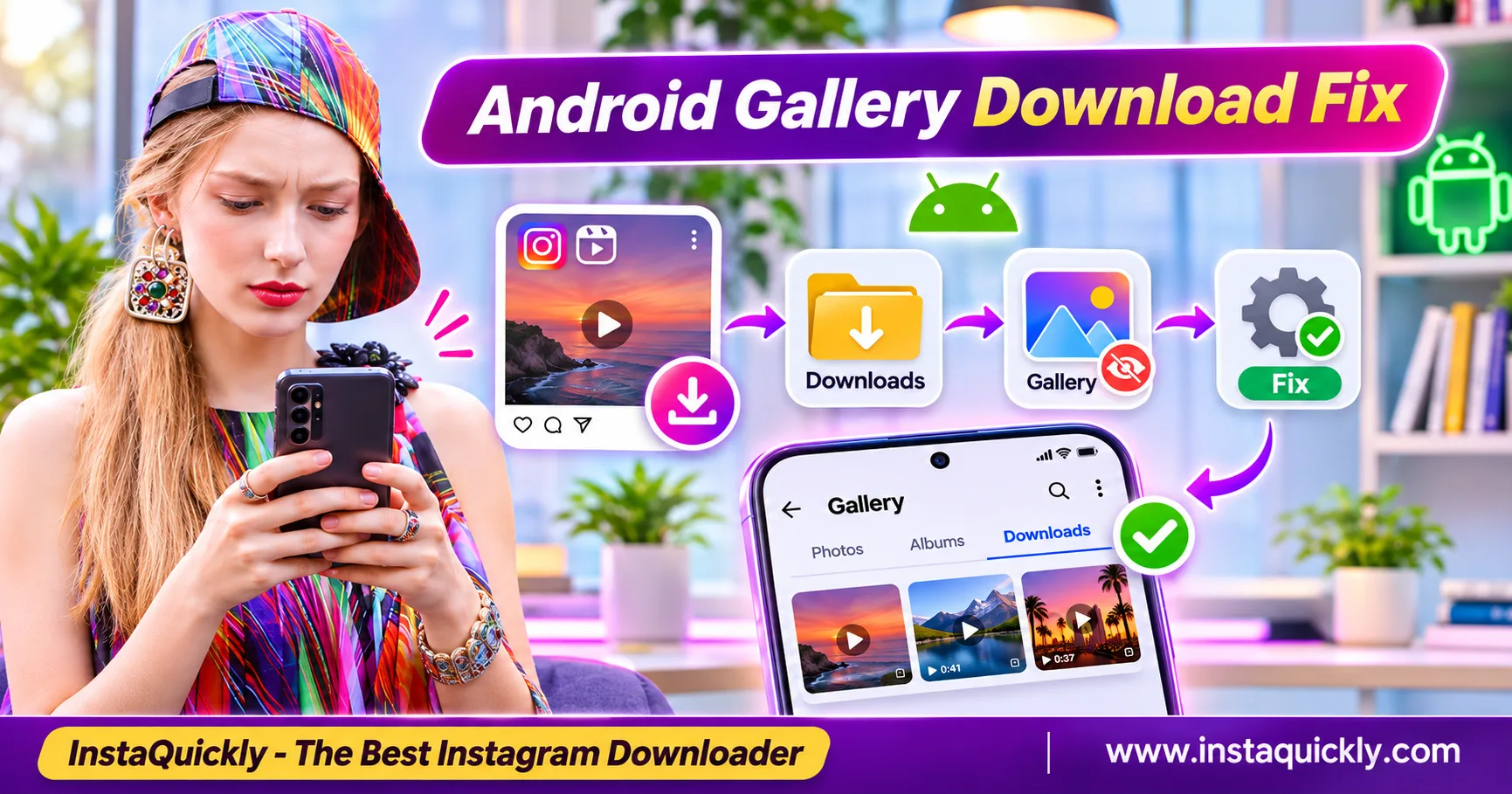
Instagram downloaded video not showing in Gallery? The video may still be in your Android Downloads folder, even if Samsung Gallery or Google Photos cannot display it. Open Files or My Files, check Downloads, and play the MP4 before downloading it again.
Android browsers save files separately from Gallery apps. Sometimes, Gallery has not indexed the video, hides its folder, or cannot read its format. On other occasions, the download did not finish.
This guide explains where Instagram downloads go on Android, how to move Reels into Gallery, and how to fix missing MP4 files on Samsung, Google Pixel, and other Android phones.
Why Are Downloaded Instagram Videos Not Showing in Gallery?
An Instagram video downloaded but not in Gallery usually means the file exists outside the gallery's visible media collection. The video may be in Downloads, inside a hidden folder, or waiting for Android's media index to update.
A missing Gallery thumbnail does not always mean the download failed.
Common causes include:
- Downloads folder: The browser saved the video outside your camera folder.
- Hidden album: Your Gallery app hides the folder containing the file.
- Media indexing delay: Android has not added the video to its media database.
- Unsupported codec: The video uses a format your Gallery app cannot decode.
- Incomplete download: The browser stopped before saving the complete MP4.
- App permissions: Gallery cannot access the relevant photos and videos.
- Google Photos settings: The video exists locally but is not backed up to your account.
Check the actual file first. Moving or downloading the video again may be unnecessary.
Where Are Instagram Downloads on Android?
If you are asking where are Instagram downloads on Android, start with the Downloads folder. Chrome and many other browsers save downloaded MP4 files to a default download location, which you can inspect with a file manager.
How Do You Find Downloaded Reels on Android?
To find downloaded Reels Android users should check the browser's download history and the local file manager.
Follow these steps:
- Open Files by Google, My Files, or your phone's file manager.
- Select Downloads.
- Look for the recently downloaded MP4.
- Sort by date if necessary.
- Tap the file to test playback.
- Check the file details if it does not open.
A common Android path is:
Internal storage/Download/
Some devices display the folder as Downloads rather than Download.
If your browser uses a custom location or an SD card, check that destination instead.
How Do You Find a Download from Chrome?
Chrome has a download history that helps you locate recently saved files.
- Open Chrome.
- Tap the three-dot menu.
- Select Downloads.
- Find the Instagram video.
- Tap the file to open it.
- Use the available file information or folder option to locate it in storage.
If the video appears here but not in Gallery, the download may have succeeded.
The next step is to check where Android stored the file and whether Gallery can recognize it.
Why Does the Video Appear in Files but Not Gallery?
Files and Gallery perform different jobs.
Files shows documents, downloads, media, and other accessible files. Gallery focuses on supported photos and videos in locations that its media library recognizes.
An Instagram video saved to Downloads not Gallery may exist normally without appearing in the main Gallery view.
| Location or App | What It Shows | What to Check |
|---|---|---|
| Files / My Files | Local files and folders | Downloads and file details |
| Chrome Downloads | Browser download history | Completion and filename |
| Samsung Gallery | Recognized local photos and videos | Albums and hidden albums |
| Google Photos | Local and cloud media | Collections > On this device |
| DCIM / Camera | Camera media | Whether the file was moved here |
| Movies | Video storage folder | Saved MP4 files |
| Pictures | Image and supported media folders | Media visibility |
Folder names and menu locations vary by device and Android version.
How to Move Downloaded Instagram Videos to Gallery
To move downloaded Instagram video to Gallery, locate the MP4 in your file manager and move or copy it into a standard media folder, such as Movies. Then reopen Gallery and check whether the video appears.
Moving a file does not normally change its video quality.
How Do You Move an Instagram MP4 into Gallery?
- Open your Android file manager.
- Navigate to Downloads.
- Find the Instagram video.
- Touch and hold the MP4.
- Select Move or Copy.
- Open Internal storage.
- Choose the Movies folder, or create one if needed.
- Confirm the operation.
- Open Gallery and check your albums.
- Play the video to confirm it works.
Use Copy if you want to keep the original file in Downloads.
For professional projects, keeping an untouched backup is a good practice.
A media folder makes the video easier to organize, but it cannot repair an unsupported or damaged file.
Can You Save Instagram Reels Directly to Android Gallery?
Sometimes. Instagram's native download feature may save eligible public Reels into your device's media library when the creator and platform allow downloading.
A browser-based downloader may save its MP4 to Downloads instead.
If you use InstaQuickly:
- Copy the public Reel URL.
- Open the Instagram Reels downloader for Android users.
- Paste the link.
- Tap Download.
- Choose an available MP4.
- Open Files > Downloads.
- Move or copy the file to Movies if Gallery does not show it.
InstaQuickly supports accessible public media without requiring your Instagram password.
For more information about Instagram's Reel features, see Meta's official introduction to Instagram Reels.
How to Fix Instagram Downloads Missing from Samsung Gallery or Google Photos
Instagram downloads Samsung Gallery issues often involve hidden albums, folder locations, or media permissions. Google Photos has a separate local-folder view, so a video may appear on the device without appearing in your cloud library.
Use the instructions for your gallery application.
How Do You Find Instagram Downloads in Samsung Gallery?
Samsung Gallery may show downloaded videos in an album rather than the main Pictures view.
Follow these steps:
- Open Samsung Gallery.
- Tap Albums.
- Look for Downloads or a similarly named album.
- Check other media folders.
- Review the option for hidden albums.
- Make sure the relevant album is visible.
- Open My Files to confirm the MP4 still exists.
If the video appears in My Files but not Samsung Gallery, inspect Gallery permissions and folder visibility.
Some Samsung interfaces also allow you to choose which albums appear in the main Gallery view.
Do not delete files simply because an album is missing.
Why Is an Instagram Video Missing from Google Photos?
An Instagram video missing Google Photos problem can happen when the file remains in a local device folder that the main Photos view does not show.
Google Photos also separates local file visibility from cloud backup.
To find the video:
- Open Google Photos.
- Tap Collections.
- Select On this device.
- Open Downloads or another relevant folder.
- Find the MP4.
- Tap the video to check playback.
- Review folder backup settings if you want a cloud copy.
To change backup settings, open Google Photos settings, select Backup, and review Back up device folders.
A file can exist on your phone without being backed up to your Google Account.
Also check that you are using the expected Google Account when looking for cloud media.
Does Moving a Video to DCIM Make It Appear in Gallery?
Moving a compatible video into a standard media folder can help Gallery discover it.
However, DCIM is not the only suitable location. Movies is also a common Android media folder.
For downloaded Reels, Movies can keep personal downloads separate from camera recordings.
Do not move files into unrelated system folders or delete existing camera data.
If the video still does not appear, investigate media indexing, codec support, and Gallery settings.
Android Media Scanner: Why Downloaded Videos Stay Hidden
The Android media scanner downloaded video issue happens when Android has not indexed a media file or excludes its folder from scanning. Gallery applications often rely on Android's media database to discover local photos and videos.
A valid MP4 may exist in Files before it appears in Gallery.
What Is the Android Media Scanner?
Android maintains a media index that helps applications find supported photos, videos, and audio files.
The index contains information such as file locations, media types, and available metadata.
When you download or move a video, Android usually detects the change and updates the index.
Sometimes, the update takes time or a folder prevents scanning.
This explains why a video can play from a file manager but remain absent from a gallery application.
How Do You Refresh Android's Media Index?
Try these low-risk steps first:
- Confirm the MP4 exists in Downloads.
- Open the file and test playback.
- Move or copy it into Movies.
- Close and reopen Gallery.
- Restart your phone.
- Wait for Android to detect the media.
- Check Gallery or Google Photos again.
Restarting the device may help Android discover media changes.
Avoid using unknown "media scanner repair" applications that request extensive storage permissions.
Do not clear system Media Storage data as an early troubleshooting step. That action can affect media databases and may require a long rebuild.
What Is a .nomedia File?
A .nomedia file tells Android's media scanner to exclude media from a directory and its relevant subfolders.
Some applications use this file intentionally to hide private or temporary media from Gallery.
If your Downloads or Movies folder contains an unexpected .nomedia file, it may explain the missing thumbnails.
On a supported device:
- Open the file manager.
- Enable Show hidden files.
- Navigate to the folder containing the missing video.
- Check whether
.nomediaexists. - Confirm that the folder should display its media publicly.
- Remove the file only if you understand why it is there.
- Restart the device or allow the media index to refresh.
Do not delete .nomedia files from unrelated application or private folders.
Removing them can expose media that an application intentionally keeps out of Gallery.
Downloaded MP4 Not Showing on Android: Format and File Checks
A downloaded MP4 not showing Android problem may involve an incomplete file, an unsupported codec, or damaged media. MP4 is a container, not a guarantee that every Android player can decode the video inside it.
Check both the downloaded file and its actual video format.
Does Every MP4 Work in Android Gallery?
No. An MP4 can contain video streams encoded with different codecs, profiles, and settings.
H.264 video is widely compatible with Android devices, while HEVC/H.265, AV1, and other formats depend on device and software support.
The audio codec also matters for playback with sound.
| File Property | Common Example | Gallery Compatibility |
|---|---|---|
| Container | MP4 | Widely supported |
| Video codec | H.264 / AVC | Broad support |
| Video codec | HEVC / H.265 | Device-dependent |
| Video codec | AV1 | Device-dependent |
| Audio codec | AAC | Broad support |
| File size | 0 bytes or unusually small | May indicate failed download |
| Download status | Incomplete | May not open |
| Video resolution | 720p / 1080p / 4K | Depends on device and codec |
These are general compatibility examples, not fixed Instagram encoding specifications.
A file named .mp4 may still contain data that your gallery cannot decode.
How Do You Check Whether an Instagram MP4 Is Damaged?
Test the video before changing Gallery settings.
- Open Files or My Files.
- Find the downloaded MP4.
- Check its file size.
- Tap the file to play it.
- Try another trusted media player if needed.
- Confirm whether the image and sound work.
- Compare the file with the original source when possible.
An incomplete download may have a very small file size or fail during playback.
If the file is damaged, download the source again only when it remains publicly accessible and you have permission.
Does Converting MP4 Fix a Missing Gallery Video?
Sometimes, converting an incompatible video into a supported format can make it playable in Gallery.
However, conversion is not the first step when the file is simply in the wrong folder.
If the MP4 plays normally in Files, check folder visibility and indexing before changing the codec.
Re-encoding can introduce additional compression and reduce quality.
Keep the original file until you confirm that the converted version plays correctly.
How to Prevent Instagram Reels from Disappearing from Android Gallery
You can reduce future Instagram Reels not appearing in Gallery problems by checking download completion, using recognizable filenames, and storing compatible video files in a standard media folder.
Build a simple routine instead of searching through multiple applications every time.
How Do You Download Instagram Videos with InstaQuickly?
- Open Instagram and copy the link to a public video.
- Launch Chrome or another compatible Android browser.
- Visit the Instagram video downloader for Android phones.
- Paste the URL.
- Tap Download.
- Select an available MP4 file.
- Wait for the download to finish.
- Open your browser's Downloads list.
- Play the video to verify it.
- Move or copy the file into Movies if necessary.
The downloaded file's resolution and audio depend on the accessible source.
InstaQuickly cannot guarantee the original upload quality or access to private media.
How Should You Organize Downloaded Instagram Videos?
Create a dedicated folder for compatible Instagram video downloads.
For example:
Internal storage/Movies/Instagram Downloads/
Keep descriptive filenames and separate important creator-owned originals from downloaded reference files.
Other useful habits include:
- Check available storage before large downloads.
- Confirm file playback after saving.
- Avoid unnecessary media conversions.
- Keep a backup of your own original recordings.
- Review Google Photos device-folder backup settings.
- Avoid repeatedly downloading a file that already exists.
For general download failures, read our guide to fixing Instagram download errors.
If you also use an iPhone, see our guide to moving downloads into iPhone Photos.
For profile photos rather than videos, follow our tips for saving Instagram profile images.
Save public Instagram audio for offline personal research, educational use, or original content creation only. Use audio in new content only when you own it or have the rights or permission to reuse it.
The same principle applies to downloaded videos: respect creator rights and do not assume that public access permits commercial reposting.
Frequently Asked Questions About Instagram Videos Missing from Android Gallery
Why is my Instagram video downloaded but not in Gallery?
The browser may have saved the video in Downloads, while Gallery has not indexed the folder or does not display that album.
Open Files, locate the MP4, and test playback. If it works, check Gallery albums or move the file into Movies.
Where do downloaded Instagram Reels go on Samsung phones?
They commonly appear in My Files > Downloads, depending on your browser settings.
Open Samsung Gallery > Albums and check Downloads. If the video is missing, review hidden albums, app permissions, and media indexing.
How do I move an Instagram video from Downloads to Gallery?
Open your file manager, select the downloaded MP4, and move or copy it into Internal storage > Movies.
Reopen Gallery after the move. If the file remains invisible, confirm its format and allow Android to refresh the media index.
Why is my downloaded MP4 not showing in Google Photos?
Google Photos may not display the file in its main view, or the relevant device folder may not have cloud backup enabled.
Open Collections > On this device and check Downloads. Review backup settings separately if you want the video in your cloud library.
Can a .nomedia file hide Instagram downloads?
Yes. A .nomedia file can prevent Android's media scanner from indexing media in a folder.
Check for this file only in the affected location. Do not remove it from private or application-managed folders without understanding its purpose.
Does restarting Android make downloaded videos appear in Gallery?
Sometimes. Restarting may help Android refresh its media database.
However, it cannot repair an incomplete MP4, fix every codec issue, or make inaccessible files available. Check the file and folder first.
Is it safe to clear Android Media Storage to fix Gallery?
Avoid clearing system Media Storage data as a first troubleshooting step.
Start with file location, hidden albums, permissions, and a restart. System-level media database changes may require rebuilding indexes and can affect your media library.
Conclusion: Find Your Instagram Downloads Before Downloading Again
If an Instagram downloaded video not showing in Gallery problem occurs, check Files or My Files > Downloads first. The MP4 may exist even when Gallery or Google Photos cannot display it.
Move a compatible file into Movies, review hidden albums, and allow Android to refresh its media index. If the video does not play, check the download status and codec before trying again.
InstaQuickly offers browser-based downloads for supported public Instagram videos and Reels without requiring an account login.
Try InstaQuickly's Instagram Video Downloader and save compatible files for permitted offline viewing.
InstaQuickly is an independent service and is not affiliated with or endorsed by Instagram or Meta.