
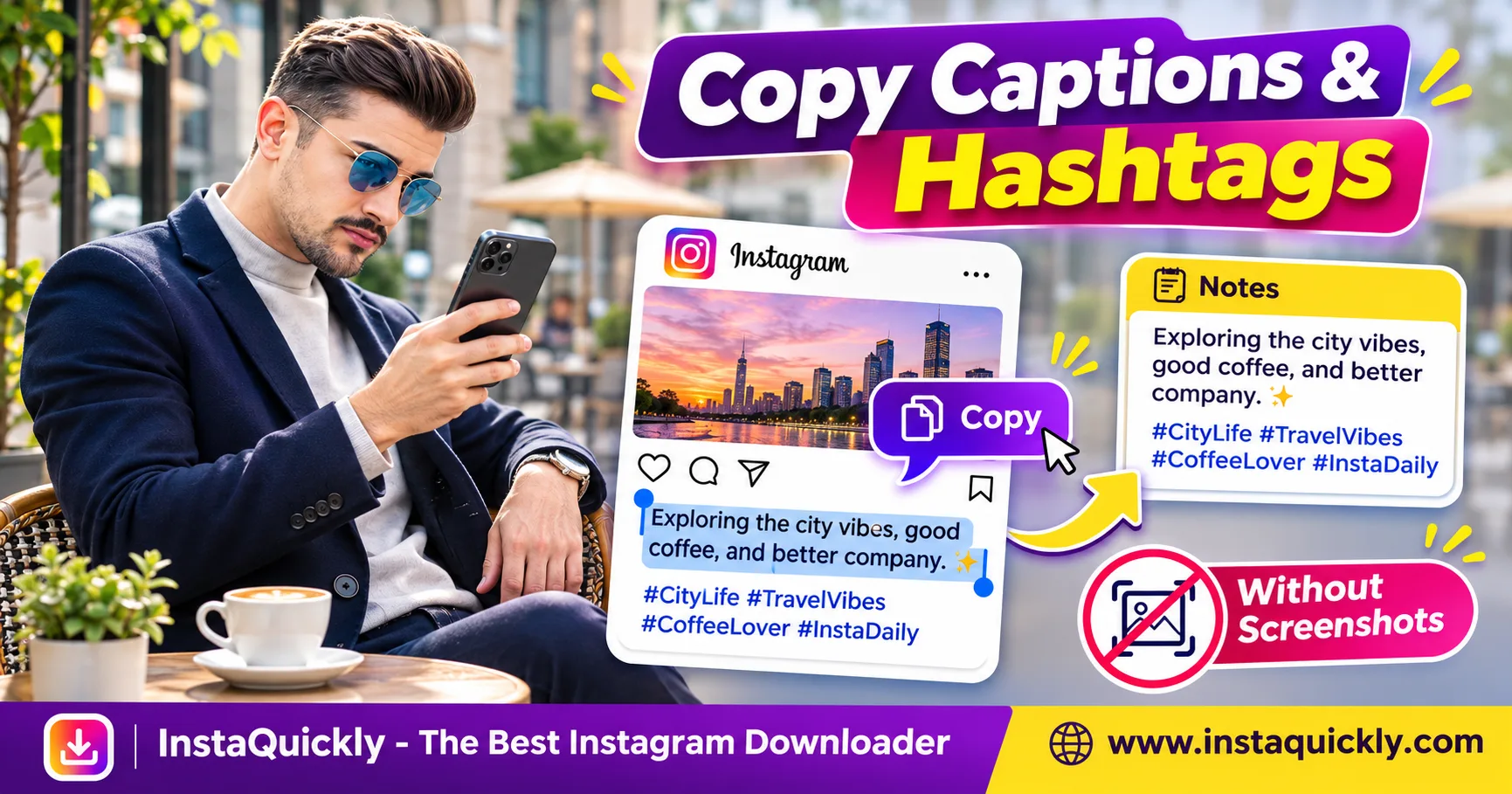
To copy Instagram post caption text without screenshots, open the post in a web browser, expand the full description, and select the words you need. You can then paste the caption, hashtags, or mentions into Notes, a document, or another text editor.
Instagram's mobile app often does not offer direct text selection for another person's caption. However, the web version may let you select the same text, especially on a computer.
This guide explains how to copy Instagram captions on iPhone, Android, and desktop, save hashtags without losing their formatting, and understand why post descriptions, video subtitles, and text inside images require different methods.
Can You Copy an Instagram Post Caption Without a Screenshot?
Yes. You can often copy an Instagram post caption by opening its direct URL in a browser and selecting the visible text. This works for accessible posts when the browser exposes selectable text, although some mobile interfaces and login screens can limit the process.
Why Can't You Copy Captions Directly in Instagram?
Instagram's mobile interface is designed around tapping, scrolling, and interacting with posts.
When you press and hold a caption, the app may not display the normal text-selection handles.
Instead, it may:
- Expand the caption.
- Open a linked hashtag.
- Open a mentioned profile.
- Show post actions.
- Ignore the long press.
This is why Instagram caption not copying is a common problem.
The missing Copy option does not mean the text must be captured as an image.
Opening the post in a browser is often a simpler solution.
What Can You Copy from an Instagram Caption?
A post description may contain several kinds of text:
- Normal sentences and paragraphs.
- Hashtags beginning with
#. - Account mentions beginning with
@. - Emojis.
- Product information.
- Instructions and recipes.
- Website addresses.
- Line breaks and lists.
When the caption is selectable, you can usually copy these elements together.
However, formatting may change when you paste into another application.
Always review hashtags, emojis, and line breaks before saving the result.
How to Copy Instagram Caption Text on iPhone and Android
To copy Instagram caption text on a phone, start in the Instagram app, copy the post link, and open it in Safari or Chrome. Expand the caption and try the browser's text-selection controls.
If the mobile page prevents selection, use desktop mode or a computer.
How to Copy an Instagram Caption on iPhone
- Open Instagram on your iPhone.
- Find the post you want.
- Tap Share.
- Select Copy Link.
- Open Safari.
- Paste the URL into the address bar.
- Open the Instagram post in Safari.
- Tap More if the caption is shortened.
- Press and hold the beginning of the caption.
- Adjust the selection handles.
- Tap Copy.
- Open Notes and paste the text.
Check that you copied the full description, not just its first few lines.
If Safari sends you back to the Instagram app, try opening the URL directly in a browser tab.
The available controls may vary by iOS and Instagram version.
How to Copy Instagram Hashtags on Android
- Open the Instagram post.
- Tap Share and choose Copy Link.
- Open Chrome or another trusted browser.
- Paste the post URL.
- Expand the complete caption.
- Press and hold the text.
- Adjust the selection.
- Tap Copy.
- Open Google Keep, Notes, or a text editor.
- Paste the copied hashtags.
- Check spaces and line breaks.
You can copy Instagram hashtags together with the full caption or select only the hashtag section.
If hashtags behave like clickable links, selecting the text may be difficult.
Try desktop mode or another browser when necessary.
What If the Browser Keeps Opening Instagram?
Some phones automatically open Instagram links inside the installed app.
This can return you to the same interface where text selection does not work.
Try these steps:
- Copy the post URL.
- Open your browser manually.
- Paste the URL into its address bar.
- Request the desktop website if necessary.
- Reload the post.
- Expand the caption.
- Try selecting the text again.
If the site requires login, use Instagram's official website rather than entering your password into an unknown caption-copy service.
A computer browser may be easier when mobile selection remains unavailable.
How to Copy Instagram Captions and Hashtags on Desktop
Desktop browsers are often the easiest way to perform Instagram caption copy paste without screenshots. Open the individual post on Instagram's website, expand the caption, select it with your mouse, and copy it using the keyboard.
How to Copy an Instagram Post Caption on Windows or Mac
- Open Chrome, Edge, Firefox, or Safari.
- Visit Instagram's website.
- Open the individual post.
- Find the written description.
- Click More to expand the full caption.
- Select the text with your mouse.
- Press
Ctrl + Con Windows orCommand + Con Mac. - Open a text editor.
- Paste the content.
- Review the copied text.
You may need to select a few paragraphs separately if the interface contains clickable mentions or other controls.
Avoid copying comments accidentally when you only need the post description.
How to Save Instagram Hashtags to Notes
To save Instagram hashtags to notes, keep them as plain text and check that each hashtag begins with #.
For example:
#TravelTips #CityPhotography #WeekendTrip
You can also organize hashtags into reusable groups for your own content research.
Use short labels such as:
- Travel.
- Food.
- Photography.
- Fashion.
- Tutorials.
Keep the original post URL beside the hashtag collection so you can find its source later.
Do not assume every hashtag is suitable for your own audience or topic.
Can You Copy Your Own Instagram Captions?
Yes. If you own the post, Instagram's Edit screen may allow you to select your caption as editable text.
For example:
- Open your published post.
- Open its options menu.
- Select Edit.
- Tap the caption field.
- Select the text.
- Copy it.
- Exit without changing the post.
- Paste the caption into Notes.
Do not accidentally delete or change the published text.
For better backups, write your original captions in Notes or a document before publishing.
Instagram Post Captions vs Reel Subtitles and Image Text
An Instagram post caption is different from words displayed inside a photo or video. Copying the post description does not extract text from image pixels, video overlays, or spoken dialogue.
Choose the method based on where the words actually exist.
Instagram Text Types and Extraction Methods
| Text Type | Where It Appears | Browser Text Selection | Recommended Method |
|---|---|---|---|
| Post caption | Below photo or video | Often Yes | Select and copy |
| Hashtags | Inside description | Often Yes | Copy as text |
| Account mentions | Inside caption | Often Yes | Select carefully |
| Reel description | Post information area | Often Yes | Open Reel URL in browser |
| Text inside photo | Image pixels | No | Original text or OCR |
| Video text overlay | Video frames | No | Original project or OCR |
| Burned-in subtitles | Video frames | No | Transcript or frame recognition |
| Automatic closed captions | Playback layer | Not guaranteed | Authorized transcript source |
| Comments | Comment area | Interface-dependent | Select when supported |
This table explains the differences between text sources.
Browser selection depends on the current Instagram interface and access to the post.
How Do You Copy an Instagram Reel Description?
To copy Instagram Reel description text, use the same browser method as a regular post.
- Open the Reel.
- Copy its direct URL.
- Paste the link into a browser.
- Open the Reel page.
- Expand the written description.
- Select the desired text.
- Copy and paste it into Notes.
This copies the Reel's post description.
It does not automatically create a transcript of the spoken audio.
A Reel can contain a description even when nobody speaks in the video.
Can You Copy Subtitles from an Instagram Reel?
Not necessarily. Reel subtitles may be embedded in the video picture or supplied through Instagram's caption system.
Neither type is guaranteed to appear as selectable post-description text.
If you own the video, use the original editing project or transcript.
For more detail, read why Instagram Reel subtitles may disappear.
Do not assume that a downloader extracting an MP4 can also export subtitle text.
How Do You Extract Text from an Instagram Photo?
To extract text from Instagram post images, you need a text-recognition method when the words exist only inside the picture.
Options include:
- Your original editable design file.
- A trusted local OCR application.
- Text recognition in a compatible photo viewer.
- Manual transcription for short passages.
OCR means Optical Character Recognition.
It identifies letters from images, but results may contain errors.
This article focuses on copying selectable post captions without screenshots. Image text is a separate task.
How to Save Instagram Post Captions Without Losing Formatting
To save Instagram post caption text accurately, copy the complete description, paste it into a plain-text editor, and check hashtags, mentions, emojis, and line breaks. Save the original post URL beside the text for context.
This is more reliable than keeping an unorganized collection of copied phrases.
Why Do Hashtags or Line Breaks Change After Pasting?
Different applications handle formatting differently.
For example, a caption copied from Instagram may lose some blank lines when pasted into another editor.
Possible issues include:
- Missing paragraph breaks.
- Extra spaces.
- Hashtags joining together.
- Broken emoji sequences.
- Clickable mentions becoming plain text.
- Special characters changing appearance.
Use a plain-text editor when exact styling is not important.
Check the result before saving or sharing it.
What Is the Best Way to Archive Your Own Captions?
Keep one document or note per post.
Include:
- Post URL.
- Original caption.
- Hashtags.
- Publication date.
- Content topic.
- Related image or video filename.
For an unpublished Reel, save your caption draft separately from the video project.
You can also read how to preserve unpublished Instagram Reel drafts.
A video export is not a reliable backup of its post description or editable project notes.
Is It Better to Copy Text or Use OCR?
Direct text copying is usually better when the source contains selectable text.
OCR is useful when words exist only inside an image or screenshot.
However, OCR can misread:
- Small letters.
- Hashtags.
- Emojis.
- Usernames.
- Punctuation.
- Decorative fonts.
Use direct copying first for captions and hashtags.
Choose OCR only when the text is not available in a selectable form.
Why Can't You Copy an Instagram Caption? Common Fixes
If Instagram caption not copying appears to be the problem, first check whether you are using the mobile app instead of a browser. Next, expand the full caption and test text selection on a different device or browser.
Do not install an unknown extension before trying basic browser controls.
Caption Copy Problems and Solutions
| Problem | Possible Cause | Recommended Fix |
|---|---|---|
| Long press does nothing | Instagram app limits selection | Open post in browser |
| Caption is incomplete | Text is collapsed | Expand More first |
| Browser opens the app | App-link handling | Open URL directly in browser |
| Hashtag opens a search | Clickable hashtag | Select around it carefully |
| Only link gets copied | Used Copy Link | Select caption text instead |
| Missing line breaks | Paste formatting | Use plain-text editor |
| Reel speech is missing | Description differs from subtitles | Use authorized transcript source |
| Private post won't open | Account access restrictions | Obtain authorized access |
| Caption no longer exists | Post removed or edited | Use your own saved copy |
Avoid assuming that every copy problem requires a third-party website.
Why Does Copy Link Not Copy the Caption?
Instagram's Copy Link action copies the address of the post.
For example, a post URL may look like:
https://www.instagram.com/p/EXAMPLE123/
The URL identifies the post; it does not contain the complete caption as readable text.
Open that link in a browser and select the description separately.
If you need the correct URL structure, read how Instagram post and Reel links work.
Can You Copy Captions from Private Posts?
Only when you have legitimate access to the content and a supported text-selection method.
Private accounts restrict who can view their posts.
A public caption-copy website should not claim that it can unlock private content simply from a username or URL.
Never share another person's password, session cookie, or private account information with an unknown service.
If you need a caption from a private creator, ask them for an authorized copy.
Can InstaQuickly Download Captions, Hashtags or Post Text?
InstaQuickly's public-media download tools focus on accessible image and video files. A media download is not the same as a caption text export, and separate caption or hashtag extraction should not be assumed unless the tool explicitly provides it.
Use Instagram's browser interface when you need selectable description text.
Can You Save a Photo and Its Caption Together?
A downloaded photo file generally does not contain the complete Instagram post description in a convenient text document.
For supported public image posts, use the Instagram photo downloader for public images to check the available photo file.
Copy the caption separately through Instagram's browser page.
Store both files together if you need a personal reference archive.
For example:
travel-photo.jpg
travel-caption.txt
The photo and caption remain different assets.
Can You Download a Reel and Its Description?
A video file generally contains video and audio data, not the complete Instagram post description as a normal text file.
Use the Instagram Reels downloader for public videos for accessible, authorized Reel media.
Then copy the Reel description separately using its browser page.
Do not assume that subtitles, hashtags, or post descriptions are embedded in the downloaded MP4.
If you only need a short visual loop, see how Reel videos differ from animated GIFs.
Can You Republish Someone Else's Instagram Caption?
Copying text for permitted personal research is different from presenting another creator's writing as your own.
A caption can contain original creative expression.
Before reusing someone else's full text, obtain permission when required.
For hashtag research, study relevant topics without copying another creator's entire promotional message.
For your own published content, preserve original caption drafts and records.
Meta's official Edits creator workflow update discusses tools for scripts, video captions, and organizing creative ideas.
These creator features do not mean that Instagram provides a universal button for downloading the descriptions of other people's posts.
Frequently Asked Questions About Copying Instagram Captions
How do I copy an Instagram post caption without a screenshot?
Copy the post URL, open it in a web browser, expand the description, and select the text.
On desktop, use your mouse and Ctrl + C or Command + C. Mobile browser selection may vary.
Can I copy Instagram hashtags on iPhone?
Yes. Open the post in Safari, expand the caption, and try selecting the hashtag text.
Paste it into Notes and check the hashtags carefully. If mobile selection fails, use desktop mode or a computer.
Why can't I copy Instagram caption text in the app?
Instagram's mobile interface often does not expose standard text-selection controls for other people's captions.
Use the post's browser page or your own post's Edit field when appropriate.
Can I copy an Instagram Reel description?
Yes, when its text is accessible and selectable through the browser.
However, the Reel description is not the same as spoken dialogue, on-screen text, or automatic subtitles.
Does Copy Link include the post caption?
No. Copy Link normally copies the URL that identifies the Instagram post.
Open the link and select the caption separately.
Can I save Instagram hashtags as a text file?
Yes. Copy the hashtags and paste them into Notes or a plain-text document.
Save the source URL alongside the text and check for missing spaces or characters.
Can InstaQuickly download Instagram post captions?
Do not assume so. InstaQuickly's media tools provide supported public image and video files, while separate text export is a different feature.
Copy the post description through Instagram's accessible browser page unless a verified caption-export option is available.
Is copying another creator's caption legal?
The answer depends on the text, purpose, permissions, and applicable law.
Saving text for permitted reference differs from publishing someone else's creative writing as your own. Ask for permission when necessary.
Conclusion: Copy the Text, Not a Screenshot
To copy Instagram post caption text, start with the post URL and open it in a browser. Expand the description, select the words, and paste them into Notes or a text document.
Keep hashtags, mentions, and emojis intact by reviewing the copied result. Remember that a post description is different from text inside an image or subtitles inside a Reel.
For your own content, save caption drafts outside Instagram before publishing. For other creators' posts, respect access restrictions and reuse rights.
Use InstaQuickly for supported public media downloads, and copy the accompanying text separately when needed.
Save public Instagram media and text only for permitted personal research, educational use, or original content creation. Obtain the necessary permission before reproducing another creator's protected writing, images, videos, or audio.
InstaQuickly is an independent service and is not affiliated with or endorsed by Instagram or Meta.