
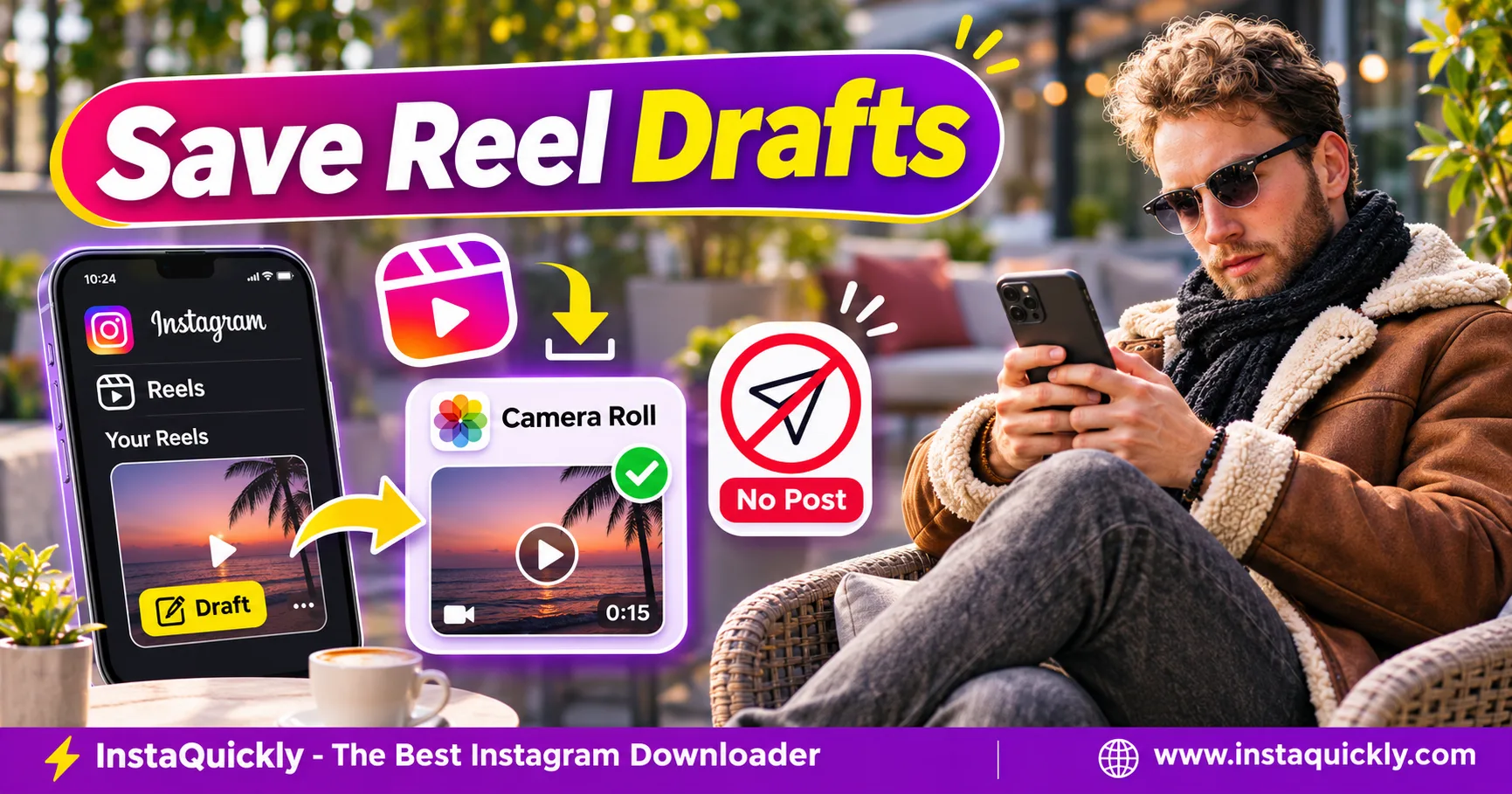
You can save Instagram Reel draft to camera roll without publishing it by opening your draft in Instagram's Reel editor and using the Download or Save video control, when available. The exported video goes to your phone, while the original draft can remain inside Instagram for further editing.
However, music added from Instagram's licensed music library may not appear in the saved video. Drafts are also not reliable cloud backups and may disappear when you uninstall Instagram or change devices.
This guide explains how to export Reel drafts on iPhone and Android, find missing videos, handle audio limitations, and protect your creative work before publishing.
Can You Save an Instagram Reel Draft Without Posting?
Yes. Instagram lets creators keep an unfinished Reel as a draft and, where the editor provides the option, export a video copy without sharing it publicly. Save Draft and Download perform different actions, so choose the correct control for your goal.
What Is the Difference Between Saving a Draft and Downloading It?
Saving a draft preserves your unfinished editing work inside Instagram.
Downloading exports a playable video file to your device.
For example:
- Save Draft: Keep the project for later editing.
- Download: Create a local video copy.
- Share: Publish the Reel.
- Save Post: Bookmark an already published post inside Instagram.
A downloaded MP4 does not normally include an editable Instagram timeline.
Likewise, an Instagram draft does not automatically appear in your Camera Roll.
Can You Export a Reel Before Publishing?
Yes, if the current editing screen offers a Download or Save control.
You do not need to publish the Reel first.
For example, you might export a draft to:
- Review your video outside Instagram.
- Send a permitted preview to a collaborator.
- Keep a backup before updating your phone.
- Check subtitles and video quality.
- Save a version before adding licensed music.
The export may differ from your editing project because certain Instagram-specific audio or effects might not transfer exactly.
Always inspect the finished file.
How to Save Instagram Reel Draft to Camera Roll on iPhone
To save Instagram Reel draft to iPhone, open the draft on the device where you created it, return to the editing or preview screen, and look for the download arrow. Save the exported video, then verify it in Photos or Files.
Button positions may vary by Instagram version.
Step-by-Step: Save a Reel Draft on iPhone
- Open the Instagram app on your iPhone.
- Go to your profile.
- Tap the Reels tab.
- Open Drafts.
- Select the Reel draft you want.
- Tap Edit or return to the preview screen if necessary.
- Look for the Download or downward-arrow icon.
- Tap the download control.
- Review any warning about missing music.
- Confirm the export.
- Open Photos to find the saved video.
- Play the complete file before changing the draft.
If the download control is not visible, check the editor's available menus rather than tapping Share.
Do not publish the Reel just to create a backup.
Where Does the Downloaded Reel Go on iPhone?
A successful export normally appears in the Photos library.
If you cannot find it:
- Check Photos > Recents.
- Look in the Videos media category.
- Check the date of the latest export.
- Review Instagram's Photos permissions.
- Check available iPhone storage.
A video saved through a browser may appear in Files > Downloads instead.
That is different from the native Instagram draft export workflow.
If your iPhone reports an error, do not delete the original draft until you have verified a working backup.
How to Save an Instagram Draft to Android Gallery
To save Instagram draft to Android gallery, open your Reel draft, find the editing screen, and select its Download or Save video command when available. After export, look in Gallery, Google Photos, or your phone's file manager.
The exact menus depend on Android version and device manufacturer.
Step-by-Step: Download a Reel Draft on Android
- Open Instagram.
- Go to your profile.
- Open the Reels tab.
- Tap Drafts.
- Select the draft you want to save.
- Return to the editing or preview screen.
- Find the Download icon or available save command.
- Tap it to export your video.
- Confirm any warning about music.
- Open Gallery or Google Photos.
- Find the latest video.
- Play it and confirm that the export is complete.
Do not confuse the Instagram Save Draft button with a local video download.
If Instagram does not offer a download option in your current editor, use your original source files or an external editing project where possible.
Why Isn't the Saved Reel Showing in Gallery?
The exported file may exist even if Gallery does not show it immediately.
Check:
- Google Photos.
- Your default Gallery app.
- Files or My Files.
- Movies or Downloads folders.
- Media permissions.
- Available storage.
Some Android gallery applications take time to index new files.
If Files can play the video but Gallery cannot find it, the issue may involve media indexing rather than export failure.
Avoid clearing Instagram's app storage while troubleshooting because that can delete local drafts.
Where Are Instagram Reel Drafts Stored?
Where are Instagram Reel drafts stored? Drafts generally remain on the device where you created them, inside Instagram's local app data. They are not ordinary MP4 files in your public Downloads folder and should not be treated as cloud-synced backups.
This is why exporting your video matters.
Can You Find Reel Drafts on Another Phone?
Usually not.
Signing into the same Instagram account on a different phone does not automatically transfer the original draft projects.
For example, a Reel created on your old iPhone may not appear in Drafts on your new Android device.
The account is the same, but the local draft data is different.
Export your finished video and preserve the original recording files before moving to another device.
Will Uninstalling Instagram Delete Drafts?
Yes, uninstalling Instagram can remove locally stored Reel drafts.
Clearing app data or resetting your phone can create similar risks.
Before performing these actions:
- Export important drafts.
- Check the exported videos.
- Back up original camera footage.
- Save separate audio recordings.
- Preserve cover images.
- Keep a copy of your editing projects.
Do not assume that an ordinary cloud backup will restore every Instagram draft.
The safest approach is to keep a separate video master outside Instagram.
Draft vs Export vs Published Reel Comparison
| Feature | Instagram Draft | Camera Roll Export | Published Reel |
|---|---|---|---|
| Publicly visible | No | No | Based on audience settings |
| Stored in Instagram editor | Yes | No | Not as the original draft |
| Editable timeline | Yes | No | Not as original project |
| Saved as local video file | Not normally | Yes | Requires separate download |
| Works offline | App-dependent | Yes | Requires saved media |
| Survives Instagram uninstall | Not guaranteed | Normally, if stored separately | Published content remains account-based |
| Licensed music included | May play in editor | Not guaranteed | Depends on platform and licensing |
| Good backup for original footage | No | Partial | No |
A local export gives you more protection than a draft alone, but it does not replace your original project files.
Why Does an Instagram Reel Draft Download Without Music?
An Instagram Reel draft download without music often happens because Instagram does not include licensed tracks from its music library in camera-roll exports. Your original recorded audio may remain, but the selected Instagram song can disappear.
This is a licensing limitation, not necessarily a broken download.
What Audio Can Remain in a Draft Export?
Audio behavior depends on the source and export workflow.
Common cases include:
- Original camera audio: Often remains when included in the video.
- Your voiceover: May remain if the editor renders it into the export.
- Music from Instagram's library: May be omitted.
- Audio muted in the editor: Can produce a silent export.
- An imported original soundtrack: Depends on how the project stores and exports it.
Always play the downloaded video to confirm what is present.
Do not assume that every audio layer will export exactly as it sounds inside Instagram.
Can You Save a Reel Draft with Licensed Music?
You should not expect a native draft export to preserve music from Instagram's licensed library.
If you need a reusable master video, use audio you own or have permission to distribute.
For example:
- Open your original editing project.
- Check that your soundtrack is licensed for the intended export.
- Export the video with permitted audio.
- Save the master MP4.
- Add Instagram-specific licensed music inside Instagram when publishing.
This keeps your reusable source separate from platform-specific music.
Does Converting the MP4 Restore Missing Music?
No. Converting a silent MP4 into another media format cannot recreate an audio track that was not included.
Changing from H.264 to H.265 also does not restore music.
Similarly, increasing audio bitrate does nothing when the file contains no soundtrack.
If you need an authorized audio version, return to your original recording or editing project.
For silent visual loops, read how to convert Instagram Reels into GIFs.
GIF has no audio support, so it is suitable only when sound is unnecessary.
Instagram Draft Export: MP4 Format, Resolution and Quality
A Reel draft export generally creates a playable video file, commonly MP4, but exact codec, resolution, frame rate, and bitrate depend on the available export workflow. The file may not match the quality of your original camera footage.
Inspect the saved video rather than relying on its filename.
What Format Does a Reel Draft Use?
MP4 is a common video container.
It can contain:
- H.264/AVC or another supported video codec.
- AAC or another audio codec.
- Frame timing and metadata.
- Encoded video resolution.
However, MP4 does not guarantee that every export uses the same codec settings.
For your own editing workflow, H.264 with AAC in MP4 is often a practical compatibility choice.
Instagram Draft Export Quality Comparison
| Setting | Common Practical Choice | What It Affects |
|---|---|---|
| Aspect ratio | 9:16 | Vertical Reel framing |
| Resolution | 1080 × 1920 when supported | Pixel detail |
| Video format | MP4 | Container compatibility |
| Video codec | H.264/AVC for broad support | Decoding and compression |
| Audio codec | AAC when present | Audio playback |
| Frame rate | Preserve source where practical | Motion smoothness |
| Video bitrate | Depends on source and encoder | File size and visual quality |
| Licensed music | Not guaranteed in export | Soundtrack availability |
| Editable layers | Not retained as project layers | Future editing flexibility |
These are creator recommendations, not guaranteed Instagram draft export specifications.
Does Exporting a Draft Reduce Video Quality?
It can.
An editor may compress or resize the video during export.
For example, a 4K original recording may produce a smaller 1080p MP4.
That does not mean the export failed.
However, the smaller file may contain less detail than the original.
For your own videos, keep the highest-quality camera source and project file.
For more about vertical framing, read why Instagram Reel videos show cropped edges.
Why Can't I Download My Instagram Reel Draft?
If you cannot download Instagram Reel draft content, check whether the draft opens correctly, the editor provides a download command, and your phone has enough storage. The export control may vary between Instagram versions and editing screens.
Do not uninstall the app as your first troubleshooting step.
What If the Download Button Is Missing?
Try this sequence:
- Open the draft from your Reels tab.
- Return to the editing or preview screen.
- Check the available toolbar icons.
- Look for Download or Save video.
- Confirm that the draft contains playable media.
- Check that Instagram is updated.
- Review Photos or media permissions.
- Check available device storage.
- Restart Instagram without clearing its data.
- Try the available export command again.
Some controls may differ by account, device, or app version.
If you cannot export directly, use your original video source or external editing project.
What If the Draft Disappears?
First, confirm that you are using the phone where you created it.
Then check the Reel Drafts section again.
If you recently uninstalled Instagram, cleared app data, or reset the device, the draft may be permanently lost.
A previously exported MP4 may still exist in Photos or Gallery.
However, that file does not restore the original Instagram editing timeline.
Keep your creative work backed up before making app or device changes.
Can InstaQuickly Download an Unpublished Draft?
No. An unpublished Reel draft is not a public Reel URL that an ordinary public-media downloader can retrieve.
InstaQuickly cannot access your private local Instagram draft project.
Once you publish a Reel and the content is publicly accessible, you can check the Instagram Reels downloader for published videos for available media.
For supported ordinary public video posts, the Instagram video downloader for public posts provides a separate workflow.
These tools do not replace Instagram's native draft export feature.
How Should Creators Back Up Reels Before Publishing?
The safest workflow is to keep your original footage, an editable project, and a playable master video outside Instagram. Use Instagram drafts for temporary editing convenience rather than as your only copy of important content.
This reduces the risk of losing work during device changes.
What Is the Best Draft Backup Workflow?
- Record your original footage.
- Save the camera files to a dedicated folder.
- Edit the Reel in your preferred editor.
- Save the editable project.
- Export a high-quality video master.
- Keep licensed music rights and audio sources organized.
- Import the video into Instagram.
- Add platform-specific effects or music.
- Save an Instagram draft if more editing is needed.
- Export a preview copy when available.
- Verify the video before publishing.
- Back up the original project and master separately.
A local MP4 is useful for review and reuse.
However, it does not contain all the editing controls of your project.
Is a Separate Video Editing App Better for Backups?
A dedicated editing application can give you more control over project files and exports.
Meta's Edits app, for example, supports video project management and high-quality exports without requiring publication to Instagram.
Meta describes these capabilities in its official introduction to the Edits app.
This is different from exporting a draft inside the Instagram app.
Use a workflow that gives you a verified local video file before relying on a social platform draft.
Should You Keep Subtitles and Cover Images Separately?
Yes.
Your published Reel may contain a cover image, text overlays, and captions that you will want to revise later.
A flattened MP4 does not preserve those elements as separately editable layers.
Keep:
- The original cover design.
- Subtitle files, if available.
- Voiceover recordings.
- Licensed soundtrack information.
- The final master MP4.
For caption-specific export limits, read why Instagram Reel subtitles may disappear.
This helps you avoid losing important accessibility or editing work.
Frequently Asked Questions About Saving Instagram Reel Drafts
Can I save an Instagram Reel draft to my camera roll without posting?
Yes. Open your own Reel draft in the Instagram editor and use the Download or Save video control when available.
This exports a local video without publishing the Reel.
How do I save an Instagram Reel draft on iPhone?
Open Instagram, go to Profile > Reels > Drafts, select your draft, and return to the editing or preview screen.
Tap Download when available, then check Photos for the exported video.
How do I save an Instagram draft to Android Gallery?
Open the Reel draft, find the editing screen, and use the available download command.
Check Gallery, Google Photos, or Files after exporting. Menu locations may vary by device.
Why does my downloaded Reel draft have no music?
Music from Instagram's licensed music library may not be included in draft exports.
Use the original editing project and an appropriately licensed soundtrack when you need a reusable video master.
Where are Instagram Reel drafts stored?
Reel drafts generally remain in Instagram's local app data on the phone where you created them.
They do not automatically sync as editable projects to other phones.
Will I lose Reel drafts if I uninstall Instagram?
Yes, uninstalling Instagram can remove drafts stored on that device.
Export important videos and back up original recordings before deleting or reinstalling the app.
Can I use InstaQuickly to save an unpublished Reel draft?
No. Public Reel downloaders cannot access unpublished drafts stored inside your Instagram app.
Use Instagram's native export option or your original editing project.
Does saving a Reel draft create a normal MP4 file?
Not necessarily. Save Draft keeps an editable project inside Instagram.
Use Download or Save video to create a local playable export when the feature is available.
Conclusion: Export Your Reel Before Publishing
To save Instagram Reel draft to camera roll, open the draft in Instagram's editor and select Download or Save video when available. The exported file lets you review or back up your work without publishing the Reel.
Remember that licensed Instagram music may be missing, and local drafts can disappear after uninstalling the app or changing devices.
For the most reliable creator workflow, preserve your original clips, editable project, soundtrack permissions, and master MP4 outside Instagram.
Use Instagram's draft export for unpublished work. Use InstaQuickly only for supported publicly accessible media after publication.
Save and export your own Reels or content you have permission to use. Respect music licensing, copyright, and other creators' rights before sharing or reusing media.
InstaQuickly is an independent service and is not affiliated with or endorsed by Instagram or Meta.