
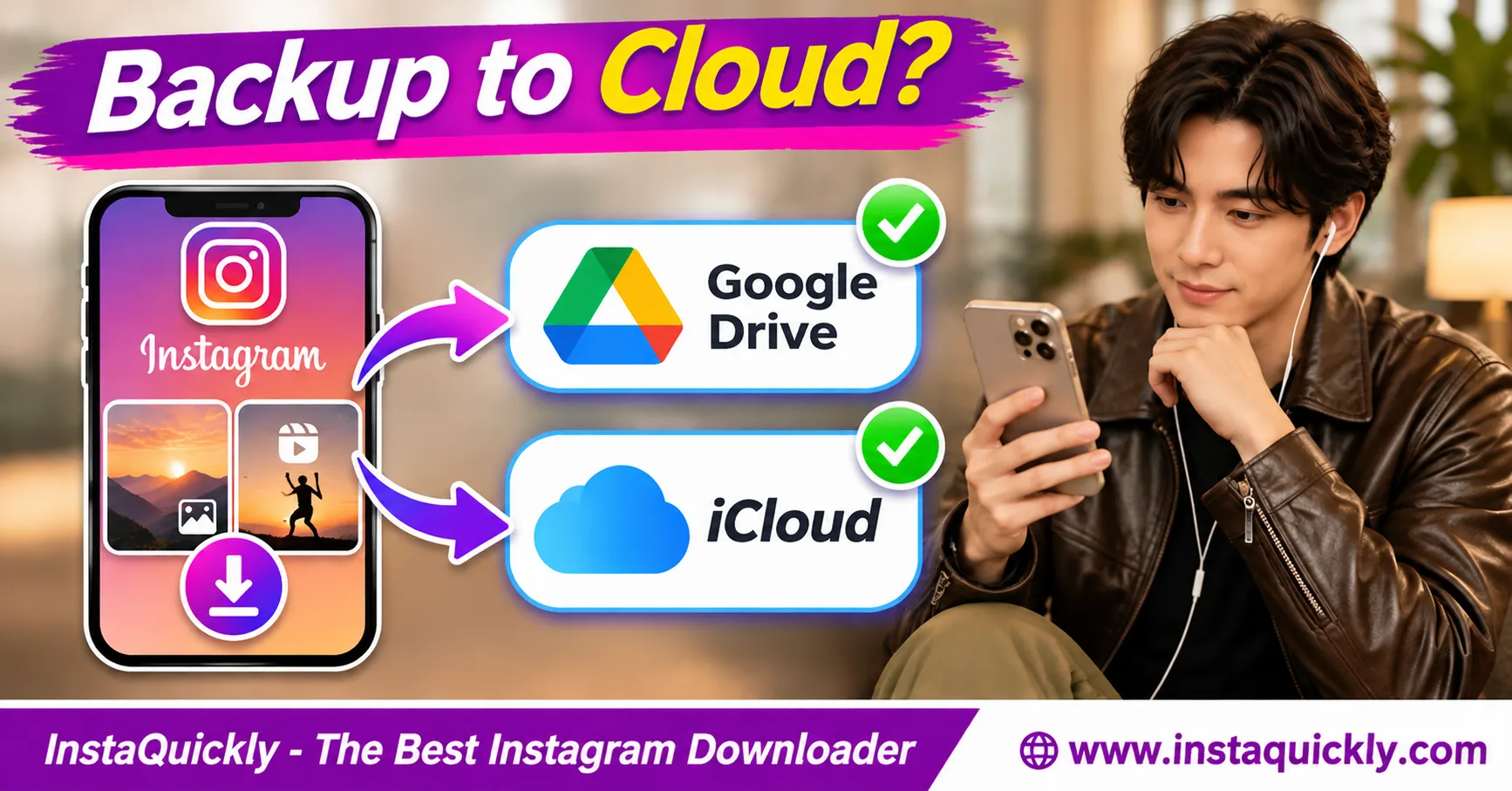
To save Instagram photos to Google Drive, first save an authorized photo or video to your device. Open Google Drive, select New or Add, choose Upload, and select the file. Once the upload finishes, check that you can open it from your cloud storage.
You can follow a similar process for Instagram Reels, using MP4 files. On iPhone, iCloud Drive provides another option through the Files app. Google Photos and iCloud Photos offer photo-library syncing instead of ordinary file-folder storage.
This guide explains how to back up Instagram downloads on iPhone, Android, and computers, organize folders, manage storage, and avoid losing important media.
What Is the Best Way to Back Up Instagram Photos and Reels?
The best method depends on what you want to protect. Use Google Drive or iCloud Drive for organized JPG and MP4 files. Use Google Photos or iCloud Photos for convenient photo-library access, and keep an additional independent copy of important original content.
Google Drive vs Google Photos vs iCloud
| Feature | Google Drive | Google Photos | iCloud Drive | iCloud Photos |
|---|---|---|---|---|
| Store JPG photos | Yes | Yes | Yes | Yes |
| Store MP4 videos | Yes | Yes | Yes | Yes |
| Create custom file folders | Yes | Albums, not ordinary folders | Yes | Albums, not ordinary folders |
| Automatic photo backup or sync | Not its main workflow | Yes, when enabled | File syncing | Yes, when enabled |
| Manual upload support | Yes | Yes | Yes | Yes, through photo library |
| Best for file organization | Yes | No | Yes | No |
| Works on iPhone | Yes | Yes | Yes | Yes |
| Works on Android | Yes | Yes | Via web, with limitations | Via web, with limitations |
| Independent archive by default | No | No | No | No |
Google Photos and iCloud Photos manage photo libraries. They are not the same as putting separate copies into a folder named "Instagram Backups."
Is Cloud Sync the Same as a Backup?
No. Sync keeps files or library changes updated across connected devices.
For example, deleting an item from a synchronized cloud library can also remove it from other devices.
An independent backup is a separate copy that you can recover even if you accidentally delete or change the main file.
For important content, use both:
- A convenient cloud service.
- A separate backup on another drive or service.
Verify both copies before removing the originals.
How to Save Instagram Photos and Reels to Google Drive
To upload Instagram downloads to cloud storage with Google Drive, download the permitted media first, then upload the JPG, WebP, or MP4 file. Google Drive stores the file without requiring you to publish it again.
Step 1: Save the Instagram Media to Your Device
- Open the public Instagram photo or Reel.
- Confirm that you have permission to save it.
- Tap Share and select Copy Link.
- For pictures, open the Instagram photo downloader for public images.
- For Reels, use the Instagram Reels downloader for public videos.
- Paste the corresponding post URL.
- Review the available file.
- Download the supported media.
- Find the file in Photos, Gallery, or Downloads.
- Open it to confirm that it works.
InstaQuickly supports browser-based downloads for accessible public media without requiring Instagram login.
It does not provide guaranteed access to private content or original camera masters.
Step 2: Upload Instagram Downloads to Google Drive on Android
- Open the Google Drive app.
- Sign in to the correct Google account.
- Tap New, then Upload.
- Browse your phone's files.
- Open Downloads, Pictures, or the relevant folder.
- Select the Instagram photo or Reel.
- Allow the upload to finish.
- Open My Drive.
- Move the file into your preferred backup folder.
- Open the uploaded file to verify it.
For Instagram downloads Google Drive Android workflows, the file manager is often the easiest place to locate downloaded MP4 files.
If your gallery shows the video but Drive cannot find it, check whether the file is stored in another device folder.
Step 3: Upload Instagram Files to Google Drive on iPhone
- Install or open Google Drive.
- Sign in to your Google account.
- Tap Add, then File upload.
- Select the photo or video from the available picker.
- Choose the desired Drive folder.
- Confirm the upload.
- Wait until it completes.
- Open the file from Google Drive.
- Check the image or video quality.
If the downloaded media is in Files, select it from the relevant folder.
If it is in Photos, use an available photo-selection or sharing workflow.
The exact picker options can vary by app version.
Step 4: Upload Multiple Files on a Computer
- Open Google Drive in your browser.
- Sign in.
- Create an Instagram Backup folder.
- Open the folder.
- Select New.
- Choose File upload or Folder upload.
- Select your downloaded media.
- Wait for all uploads to complete.
- Review the filenames.
- Open several files to verify them.
You can also organize your local files before uploading the entire folder.
This is useful for large collections or regular creator backups.
How to Save Instagram Videos to iCloud on iPhone
To save Instagram videos to iCloud, first decide whether you want the video in iCloud Photos or iCloud Drive. Save it to Photos for library syncing, or place the MP4 inside iCloud Drive for folder-based file storage.
How Do You Save an Instagram Video to iCloud Drive?
- Open Settings on your iPhone.
- Tap your Apple Account name.
- Open iCloud, then Drive.
- Turn on syncing for this iPhone if necessary.
- Open the Files app.
- Find the downloaded MP4 under On My iPhone or Downloads.
- Long-press the file.
- Choose Copy, or use the available file-move controls.
- Open iCloud Drive.
- Create or open your Instagram Backup folder.
- Paste or copy the file into that folder.
- Wait for syncing to complete.
- Open it again from iCloud Drive.
This Instagram video iCloud Drive iPhone workflow keeps files organized independently from the Photos library.
Check the available iCloud storage before uploading large video collections.
Can You Use iCloud Photos Instead?
Yes. If the Instagram photo or video is in your iPhone Photos library, iCloud Photos can sync it when enabled.
However, iCloud Photos is a synchronized library.
Deleting a synced photo in one location can also delete it elsewhere.
If you want a separate archive, copy important files to another storage location.
Do not assume that simply enabling iCloud Photos creates an independent permanent backup.
What About Google Drive on iPhone?
Google Drive works on iPhone as well as Android.
You can use Drive to store media from Files or your photo library, depending on the available upload interface.
This can be useful if you use both Apple and Android devices.
Choose the service that makes restoring your files easiest.
How to Save Instagram Photos to Google Photos
To save Instagram photos to Google Photos, place the authorized image or video in your phone's photo library, then enable or manually perform backup in Google Photos. Unlike Google Drive, Google Photos organizes content through its media library rather than ordinary file folders.
How Do You Back Up Instagram Photos on Android?
- Open Google Photos.
- Sign in to your Google account.
- Open Photos settings.
- Select Backup.
- Turn on Backup if desired.
- Open Back up device folders.
- Find the folder containing Instagram downloads.
- Enable backup for that folder.
- Wait for the selected media to upload.
- Check that the backup is complete.
This is helpful when your downloaded images are stored in a dedicated device folder.
Do not turn on backup for every folder unless that matches your privacy and storage preferences.
How Do You Back Up Instagram Reels on iPhone?
- Save the video to Photos.
- Open Google Photos.
- Sign in to the desired Google account.
- Allow the required Photos access.
- Open Photos settings, then Backup.
- Enable Backup if appropriate.
- Keep Google Photos open when needed for uploading.
- Check the backup status.
- Confirm that the video appears in Google Photos.
- Test playback.
This workflow can store Instagram Reels online without placing them manually into Google Drive folders.
However, a cloud photo library should not be your only backup of valuable original projects.
Do Google Photos and Drive Use Separate Storage?
Google Photos and Google Drive are different services, but their stored data generally counts toward the Google account's shared storage allowance.
For example, uploading the same 30 MB MP4 separately to Drive and Google Photos can consume storage in both places.
Avoid unnecessary duplicates when planning a large collection.
Keep independent backup copies deliberately rather than uploading the same media repeatedly without tracking it.
How Much Cloud Storage Do Instagram Downloads Need?
Instagram media cloud storage depends on how many files you keep and their actual sizes. Reel duration, video bitrate, resolution, and codec all influence MP4 storage. Photos are usually smaller, but their sizes also vary.
Instagram Cloud Storage Comparison
| Media Collection | Assumed Average File Size | Number of Files | Estimated Storage |
|---|---|---|---|
| Instagram photos | 2 MB | 100 | 200 MB |
| Instagram photos | 4 MB | 500 | 2 GB |
| Short Reels | 15 MB | 100 | 1.5 GB |
| Longer Reels | 30 MB | 100 | 3 GB |
| Mixed photos and Reels | 10 MB | 500 | 5 GB |
| Large Reel archive | 40 MB | 500 | 20 GB |
These are illustrative estimates, not official Instagram file sizes.
Actual storage depends on the downloaded files and any additional copies.
Why Does Bitrate Matter More Than Resolution Alone?
Bitrate controls how much encoded video data a file uses over time.
A 1080p Reel at a low bitrate may be smaller than a 720p Reel at a higher bitrate.
To estimate a video file:
File size (MB) ≈ Total bitrate (Mbps) × Duration (seconds) ÷ 8
For example, 4 Mbps video plus 128 kbps audio over 60 seconds produces approximately 31 MB.
For more detailed calculations, read how Instagram Reel bitrate affects storage.
Should You Compress Files Before Uploading?
Only when storage savings matter more than preserving the current quality.
Re-encoding an already compressed MP4 may reduce sharpness, especially around text and fast movement.
For personal archives, keep the best available original files when practical.
For smaller sharing versions, make separate copies.
Do not replace your only high-quality source with a heavily compressed export.
How to Organize and Verify an Instagram Cloud Backup
A reliable Instagram photo video backup workflow includes clear folders, useful filenames, and verification after uploading. This makes it easier to find content later and reduces the chance of mistaking an incomplete file for a successful backup.
How Should You Organize Instagram Downloads?
A simple folder structure works well:
Instagram-Backup/
Photos/Reels/Stories/Originals/Notes/
Within these folders, group content by year or project when helpful.
Use filenames such as:
2026-11-travel-photo-01.jpg
2026-11-travel-reel-01.mp4
Avoid including private information in filenames when the folder might be shared.
For important content, save the original post URL and any necessary permission records in a separate note.
How Do You Verify the Uploaded Files?
- Confirm that the upload has completed.
- Open the correct cloud account.
- Navigate to the destination folder.
- Check the filenames.
- Compare the local and cloud file sizes.
- Open an image.
- Play a video from beginning to end.
- Check its sound and picture.
- Download a test copy when practical.
- Keep another independent backup for important files.
A file appearing in a folder does not always prove that every transfer finished correctly.
Check the content before deleting local originals.
What If an Instagram Download Is Not a Real Video?
A file ending in .html or .bin may not be an ordinary MP4.
It could contain an error page, unidentified binary data, or an incomplete response.
Uploading the wrong file to Google Drive does not fix it.
Before making a cloud copy, read how to identify incorrect Instagram video files.
Verify the actual content, not just the filename.
Can You Back Up Your Own Instagram Account Data?
Yes. Instagram offers an account-data download and transfer workflow through Meta's Accounts Center.
This is particularly useful for your own published content rather than manually saving individual public posts.
Meta explains these features in its official guide to downloading Instagram information.
The exact options and supported destinations can change, so review the available settings before starting a transfer.
An Instagram account export and a collection of manually downloaded JPG or MP4 files are not necessarily identical.
Common Cloud Backup Problems and Limitations
If an Instagram upload fails, check internet connectivity, available cloud storage, app permissions, and whether the local file is complete. Problems with cloud storage do not always mean the original download is damaged.
Why Is My Upload Stuck or Incomplete?
Possible causes include:
- Weak internet connection.
- Large video files.
- Insufficient cloud storage.
- Upload restrictions over mobile data.
- Missing photo-library permissions.
- Background app limitations.
- An incomplete local file.
Try a stable Wi-Fi connection and check your cloud app's upload status.
For very large collections, transfer smaller groups and verify each batch.
Why Did My Instagram Photo Disappear from the Cloud?
The file may have been moved, deleted, or stored in a different account.
Check the current account, folder location, and available trash or recently deleted area.
Remember that synchronized libraries can apply deletions across connected devices.
Do not delete media from Google Photos or iCloud Photos just to free local space without understanding the service's deletion behavior.
Use the service's supported device-storage management features instead.
Can Cloud Backup Preserve Instagram Drafts and Editing Projects?
Not automatically.
A downloaded MP4 is usually a playable video, not the complete editable Instagram project.
If you created a Reel draft, export an available video copy and preserve your original editing files separately.
Read how to back up unpublished Reel drafts for a safer creator workflow.
Do not assume a video saved in Google Drive contains every editable Instagram effect, audio layer, or draft setting.
Frequently Asked Questions About Instagram Cloud Backups
How do I save Instagram photos to Google Drive?
Download an authorized image to your device, open Google Drive, choose Upload, and select the file.
After the upload finishes, open the image from Drive to verify it.
Can I back up Instagram Reels to Google Drive?
Yes. Save a supported Reel MP4, then upload it to Google Drive.
Organize videos in folders and check that playback works after uploading.
Can I save Instagram videos to iCloud?
Yes. Use iCloud Drive through the Files app or enable iCloud Photos for videos stored in your photo library.
These workflows have different file-management and syncing behaviors.
Is Google Photos better than Google Drive for Instagram pictures?
Google Photos is convenient for browsing and backing up a photo library.
Google Drive offers more direct control over ordinary folders and file organization.
Choose based on your goal.
Will Google Drive reduce Instagram video quality?
Uploading a file to Google Drive does not normally re-encode the stored source file.
However, a streaming preview may look different. Download the file again to compare its actual contents.
Can I automatically back up Instagram downloads on Android?
Google Photos can back up selected device folders when enabled.
Google Drive's ordinary file-upload workflow is different and should not be assumed to watch every download folder automatically.
How much storage do 100 Instagram Reels need?
Multiply the average size by 100.
For example, 100 files averaging 30 MB require approximately 3 GB, excluding duplicates or additional backups.
Is iCloud Photos a safe replacement for a separate backup?
Not completely. iCloud Photos synchronizes your library, including some changes and deletions.
Keep an independent backup of important original files in another location.
Conclusion: Build a Reliable Instagram Cloud Backup
To save Instagram photos to Google Drive, download permitted media, upload it to a suitable folder, and verify that the file opens correctly. Use the same process for Reel MP4 files.
Google Photos and iCloud Photos are convenient for photo-library syncing, while Google Drive and iCloud Drive provide more direct folder organization.
Plan storage according to actual file sizes, keep captions or source links when useful, and avoid deleting your only local copy before confirming the cloud upload.
For valuable creator work, maintain a separate backup of original footage and editable projects.
Save Instagram media only for permitted personal research, education, or other authorized uses. Obtain the required rights before uploading, sharing, republishing, or commercially using another creator's protected material. Keep private files in appropriately protected cloud folders.
InstaQuickly is an independent service and is not affiliated with or endorsed by Instagram or Meta.